1 - Create a new Scratch project
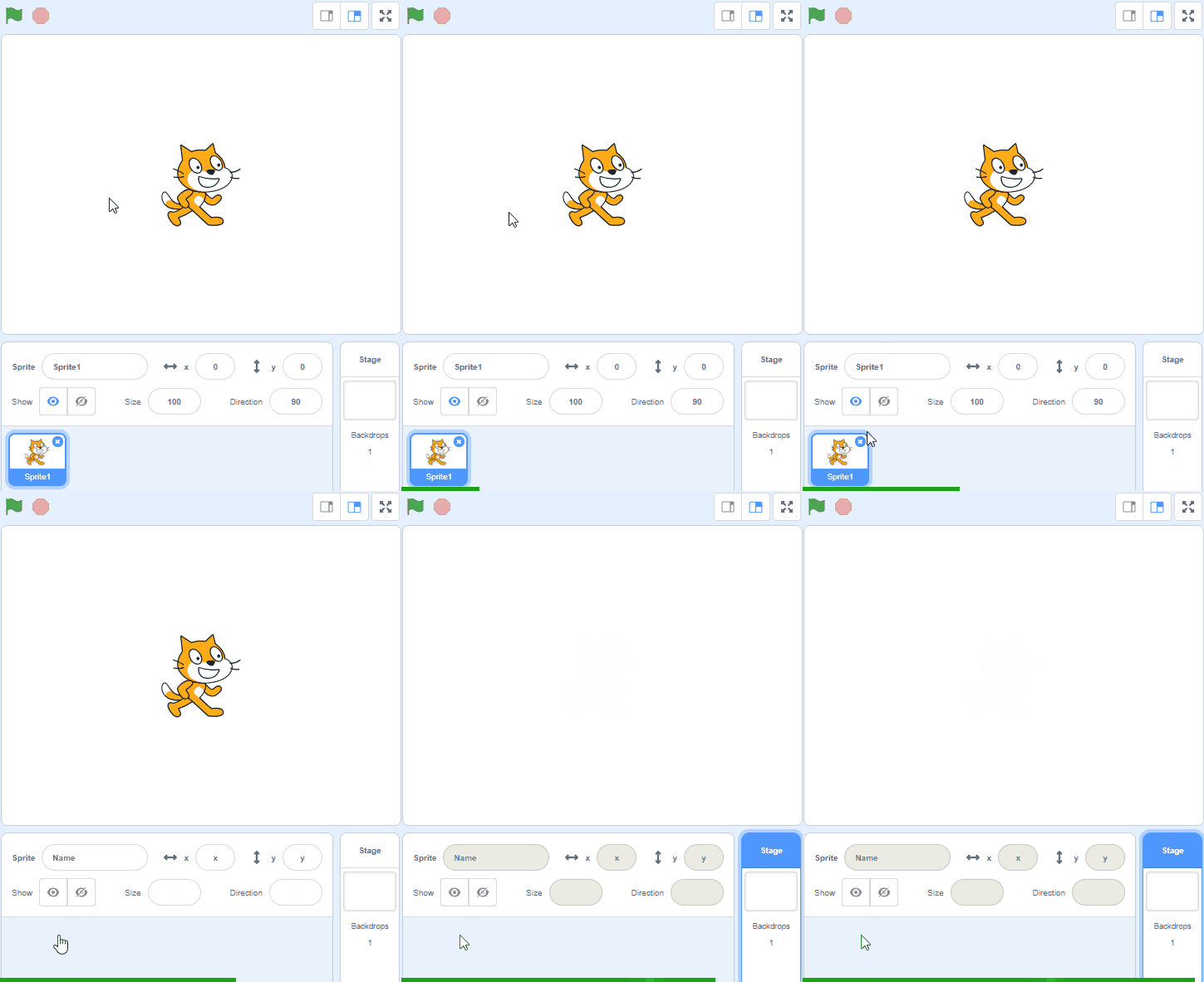
Create a new Scratch project and delete the cat sprite.
Go to the Scratch website using the link below and click on the 'Create' link in the blue bar at the top.
By default, each new project starts with the cat sprite already added. To delete the cat click on the x in the blue circle beside the cat in the sprite list.
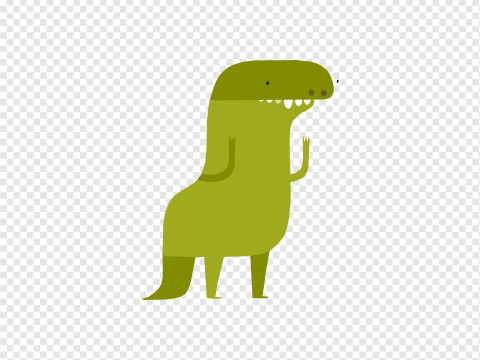
2 - Add the Dinosaur4 sprite from the library.
Change it's size to 50% in the Sprite properties and then add the following code to the dino sprite:
when green flag clicked
set rotation style [left-right v] // this is important for when we make it move left and right later
go to x [0] y [140] // place it at the top center at the start
go to [front v] layer // make it appear over the ground sprite
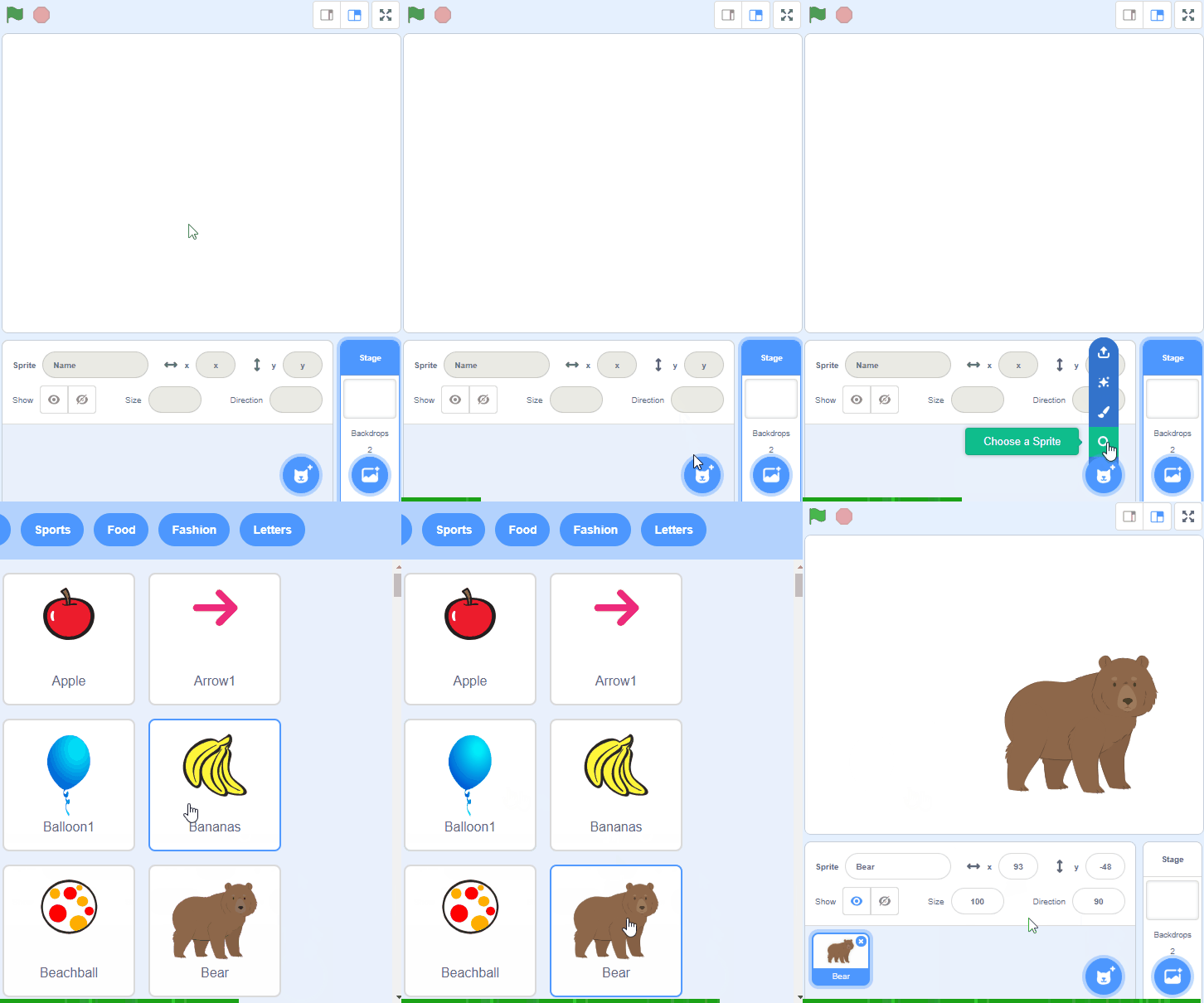
To add a sprite from the sprite library follow these steps:
- Put your mouse over the Choose a Sprite button
- Click on the magnifying glass
- Find the sprite you want in the library
- Click on your chosen sprite
You can use search box or the filter links (Animals, People, Fantasy etc) to locate your sprite.
3 - Draw the 'ground' sprite
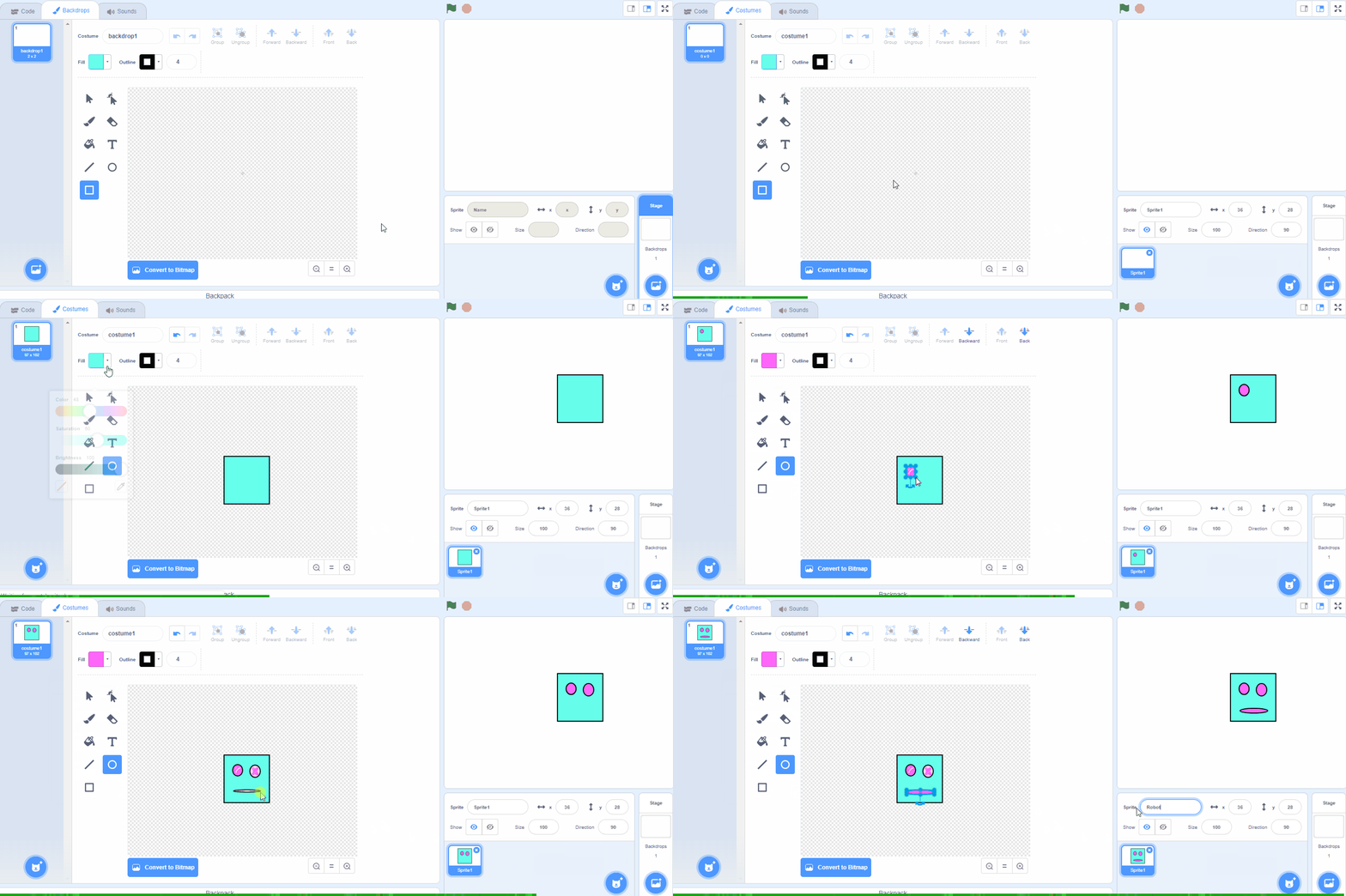
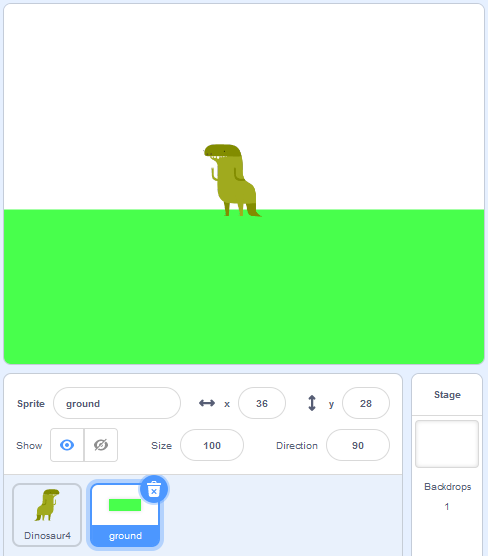
Use the sprite editor to draw a 'ground' sprite. Use the Rectangle tool to draw a green box and drag it so it covers the bottom half of the stage area.
Rename this sprite to 'ground' in the sprite properties.
You can create your own sprites using the sprite editor. To create a new sprite put your mouse over the Choose a Sprite button and then click on the paintbrush.
This create a blank sprite and will open the sprite editor where you can use the tools to create your sprite. You can even create extra costumes for your sprite!
Tip: give your sprite a name so that you can recognise it in the code blocks.
4 - Create a 'gravity' variable and make the dino fall
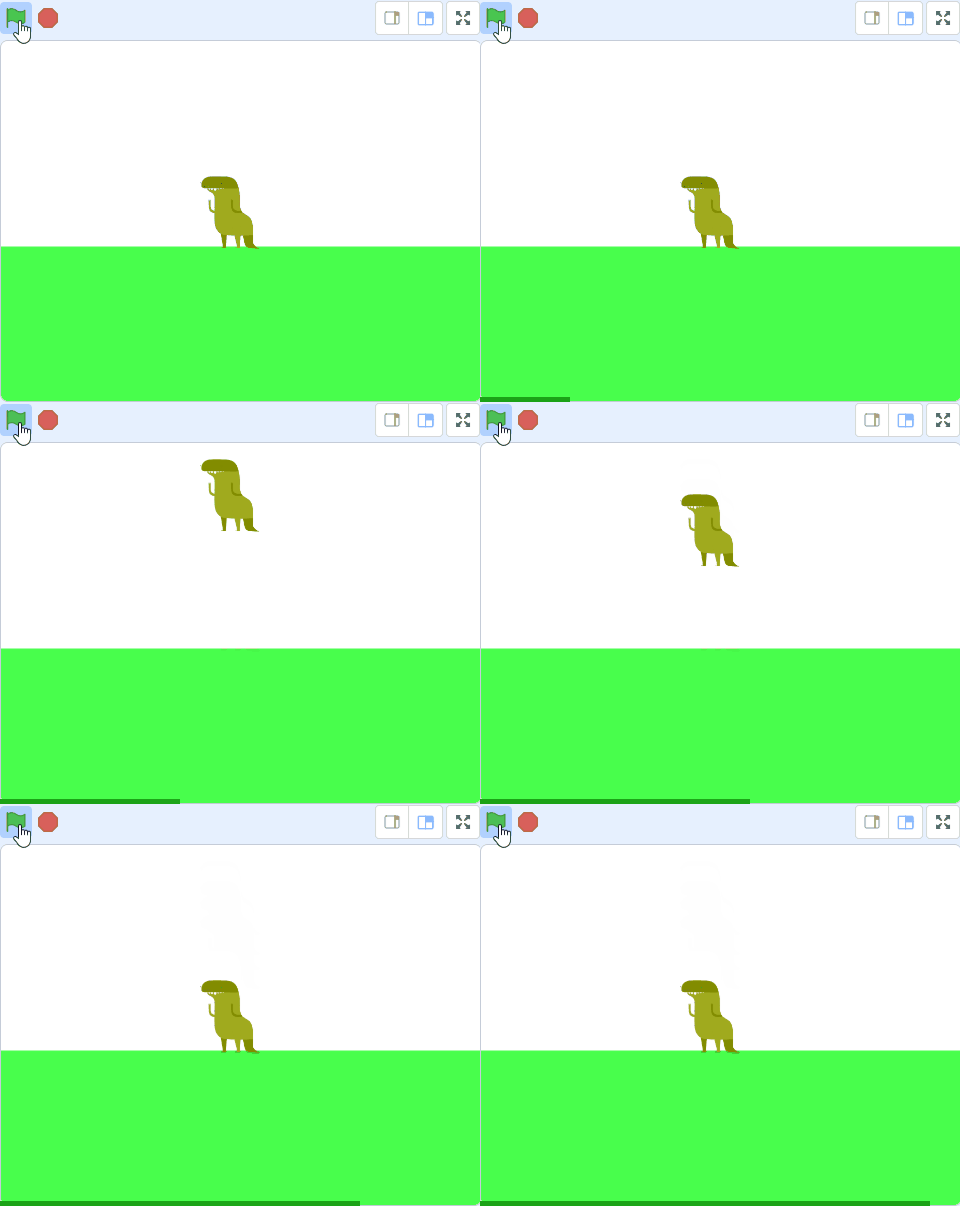
Create a variable called 'gravity' and then add the below code. This code makes the dino fall if it's not touching the ground.
when green flag clicked
set rotation style [left-right v]
go to x [0] y [140]
go to [front v] layer // add the new code under here
set [gravity v] to (0)
forever
if < not < touching (ground v) ?> > then
change y by (gravity)
change [gravity v] by (-1)
end
end
5 - Make the dino jump
We're going to program the space bar key to make the dino jump but the dino should only be able to jump if it's touching the ground (you can't jump in mid-air!!).
Add the following code to the dino:
when green flag clicked
forever
if < < key (space v) pressed? > and < touching (ground v) ? > > then
set [gravity v] to (10) // make them go up
change y by (10) // move it so it's not touching the ground
end
end
If you're using a tablet or iPad without a physical keyboard, you won't be able to use keyboard keys like the arrow keys in your project. Instead, we'll add simple on-screen buttons (using sprites) that you can tap to do the same things. This keeps your project working great! Just follow these steps wherever the lesson talks about pressing a key.
First, add a new sprite for your button:
- Click the "Choose a Sprite" button in the bottom right.
- Pick a simple shape, like an arrow or a circle. Make it small and place it on the screen where it's easy to tap, like the bottom corner.
Now, program your button sprite to make things happen when you tap it. Here's how it works for different situations:
Example 1: If the lesson uses a key to trigger an action on a specific sprite (like making something move, turn, or jump)
Instead of code like this on your target sprite:
when [left arrow v] key pressed
change x by (-10)  // or any action
Or this:
if < key [left arrow v] pressed? > then
change x by (-10)  // or any action
end
Add this code to your new button sprite:
when this sprite clicked
broadcast [do action v]
Then, on your target sprite, add this to receive the message:
when I receive [do action v]
change x by (-10)  // or any action
Tap the button on the screen, and the action will happen, just like pressing the key! Use a unique broadcast name for each different action or key.
Example 2: If the lesson uses a key to change a variable (like adding to a score or setting a value)
Instead of code like this:
when [space v] key pressed
change [score v] by (1)
Or this:
if < key [space v] pressed? > then
change [score v] by (1)
end
Add a new button sprite. Then, put this code on the button sprite:
when this sprite clicked
change [score v] by (1)
(If the variable is "for this sprite only," make sure it's set to "for all sprites" so the button can change it.)
Tap the button, and the variable changes, no message needed since it's something shared!

Join our club 😃
To view the remaining 2 steps and access hundreds of other coding projects please login or create an account.
This lesson is copyright of Coding Ireland. Unauthorised use, copying or distribution is not allowed.
Scratch is developed by the Lifelong Kindergarten Group at the MIT Media Lab. It is available for free at https://scratch.mit.edu