1 - Introduction
 In this lesson, you will learn straightforward steps to identify and fix common device issues.
- Check basic settings such as power, volume, Wi-Fi, and cables.
- Restart apps or devices to clear temporary glitches.
- Verify internet connections and test other sites.
- Handle slow performance, frozen screens, sound, and display problems.
- Read error messages carefully for clues.
- Decide when to ask for help and how to describe the issue clearly.
2 - What Is Troubleshooting?
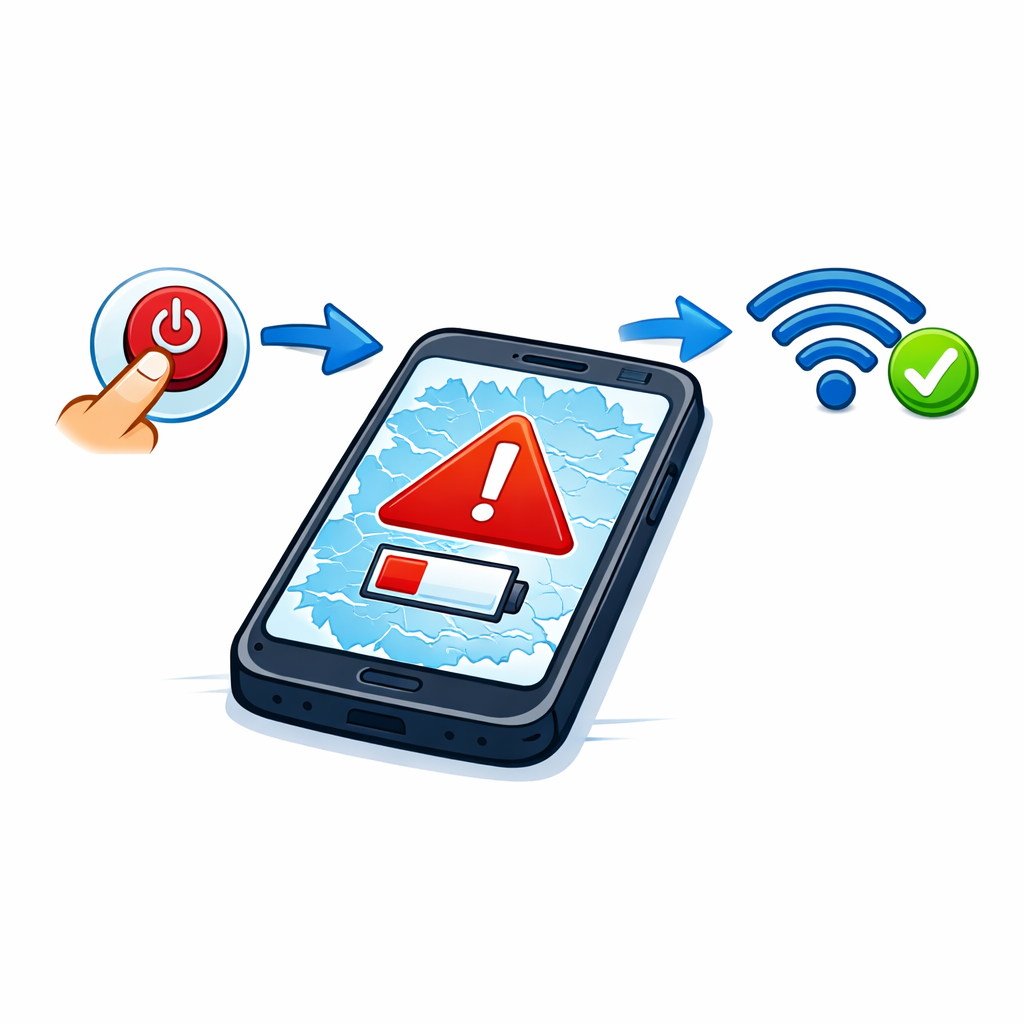 Troubleshooting means trying simple steps to find out what is wrong and fix the problem. Many common device issues can be solved with a few basic checks before asking for help or taking the device for repair.
- Examples of common problems: The screen is frozen, the internet is not working, there is no sound, an app will not open, or the battery is low.
- Start simple: Try the easiest fixes first before assuming something is seriously wrong.
- Look for clues: Error messages, warning symbols, low battery signs, or missing internet icons can all help you understand the problem.
- Work step by step: Change one thing at a time so you can tell what helped.
Good troubleshooting starts by staying calm, noticing what is happening, and trying one simple step at a time.
Pro tip: If something suddenly stops working, ask yourself: What exactly is not working? When did it start? Did anything change just before the problem happened?
3 - Check the Basics First
Before trying more advanced fixes, check the most obvious things first. Many problems happen because of small issues such as low battery, muted sound, or a loose cable.
- Power: Is the device turned on? Is the battery charged? Is the charger connected properly?
- Volume: Is the sound turned down, muted, or going to headphones or Bluetooth speakers?
- Internet: Is Wi-Fi turned on? Are you connected to the correct network?
- Cables and accessories: Check that plugs, headphones, keyboards, mice, and chargers are connected fully.
- Airplane mode: On phones and tablets, make sure Airplane Mode is off if you need internet or mobile service.
How to check basic settings:
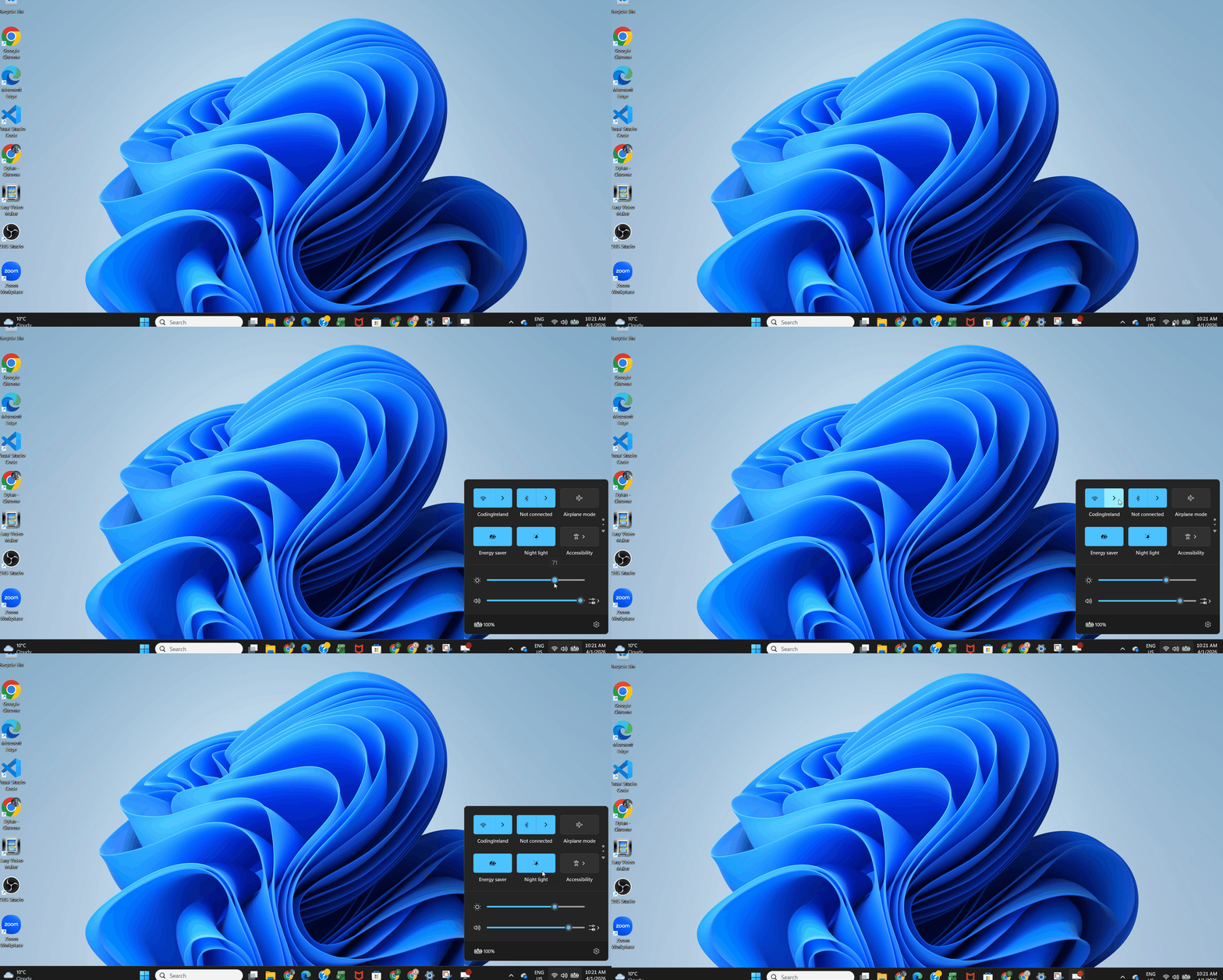
- Windows: Check the icons on the right side of the taskbar for battery, sound, and Wi-Fi.
- Mac: Check the top-right menu bar for the battery, sound, and Wi-Fi icons.
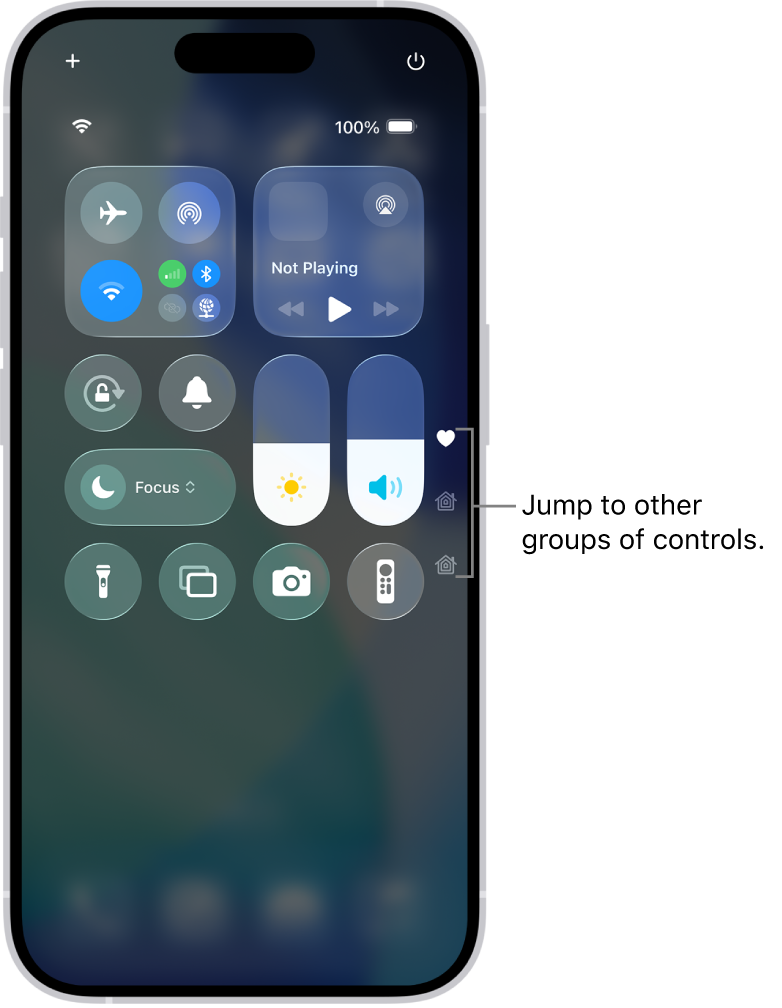
- iPhone: Open Control Centre to check brightness, sound, Wi-Fi, battery, and Airplane Mode. To open Control Center, Swipe down from the top-right corner of the screen. If you continue swiping down, you see more groups of controls.
- Android: Swipe down from the top of the screen to open Quick Settings (swipe down again on some devices for more options). Check brightness, sound, Wi-Fi, battery, and Airplane Mode there.
Always check the basics first. A simple fix is often the correct one.
Pro tip: Look first for the battery icon, Wi-Fi symbol, volume icon, or charging light before trying anything more advanced.
4 - Restart the App or Device
- Restart an app first: Close it fully, then reopen it.
- If that does not work, restart the device: Turn it off, wait 10 seconds, then turn it back on.
- Use this for frozen screens, slow performance, apps that will not open, sound issues, or sudden internet problems.
- Save any open work before restarting.
How to restart your device:
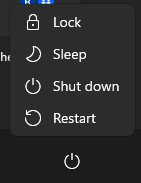
- Windows:
- Click the Start button (Windows logo, bottom-left).
- Click Power.
- Select Restart.
Alternative: Press Ctrl + Alt + Delete, then select Restart from the menu.
- Mac:
- Click the Apple menu ( icon, top-left corner).
- Select Restart.
- Confirm if prompted.
Alternative: Press and hold Control + Command + Power button, then click Restart.
- iPhone:
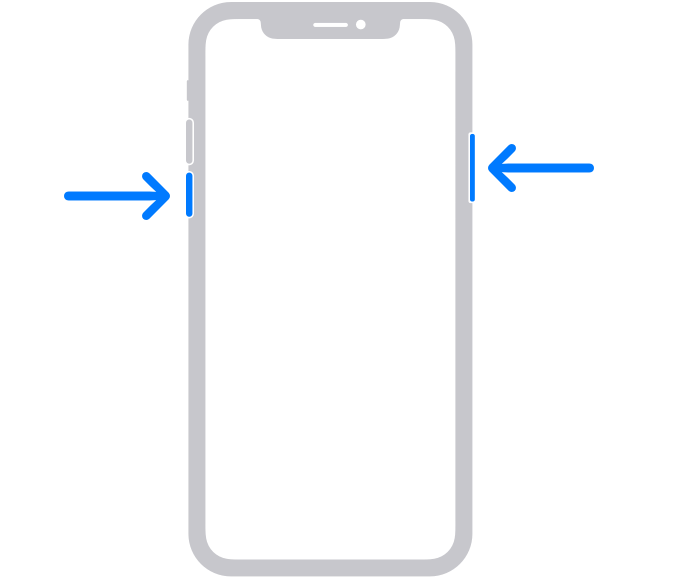
- Press and hold the volume up (or volume down) button and the side button until the power-off slider appears.
- Drag the slider to turn off.
- Wait 30 seconds.
- Press and hold the side button until the Apple logo appears.
- Android:
- Press and hold the power button (usually on the side).
- Select Restart from the menu.
- If no menu appears, hold Power + Volume Up for 10–20 seconds until it restarts.
How to restart an unresponsive app:
- Windows:
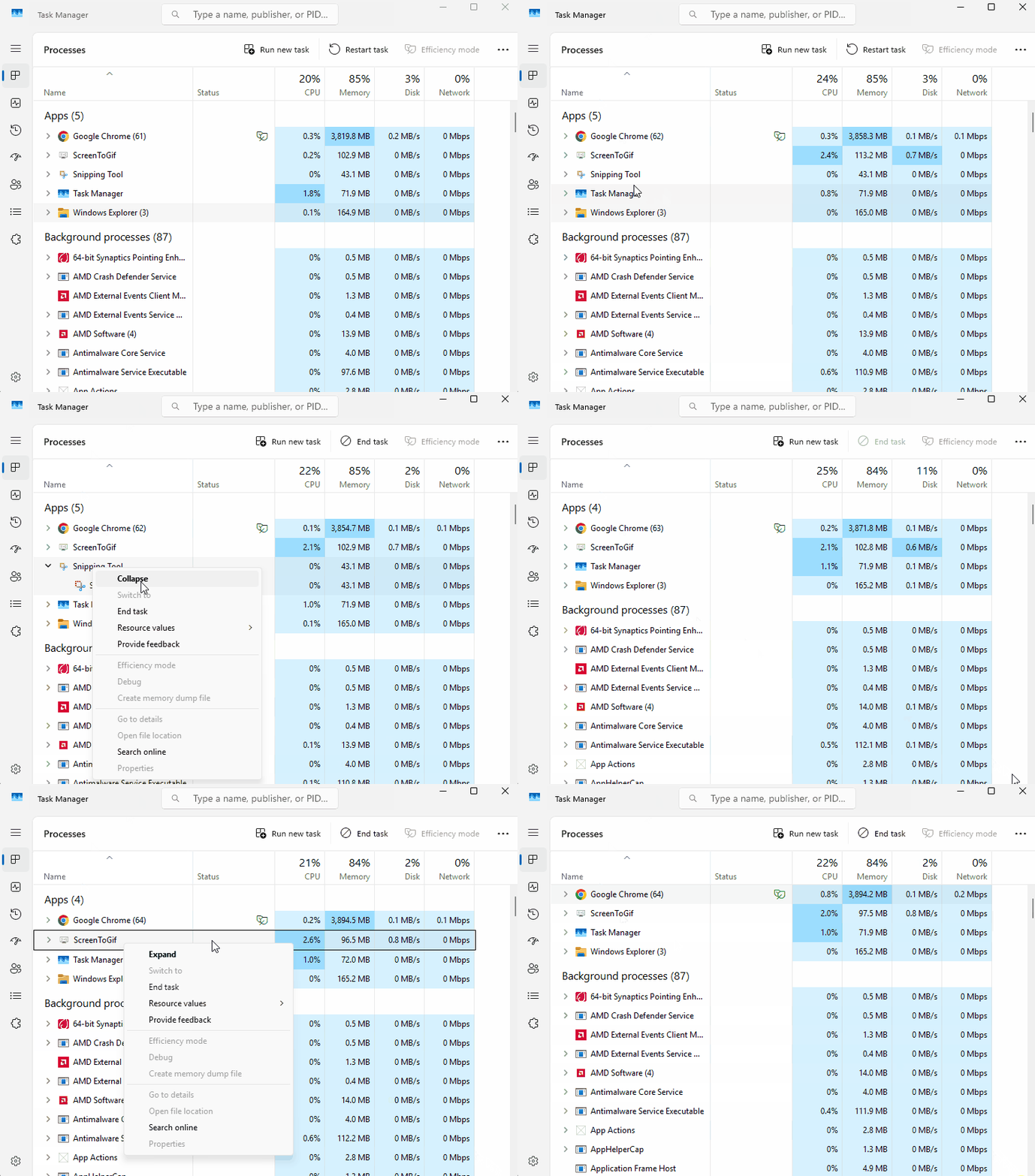
- Press Ctrl + Shift + Esc to open Task Manager.
- Find the app in the list, right-click it, and select End task.
- Reopen the app from the Start menu or desktop.
- Mac:
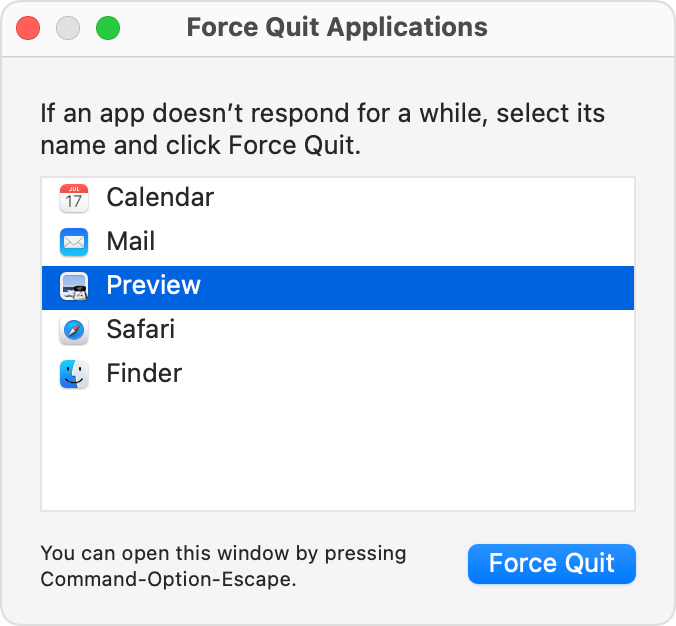
- Press Command + Option + Esc to open the Force Quit window.
- Select the app and click Force Quit.
- Reopen the app from Applications or Launchpad.
- iPhone/iPad:
- Swipe up from the bottom edge (or double-click Home button on older models) to open the App Switcher.
- Swipe up on the app card to close it.
- Tap the app icon to reopen.
- Android:
- Swipe up from the bottom (or tap the Recent Apps button) to see open apps.
- Swipe away the app or tap the X/Close button.
- Tap the app icon to reopen.
Restart the app first. If the problem affects multiple apps or the whole device, restart the device.
Restarting clears memory and temporary glitches without deleting files or data.
5 - Check Your Internet Connection
- Wi-Fi: Make sure Wi-Fi is turned on and the device is connected to the correct network.
- Signal strength: A weak signal can make the internet slow or unstable.
- Try another website or app: This helps you tell whether the problem is the internet or only one service.
- Reconnect: Turn Wi-Fi off and back on, or disconnect and reconnect to the network.
- Restart equipment: If needed, restart the device or router.
How to check Wi-Fi:
- Windows: Select the Network, Sound, or Battery icons on the taskbar, make sure Wi-Fi is on, and check that your network says Connected.
- Mac: Use the Wi-Fi icon in the menu bar and make sure you are connected to the correct network.
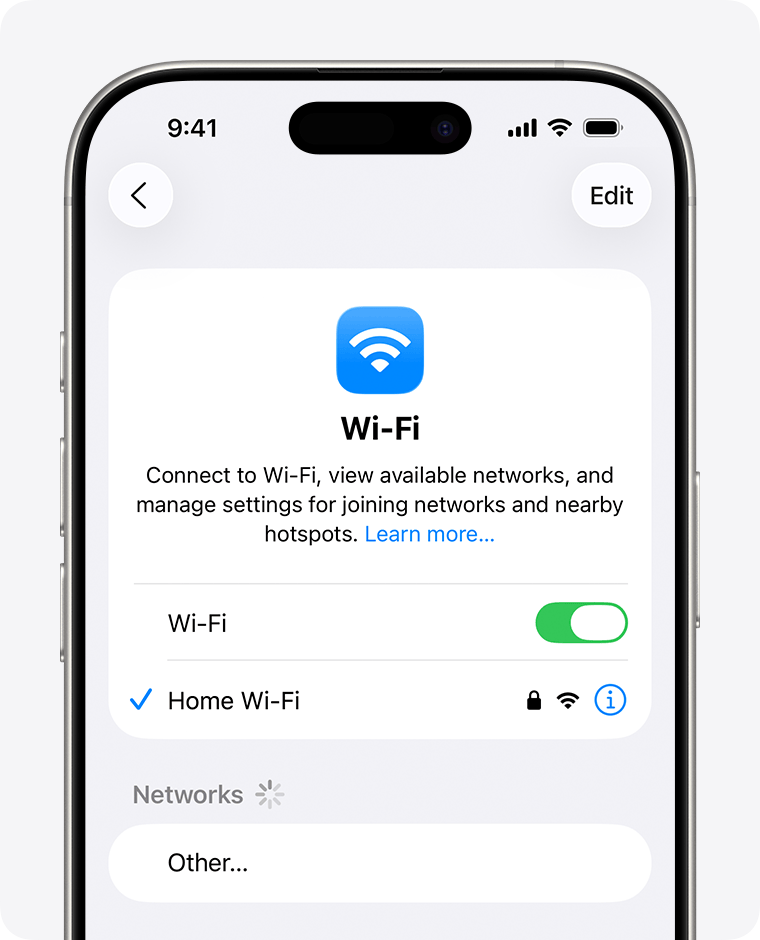
- iPhone/iPad: Open Settings > Wi-Fi, turn Wi-Fi on, and tap the network you want to join.
- Android: Open Settings > Network & internet > Internet, turn Wi-Fi on, and tap the network you want to use.
If several apps or websites are not working, the internet connection is a likely cause.
Pro tip: If one website is not loading but others work normally, the issue may be with that website rather than your device.

Unlock the full learning experience
You're previewing this lesson. Get full access to this lesson and hundreds more — each one ready to teach, with interactive activities, printable resources and pupil progress tracking built in.
This lesson is copyright of Coding Ireland 2017 - 2026. Unauthorised use, copying or distribution is not allowed.