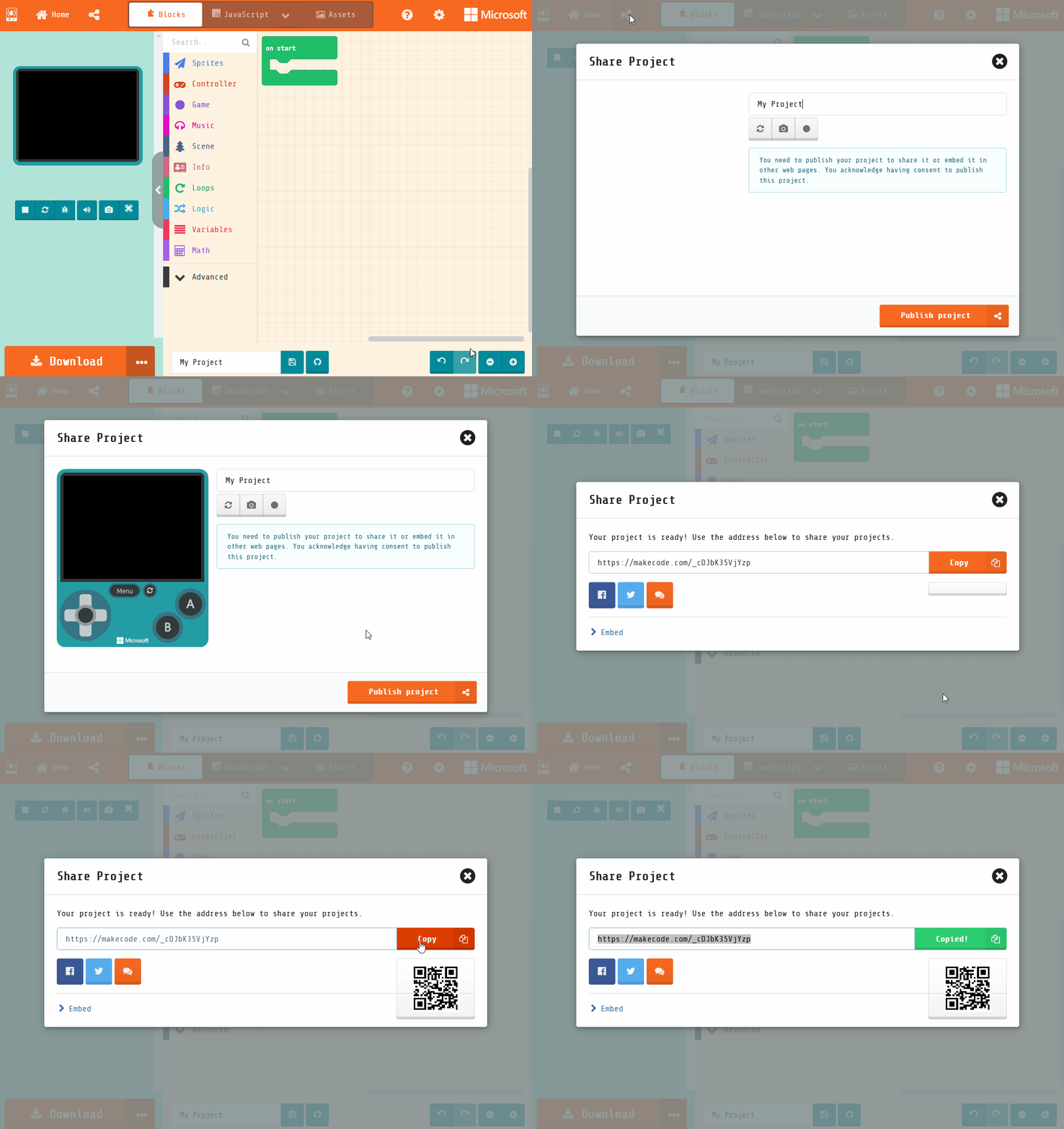
Scratch Makecode Arcade
Beginner
60 mins
Teacher/Student led
+85 XP

What you need:
Chromebook/Laptop/PC

Competition

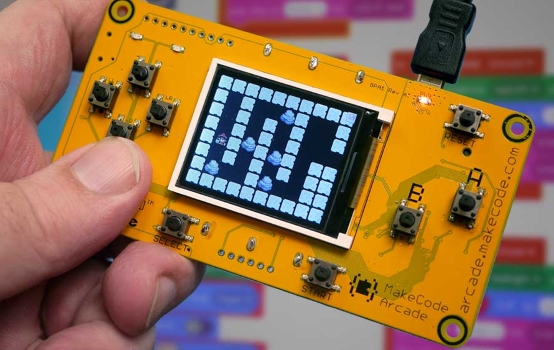
In this lesson, you will create a Christmas-themed project using everything you've learned in this bundle so far. You will then submit your project for a chance to win a BrainPad Arcade programmable handheld computer!
Teacher Notes

Teacher Class Feed

Load previous activity

    1 - Competition Rules

    First prize in this competition is a BrainPad Arcade Programmable Handheld Gaming Computer!

    Here are the rules if you wish to enter:

    1. Create your own Christmas themed Scratch or MakeCode Arcade project. It can be a game, an animation or anything you want. It must be your own work and Christmas themed.
    2. Submit your project by the 18th December at 6pm, using the Submit my Project button at the bottom of this lesson. We will be announcing the winners on the 19th December. There will be a prize for each age group.


    2 - Brainstorm your Project

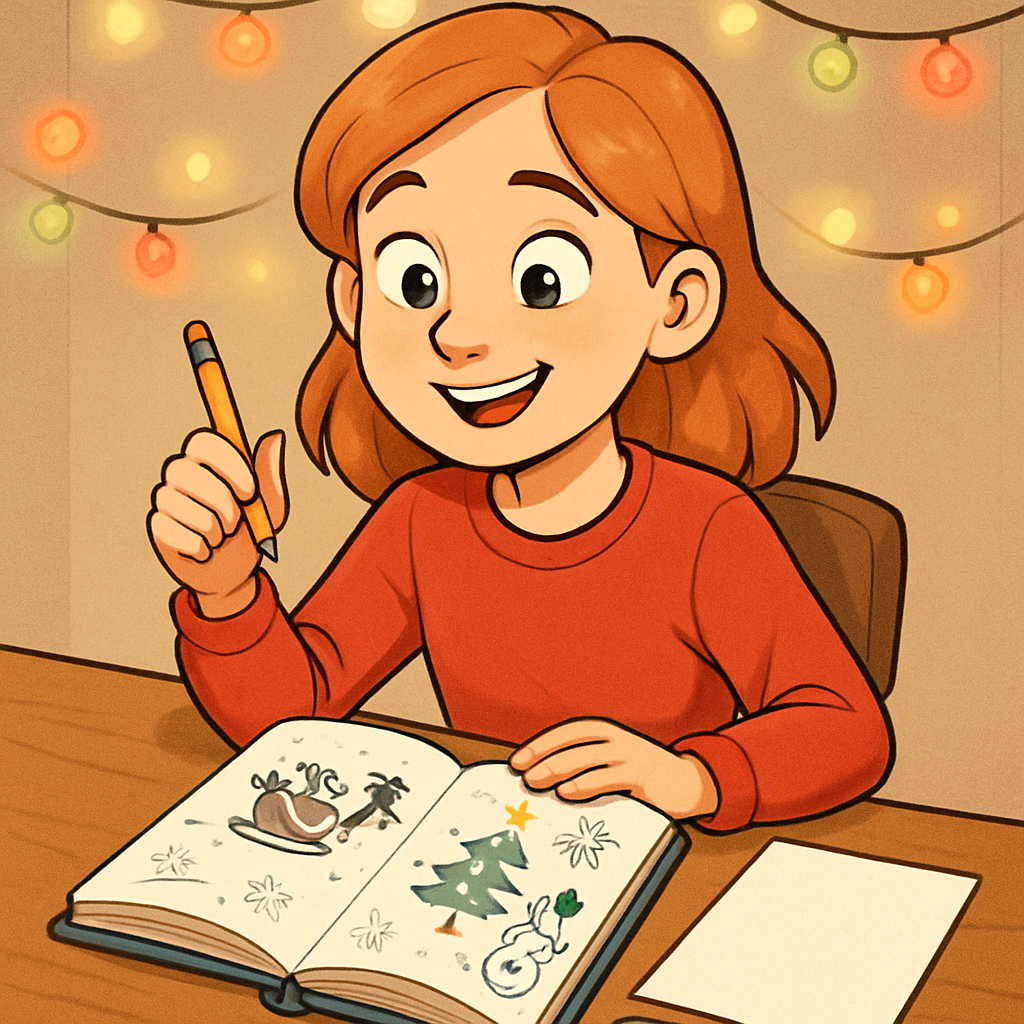
    Think about all the lessons you've learnt so far. How can you use these skills to create a fun and festive Christmas project? You could create an animation, a game, or anything else you can think of. Make sure to jot down your ideas!
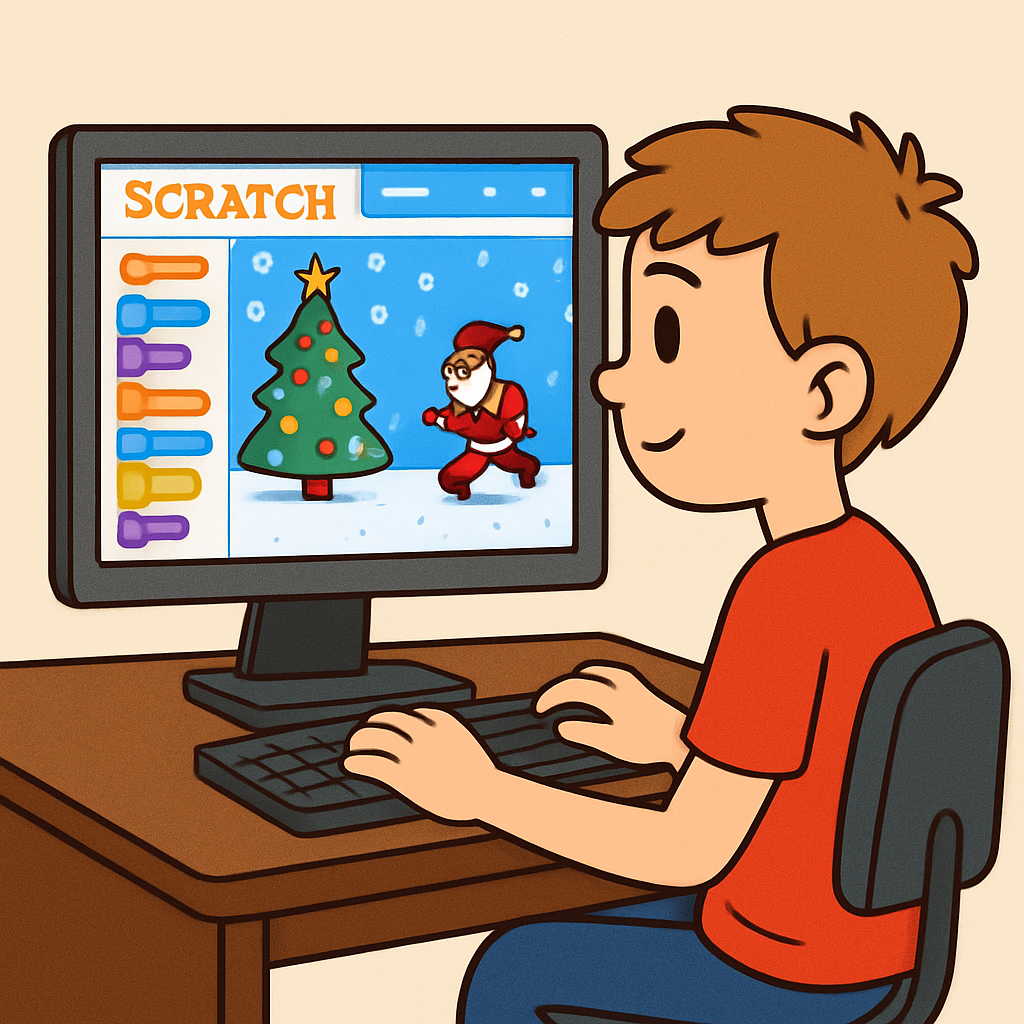
    Here are some ideas to get you started:

    • A Santa flying across the sky dropping gifts.
    • A Christmas tree that lights up when you press a key.
    • A snowman that dances to Christmas music.
    • A game where you catch falling snowflakes.

    Write down your ideas on a piece of paper.

    3 - Create Your Project

    Using Scratch or MakeCode Arcade, bring your ideas to life! Don't forget to save your work regularly.

    Remember all the things you've learnt so far, like sprites, costumes, backdrops, motion, looks, sound, sensing, and control blocks. Use these to make your Christmas project fun and festive!

    Here are some tips:

    • Choose a Christmas backdrop or draw your own.
    • Add sprites like Santa, reindeer, gifts, snowflakes, or a Christmas tree.
    • Make things move, change costumes, say things, or play sounds.
    • Add interactivity, like pressing keys to jump or click sprites.

    Take your time and be creative. Save your project often!

    4 - Test Your Project

    Once you've finished creating your project, make sure to test it thoroughly. Does everything work as expected? If not, try to fix any issues you find.

    Here are some tips for testing your project:

    • Click the green flag to start your project and watch it run from beginning to end.
    • Try all the interactivity, like pressing keys or clicking sprites, to make sure they do what you expect.
    • Check that all sprites move, change costumes, say things, or play sounds as planned.
    • If something doesn't work, go back to your code and fix it. Test again after each change.
    • Show your project to a friend or family member and ask them to try it out.

    Keep testing until you're confident everything works perfectly!

    5 - Submit your Project

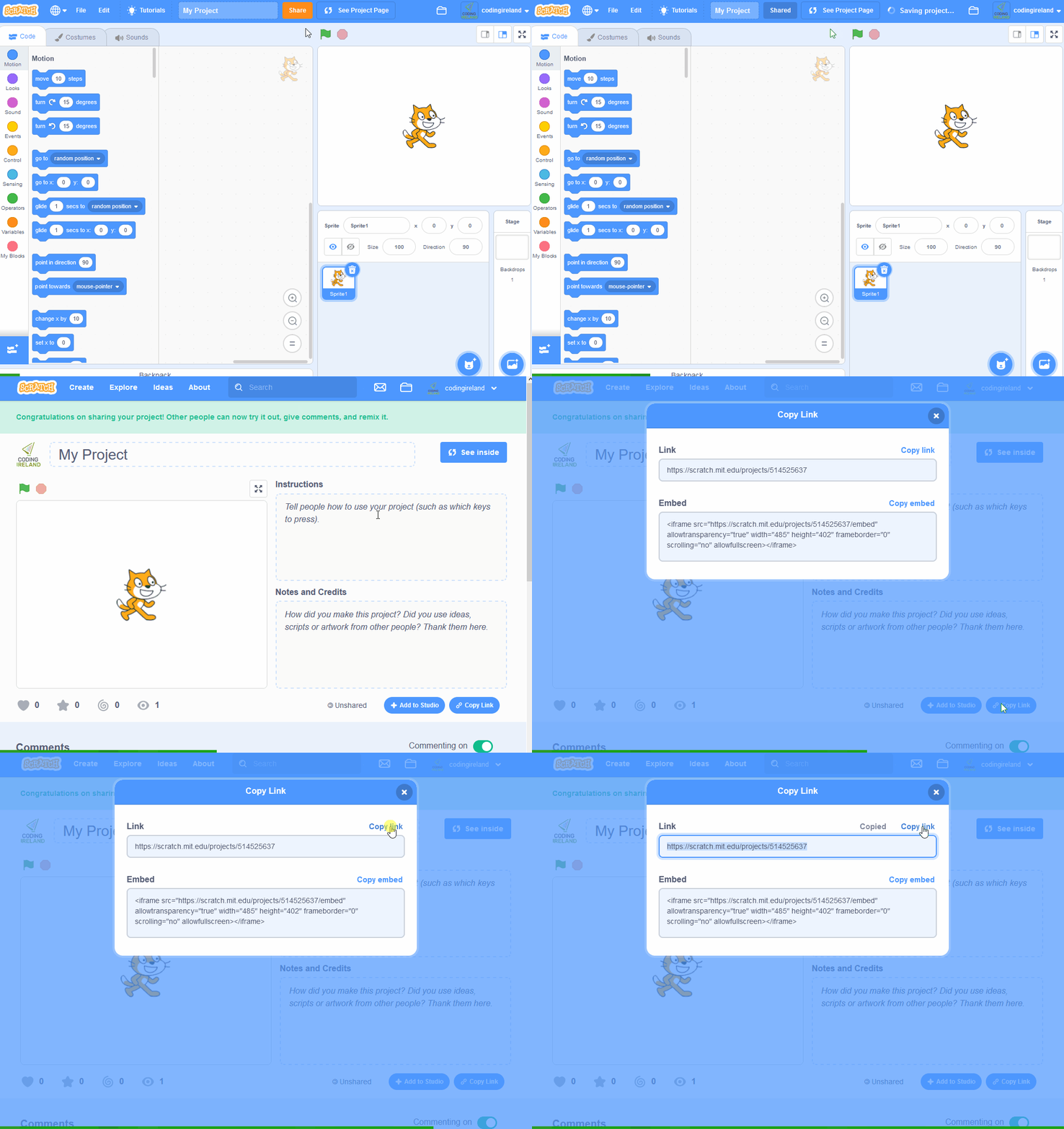
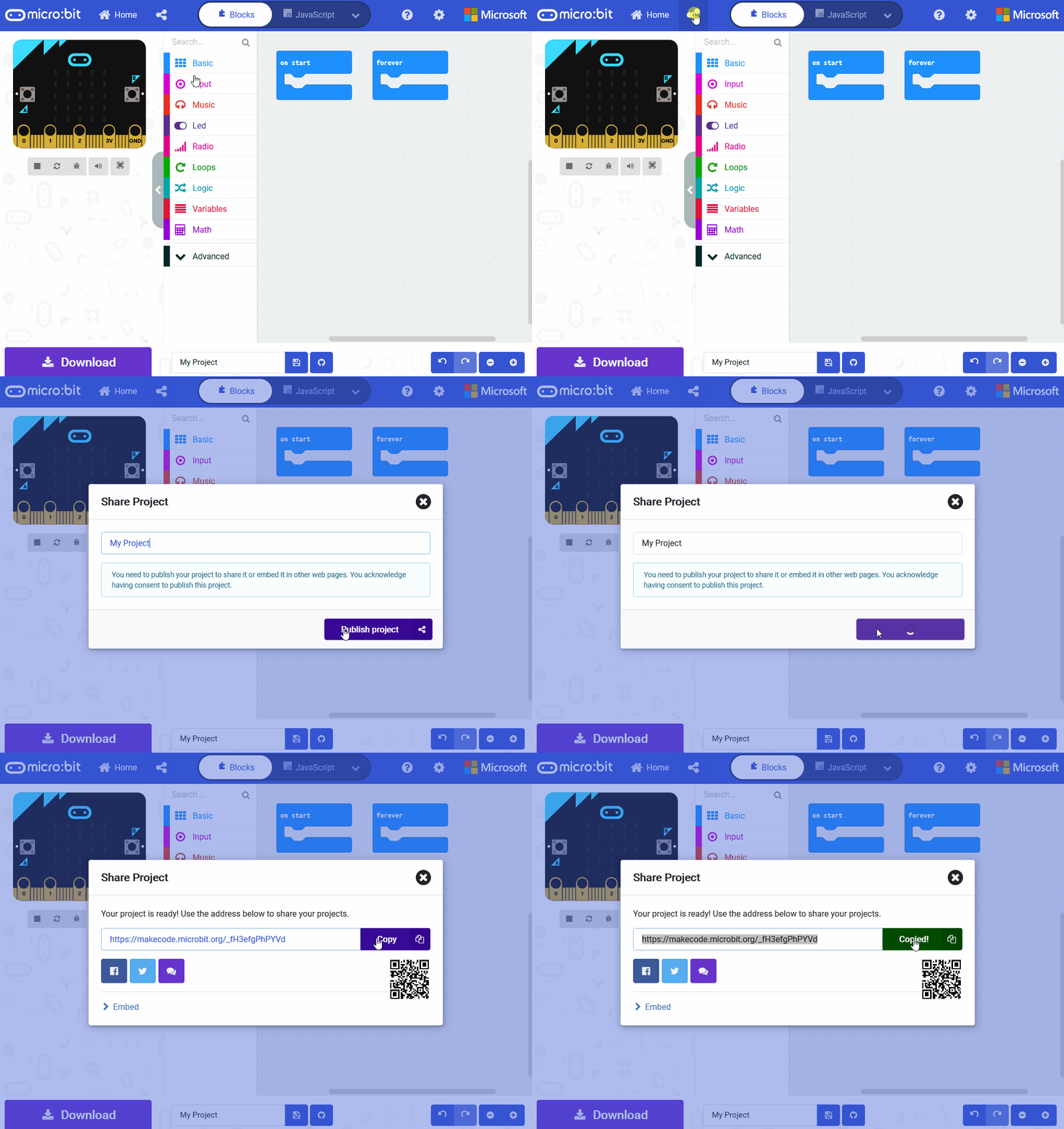
    When you're happy with your project, submit it using the Submit my Project button below.

    Good luck, and we can't wait to see what you've created!

    Submit my Project
    Remember the closing deadline to submit your project is the 18th December at 6pm.

    Unlock the Full Learning Experience

    Get ready to embark on an incredible learning journey! Get access to this lesson and hundreds more in our Digital Skills Curriculum.

    Copyright Notice
    This lesson is copyright of Coding Ireland 2017 - 2025. Unauthorised use, copying or distribution is not allowed.

    Scratch is developed by the Lifelong Kindergarten Group at the MIT Media Lab. It is available for free at https://scratch.mit.edu
    🍪 Our website uses cookies to make your browsing experience better. By using our website you agree to our use of cookies. Learn more