1 - Introduction
Introduction to File Management Fundamentals
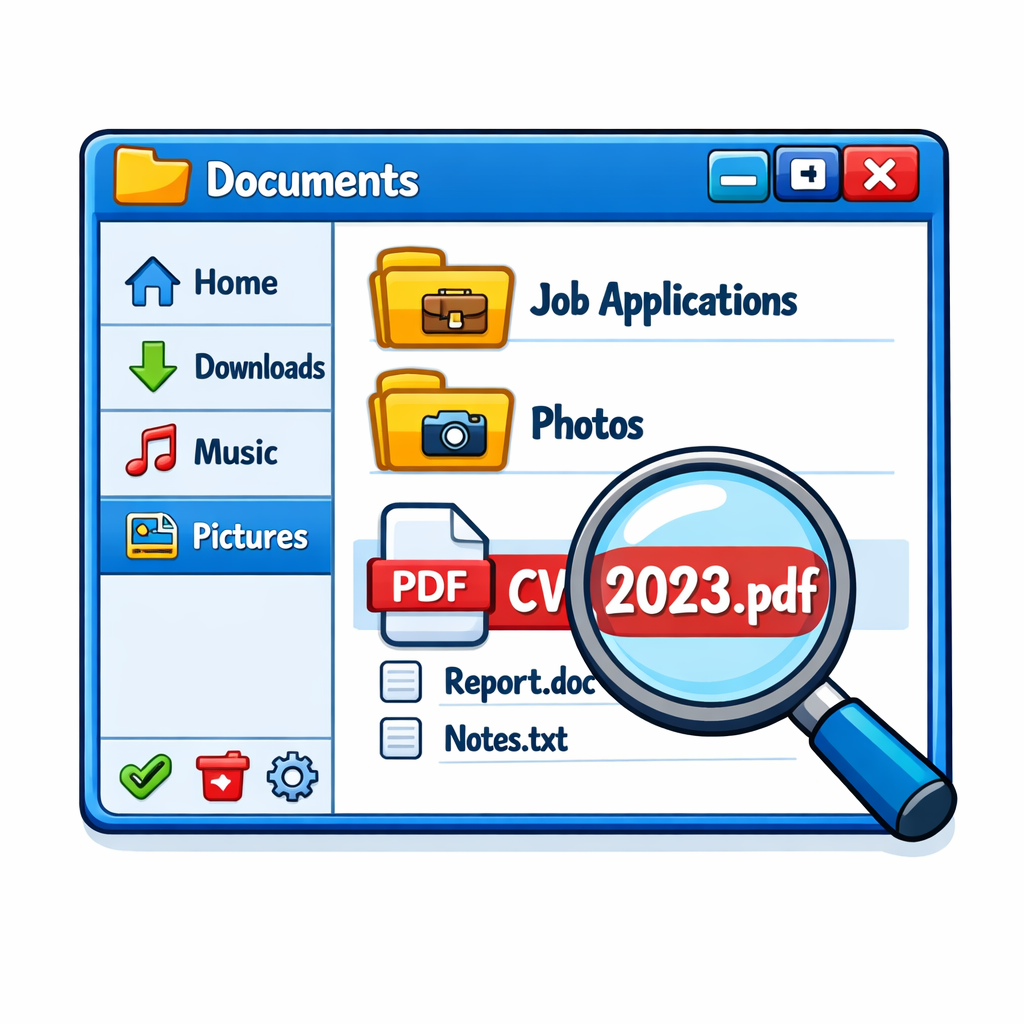 Every day, you create and receive files like CVs, photos, and documents. Without good file management, these can become hard to find or get lost among hundreds of downloads. This lesson shows you how to organise your files so you can always find what you need.
- Understand what files and folders are
- Open File Explorer or Finder to manage your files
- Learn about file paths and how to create folders
- Name your files and folders clearly
- Build a folder structure for real-life use, like job applications
- Move and copy files safely
- Search for files and check recent ones
- Rename, delete, and restore files
- Complete a real-life challenge to practise everything
2 - What are Files?
What is a File?
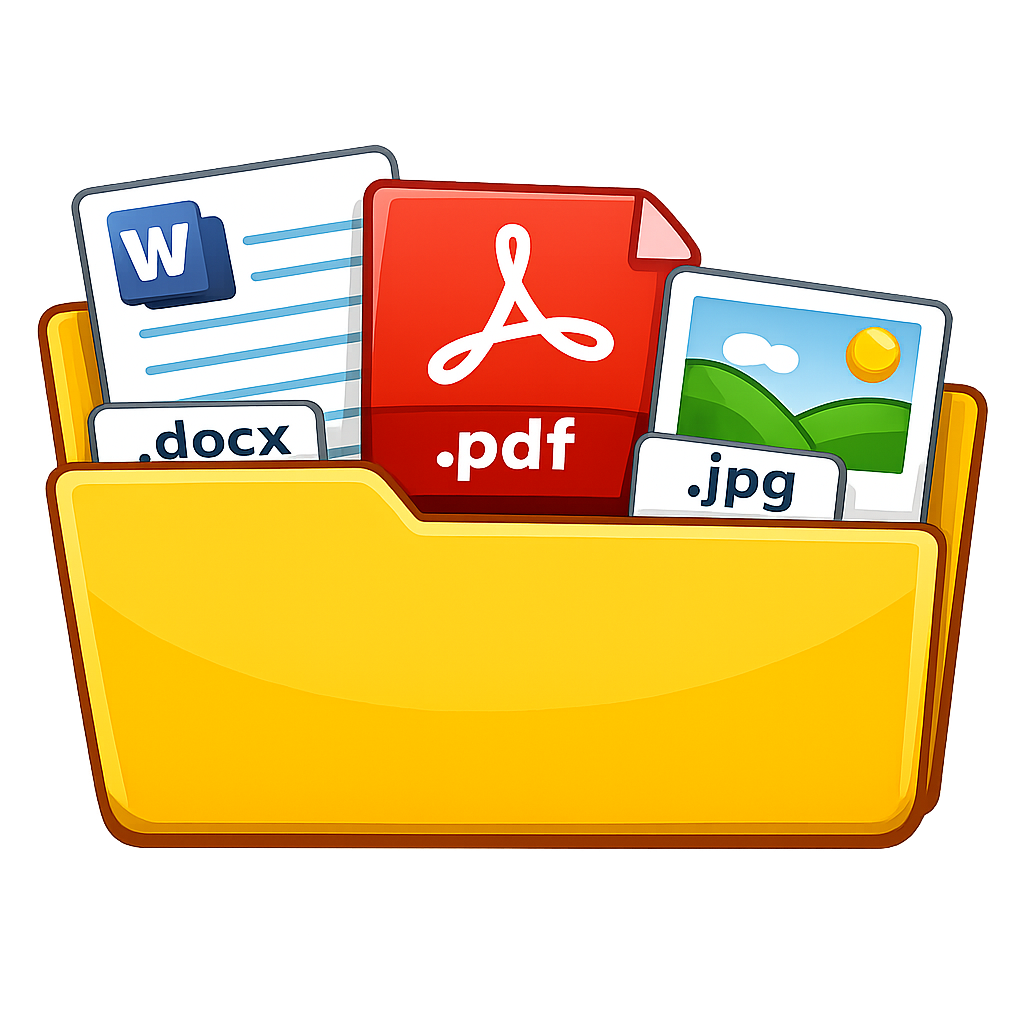 A file is a single item that holds information. For example, a CV, photo, PDF letter, song, or video are all files.
Files often have a name ending called a file extension, such as .docx, .pdf, or .jpg. This helps tell you what kind of file it is.
- .docx = Word document
- .pdf = PDF document
- .jpg or .png = image file
3 - What are Folders?
What is a Folder?
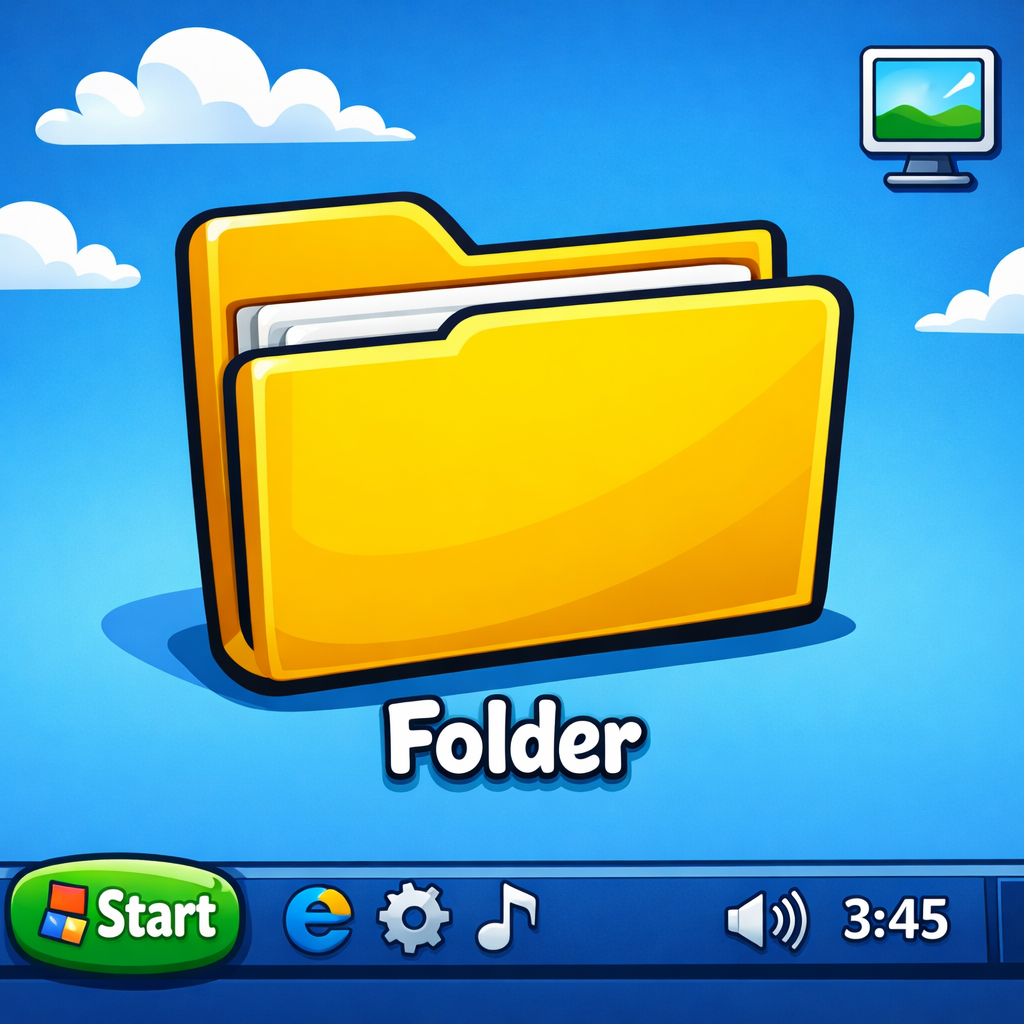 A folder is used to store and organise files. A folder can also hold other folders, called subfolders.
For example, you might have a folder called Job Applications. Inside it, you could keep files like MyCV.docx, CoverLetter.docx, and InterviewNotes.pdf.
Folders usually do not have file extensions. They are shown as folder icons, such as a yellow folder on Windows or a blue folder on Mac.
4 - File or Folder?
File or Folder?
Look at these examples. Is it a file or a folder?
🔍 Click to reveal: MyCV.docx
This is a file.
It ends in .docx, so it is a Word document.
🔍 Click to reveal: Job Applications
This is a folder.
It has no file extension and is used to hold related files.
🔍 Click to reveal: HSE_Letter.pdf
This is a file.
It ends in .pdf, so it is a document file.
5 - Open File Explorer or Finder
Open File Explorer (Windows) or Finder (Mac)
To manage your files and folders, you first need to open the file manager on your device. This is called File Explorer on Windows and Finder on Mac.
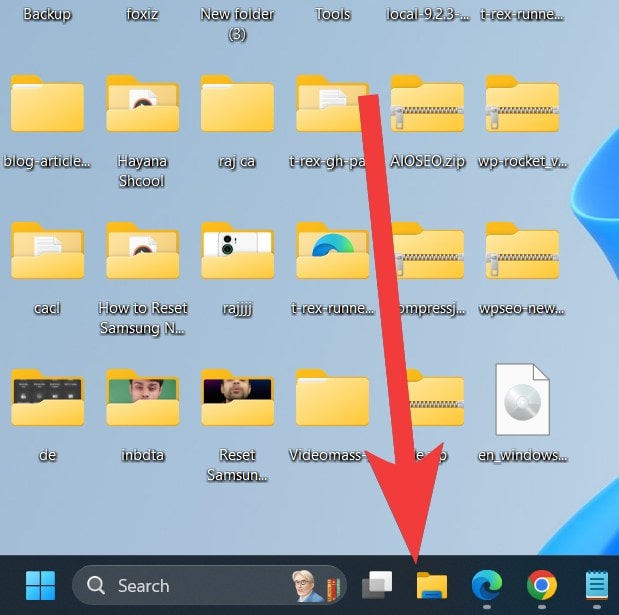
On Windows, you can press Windows key + E or click the folder icon on the taskbar.
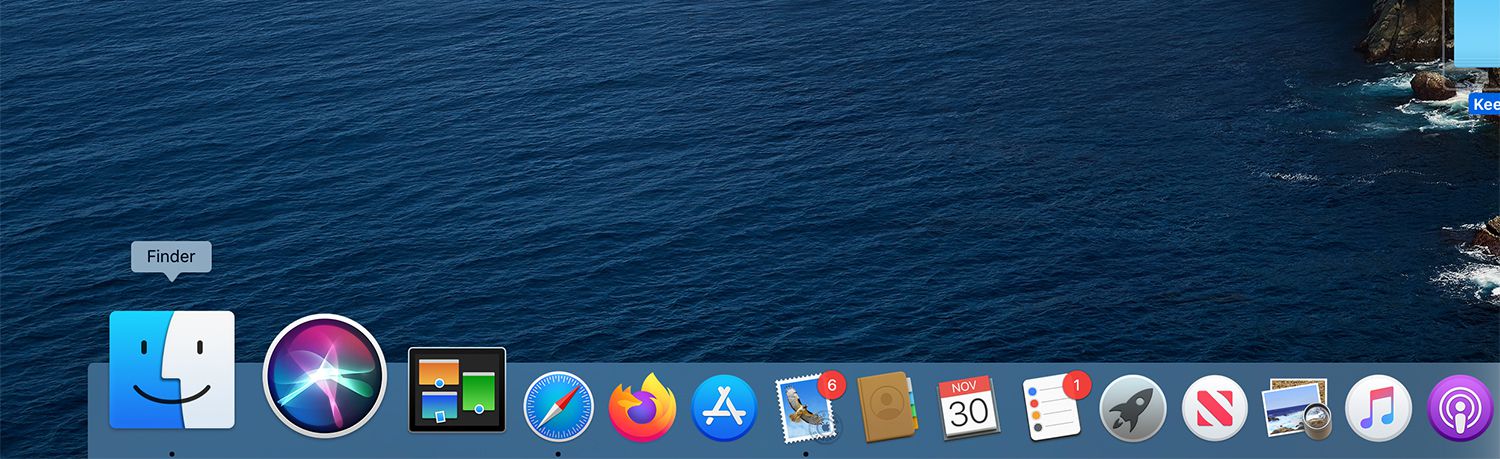
On Mac, click the Finder icon in the Dock (usually a smiling face), or press Command + Space and search for Finder.
The screenshots show common examples of what these icons may look like, but your computer may look slightly different depending on the version, settings, or device you are using.
Once opened, you can use File Explorer or Finder to look through places like Documents, Downloads, and Desktop. This helps you find files such as your CV, cover letters, or downloaded forms.
Unlock the full learning experience
You're previewing this lesson. Get full access to this lesson and hundreds more — each one ready to teach, with interactive activities, printable resources and pupil progress tracking built in.
This lesson is copyright of Coding Ireland 2017 - 2026. Unauthorised use, copying or distribution is not allowed.