Game Makecode Arcade
Beginner
60 mins
Teacher/Student led
+70 XP

What you need:
Chromebook/Laptop/PC or iPad/Tablet

Cherry Collection

This lesson guides students through creating a game using MakeCode Arcade. They will learn to create a character, move it around the screen, generate food sprites in random locations, and collect them for points. The lesson also includes adding sound effects for a more interactive gaming experience.
Teacher Class Feed

Load previous activity

    1 - Introduction

    Welcome to the Cherry Collection game! In this lesson, you will learn how to create a fun game using MakeCode Arcade. You will create a character that can move around the screen to collect cherries. Each time you collect a cherry, you will earn a point and hear a sound. Are you ready to start coding your game? Let's go!


    2 - Create a new project

    Open the MakeCode Arcade website using the link below and create a new project. You can call the project whatever you want.

    https://arcade.makecode.com

    3 - Add your player

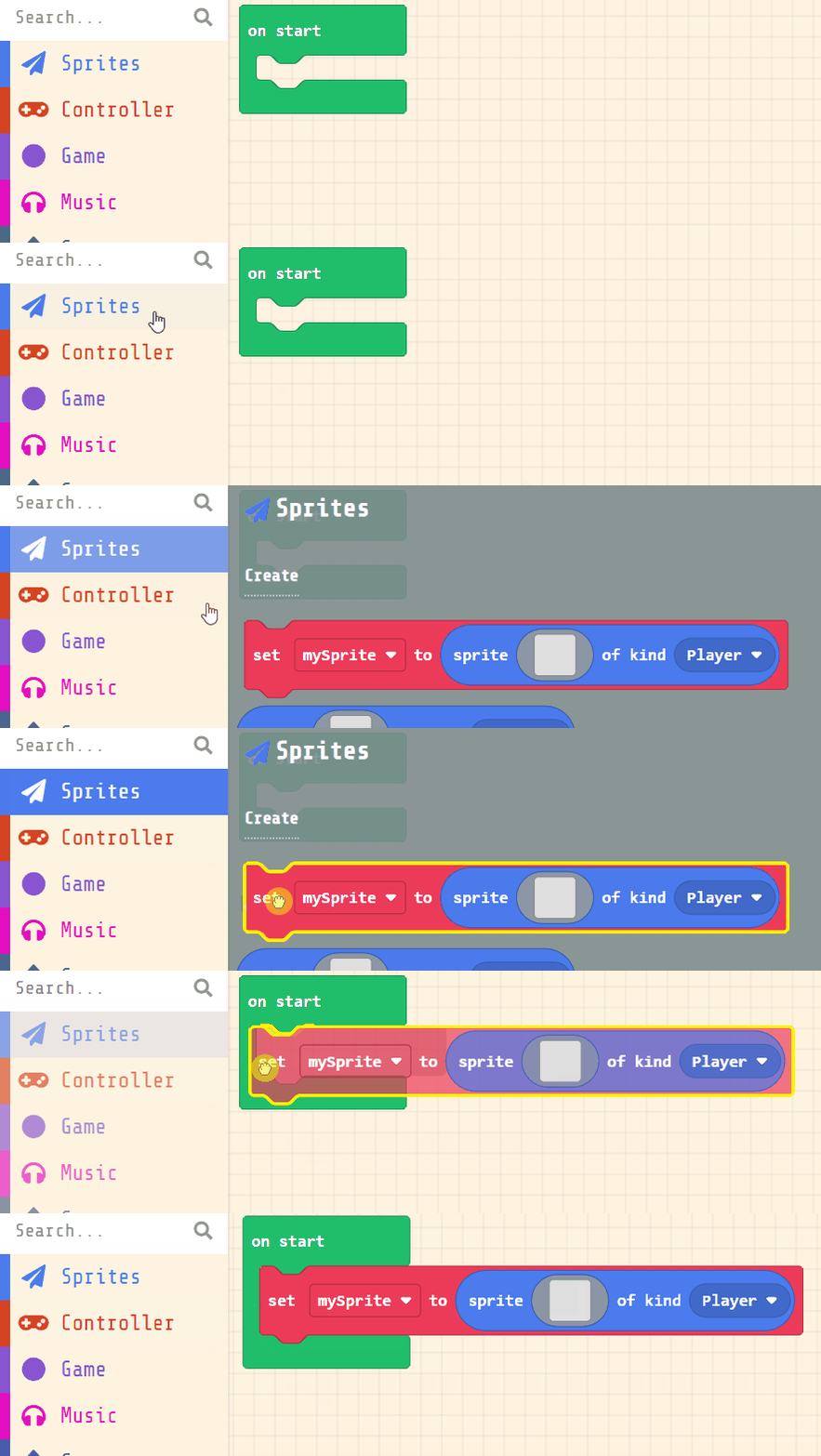
    Next, you will create your player sprite. This is the character that you will control in the game. Add the following code:

    let mySprite = sprites.create(img`...`, SpriteKind.Player)

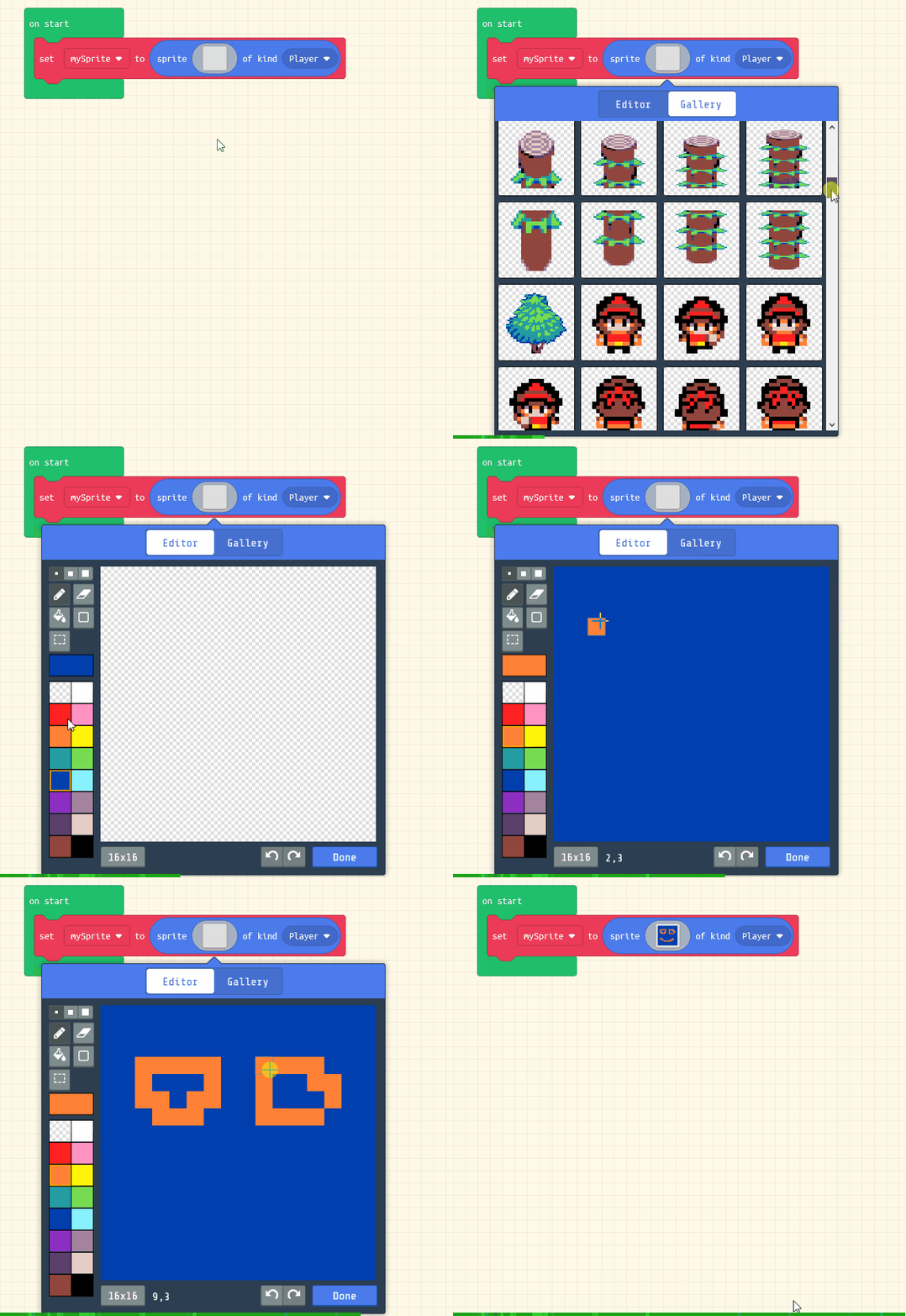
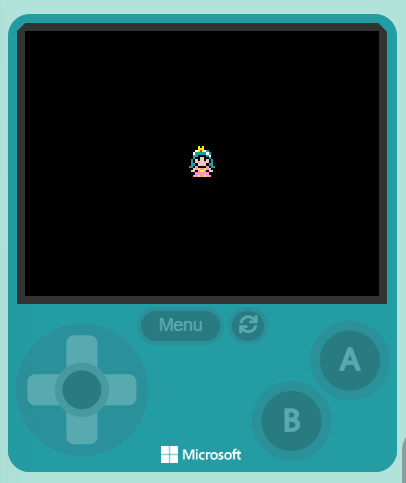
    Then click on the grey box and choose a sprite character from the gallery. In our example we will choose the princess character.

    let mySprite = sprites.create(img`
        . . . . . . 5 . 5 . . . . . . . 
        . . . . . f 5 5 5 f f . . . . . 
        . . . . f 1 5 2 5 1 6 f . . . . 
        . . . f 1 6 6 6 6 6 1 6 f . . . 
        . . . f 6 6 f f f f 6 1 f . . . 
        . . . f 6 f f d d f f 6 f . . . 
        . . f 6 f d f d d f d f 6 f . . 
        . . f 6 f d 3 d d 3 d f 6 f . . 
        . . f 6 6 f d d d d f 6 6 f . . 
        . f 6 6 f 3 f f f f 3 f 6 6 f . 
        . . f f d 3 5 3 3 5 3 d f f . . 
        . . f d d f 3 5 5 3 f d d f . . 
        . . . f f 3 3 3 3 3 3 f f . . . 
        . . . f 3 3 5 3 3 5 3 3 f . . . 
        . . . f f f f f f f f f f . . . 
        . . . . . f f . . f f . . . . . 
        `, SpriteKind.Player)


    4 - Move your player

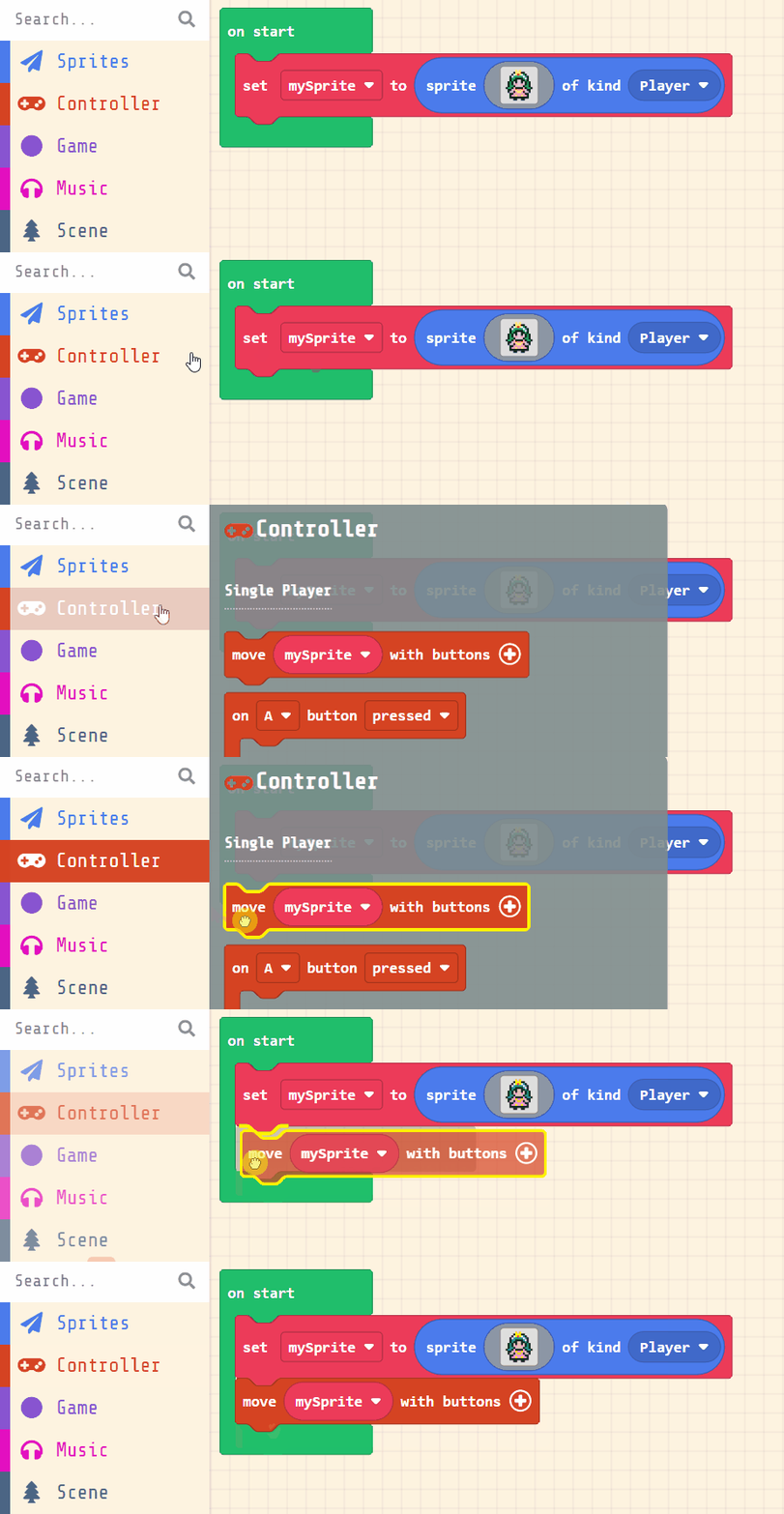
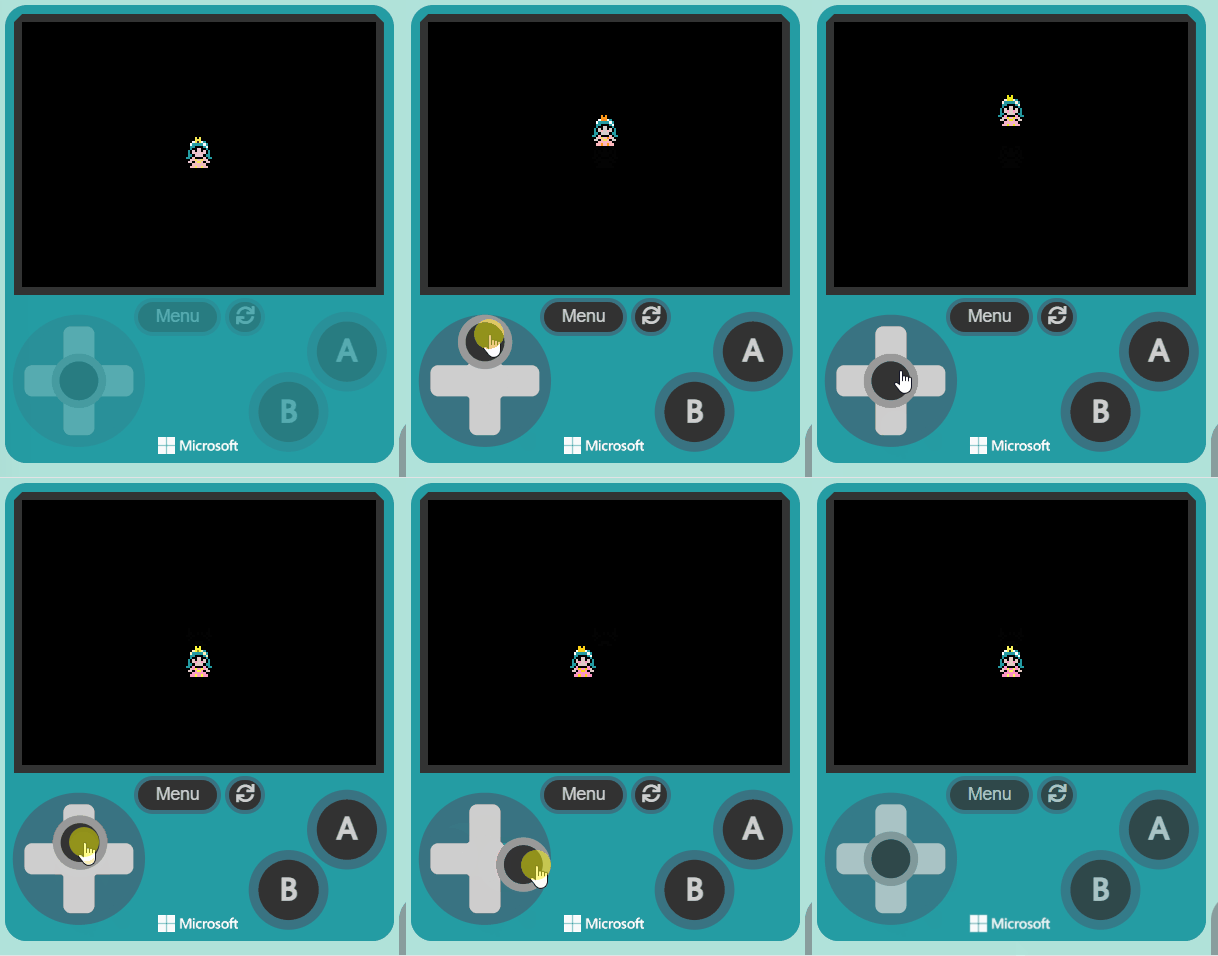
    Now, let's make your sprite move using the joystick (or the arrow keys on your keyboard).

    Add the following new code:

    let mySprite = sprites.create(img`
        . . . . . . 5 . 5 . . . . . . . 
        . . . . . f 5 5 5 f f . . . . . 
        . . . . f 1 5 2 5 1 6 f . . . . 
        . . . f 1 6 6 6 6 6 1 6 f . . . 
        . . . f 6 6 f f f f 6 1 f . . . 
        . . . f 6 f f d d f f 6 f . . . 
        . . f 6 f d f d d f d f 6 f . . 
        . . f 6 f d 3 d d 3 d f 6 f . . 
        . . f 6 6 f d d d d f 6 6 f . . 
        . f 6 6 f 3 f f f f 3 f 6 6 f . 
        . . f f d 3 5 3 3 5 3 d f f . . 
        . . f d d f 3 5 5 3 f d d f . . 
        . . . f f 3 3 3 3 3 3 f f . . . 
        . . . f 3 3 5 3 3 5 3 3 f . . . 
        . . . f f f f f f f f f f . . . 
        . . . . . f f . . f f . . . . . 
        `, SpriteKind.Player)
    controller.moveSprite(mySprite)
    
    
    Once you've added the new code, test that you can move your player sprite with the joystick or your keyboard arrow keys.


    5 - Create the cherries

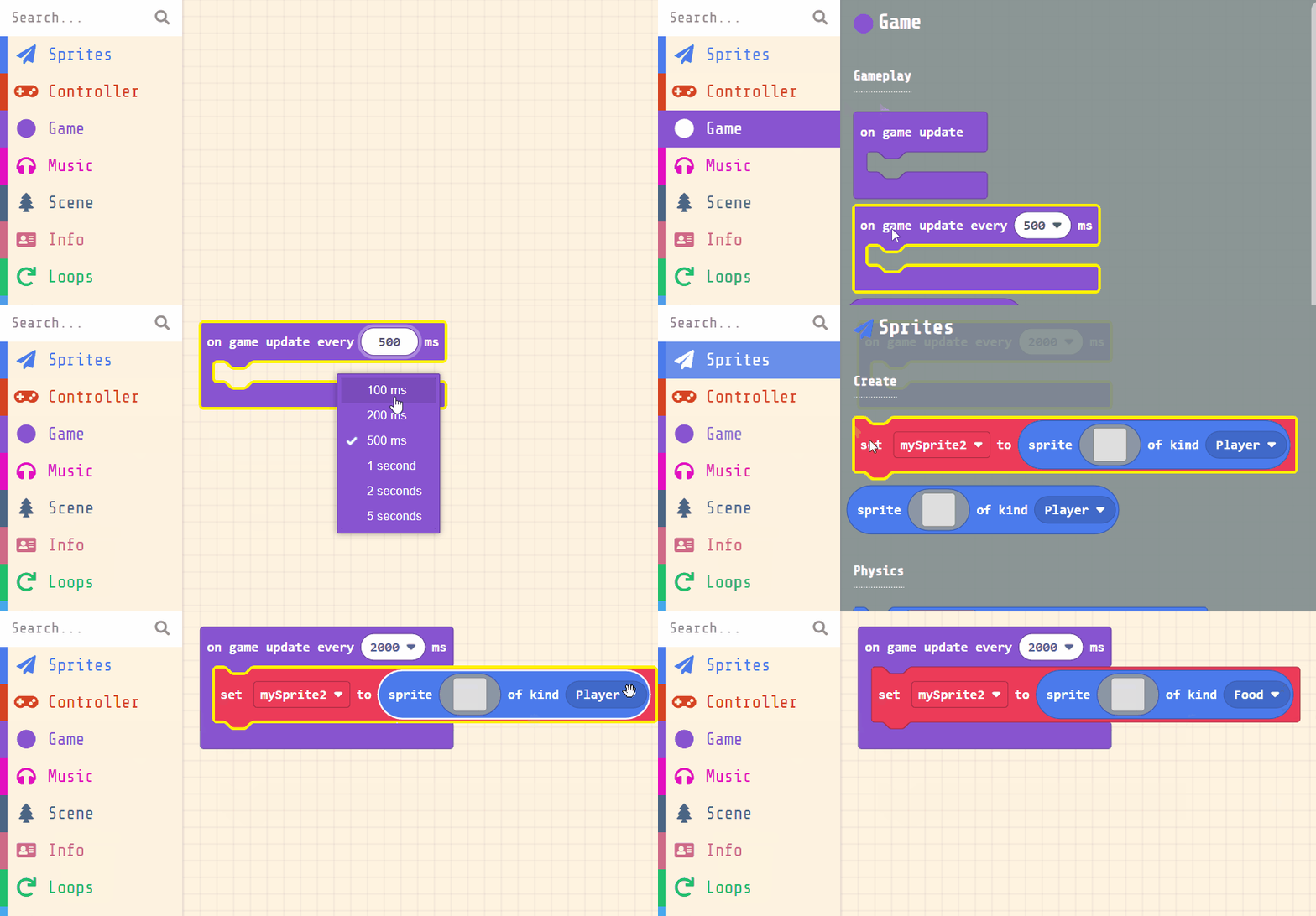
    Next, we will create the food sprites. These will be created every 2 seconds

    Add the following code:

    game.onUpdateInterval(2000, function () { let mySprite2 = sprites.create(img`...`, SpriteKind.Food) })
    Make sure you select Food as the kind of sprite.

    And then choose a character from the gallery for the food sprite, in our example we chose a cherry.

    let mySprite2: Sprite = null
    game.onUpdateInterval(2000, function () {
        mySprite2 = sprites.create(img`
            . . . . . . . . . . . 6 6 6 6 6 
            . . . . . . . . . 6 6 7 7 7 7 8 
            . . . . . . 8 8 8 7 7 8 8 6 8 8 
            . . e e e e c 6 6 8 8 . 8 7 8 . 
            . e 2 5 4 2 e c 8 . . . 6 7 8 . 
            e 2 4 2 2 2 2 2 c . . . 6 7 8 . 
            e 2 2 2 2 2 2 2 c . . . 8 6 8 . 
            e 2 e e 2 2 2 2 e e e e c 6 8 . 
            c 2 e e 2 2 2 2 e 2 5 4 2 c 8 . 
            . c 2 e e e 2 e 2 4 2 2 2 2 c . 
            . . c 2 2 2 e e 2 2 2 2 2 2 2 e 
            . . . e c c e c 2 2 2 2 2 2 2 e 
            . . . . . . . c 2 e e 2 2 e 2 c 
            . . . . . . . c e e e e e e 2 c 
            . . . . . . . . c e 2 2 2 2 c . 
            . . . . . . . . . c c c c c . . 
            `, SpriteKind.Food)
    })


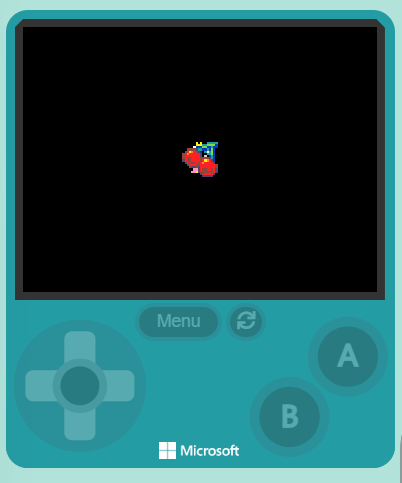
    Now after 2 seconds the food sprite should be created and appear on top of your player sprite.


    123learn · Online learning platform

    Unlock the full learning experience

    You're previewing this lesson. Get full access to this lesson and hundreds more — each one ready to teach, with interactive activities, printable resources and pupil progress tracking built in.

    Hundreds of curriculum-aligned lessons
    Interactive activities in every lesson
    Printable resources & progress tracking
    Copyright Notice
    This lesson is copyright of Coding Ireland 2017 - 2025. Unauthorised use, copying or distribution is not allowed.
    🍪 Our website uses cookies to make your browsing experience better. By using our website you agree to our use of cookies. Learn more