Today you will
- make a short practice page with a headline
- give the headline one calm colour
- put the same finish on your newsletter headline
 You can use Word Online or Google Docs today.
Warm-up
Think of a title you saw this week, like a shop sign or a club poster. Did the styling help you read it, or did it slow you down?
For text colour, you pick one deep colour for the headline, like navy, instead of black.
A light effect is one soft shadow. Only add it if your app clearly shows Text Effects.
Restrained design means using less than your app can do. Your body text stays plain.
Example: same words, two looks
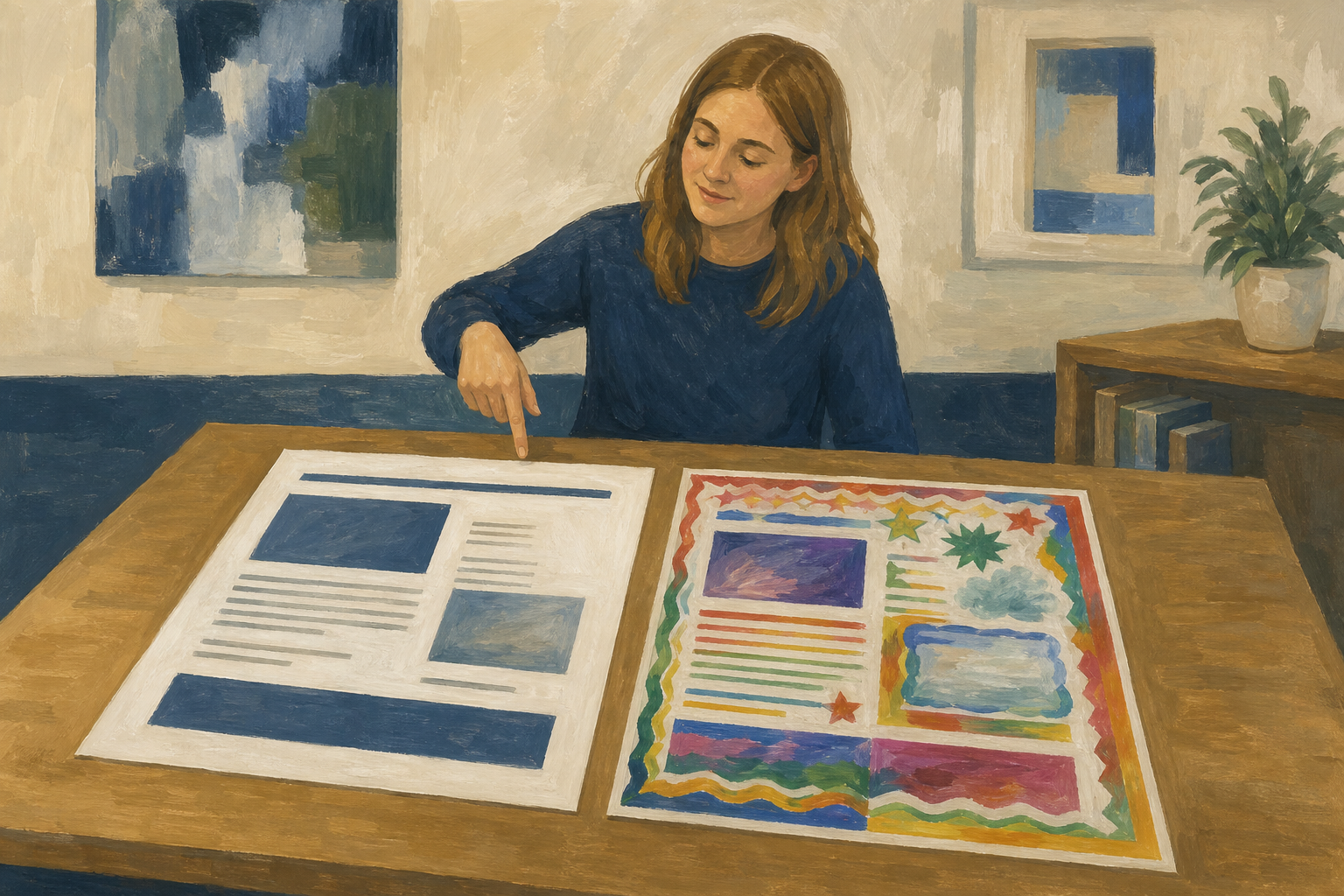
- Restrained: The headline uses Heading 1 and one navy colour, and nothing else.
- Over the top: The headline has rainbow colours, an outline, a glow, underline and capitals all at once.
You will make a short practice page and give its headline one professional colour. Watch your teacher first, then follow the steps in the box below.
Copy all three lines of this text into your new page:
Pedal Fix Galway: Weekend Repair Clinic
Bring your bike to the community hall on Saturday between 10am and 2pm for a free safety check.
Our volunteer mechanics fix punctures, brakes and gears while you wait.
If you don't see Text Effects, you are finished after colour. That is a full pass.
Common issues
- The whole page changed colour. Press {{kbd:Ctrl+Z}} (or {{kbd:Cmd+Z}} on a Mac), then select only the headline and try again.
- I can't find Text Effects. That's fine, because one colour on a heading is a full pass.
- My headline looks too loud. Pick a darker, calmer colour.
- The body text changed. Select it, then set the style to Normal and the colour to black.
Independent Practice
- Open your newest newsletter file. Its name starts with {{code:sm1_doc2_newsletter}}.
- Make a copy named {{code:sm1_doc2_newsletter_v3}} in {{code:09_specialism/sm1/}} and work in the copy. In Word Online, use {{menu:File -> Create a Copy -> Create a copy online}}. In Google Docs, use {{menu:File -> Make a copy}}.
- Select only the big title at the top.
- Give it one professional colour, and at most one light effect.
- Check the body text is still plain black.
No newsletter yet? Save your practice page as {{code:sm1_doc2_headline_practice_v1}} instead.
- Only the main headline is styled.
- I used one colour and at most one effect.
- The body text is plain.
- My file is saved in {{code:sm1}} with the right name.
Unlock the full learning experience
You're previewing this lesson. Get full access to this lesson and hundreds more — each one ready to teach, with interactive activities, printable resources and pupil progress tracking built in.
This lesson is copyright of Coding Ireland 2017 - 2026. Unauthorised use, copying or distribution is not allowed.