Advanced
60 mins
Teacher/Student led
+90 XP

Animations, Transitions and When to Use Them

Learn to add motion to your pitch deck with restraint. Apply one subtle transition across all slides and one helpful animation to guide attention, then remove any effects that distract from the core message.

Teacher Class Feed

Load previous activity

    1 - Introduction ~5 mins

    Welcome

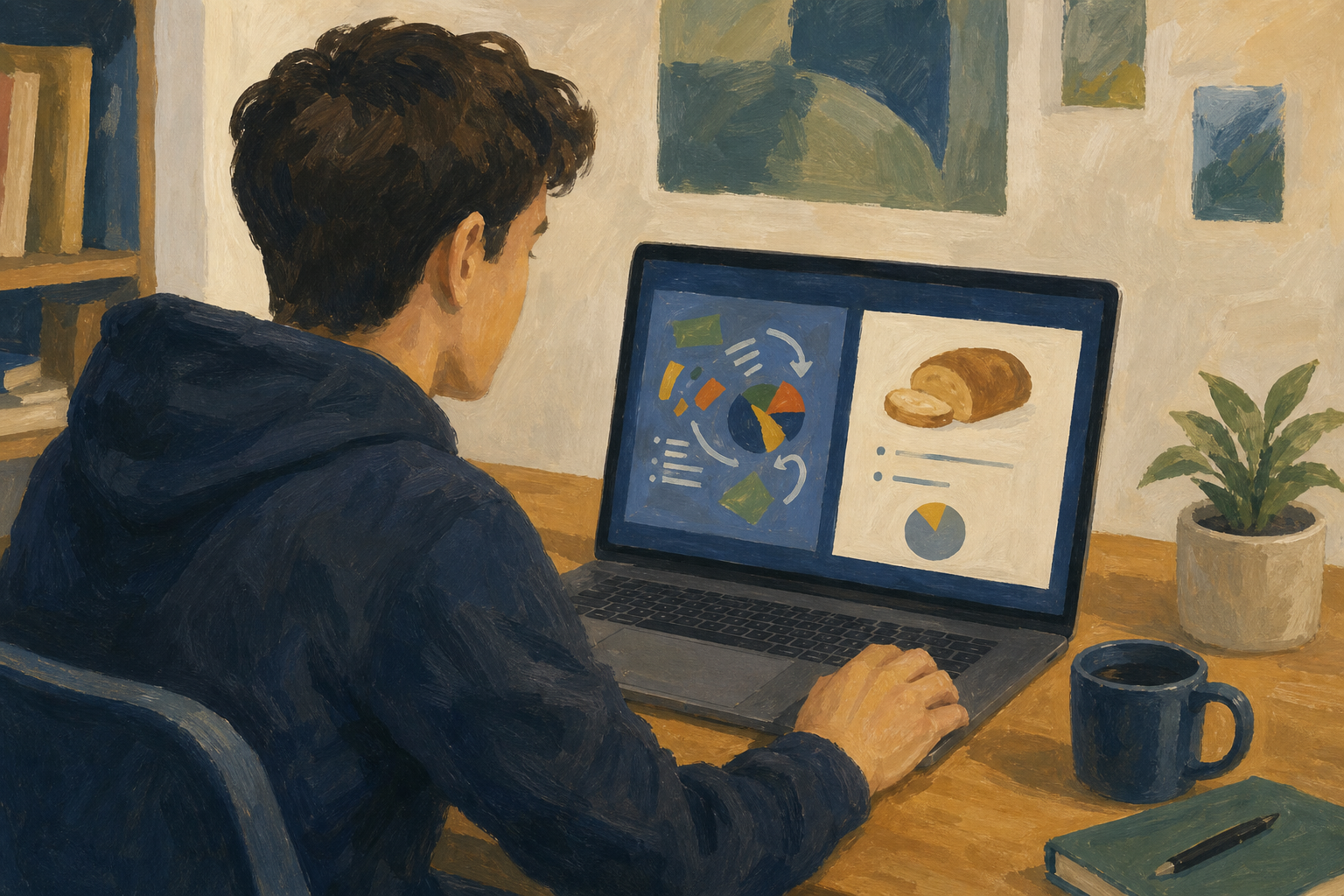
    Illustration for IntroductionYour pitch deck already has the content and the readability pass. Today you add motion, but only the useful kind. One quiet transition and one purposeful animation can guide the eye; a fireworks show on every slide will bury your Something Real project under noise.

    If you do not have {{code:07_project_pitch}} yet, you will build a three-slide practice deck in the guided activity (title, What it is, What it costs). You can transfer the same restraint to your real pitch when that file is ready.

    By the end of this lesson, you will be able to:

    • Add simple transitions and animations only when they serve the message
    • Compare too-much versus just-right effect choices
    • Cut effects that distract from the pitch
    • Add at most one subtle transition and one helpful animation to {{code:07_project_pitch}}

    Warm-up

    Think of the last video or social post that made you scroll past because too much was flashing at once. What one thing on screen would you have kept, and what would you have cut?

    2 - Key Concepts ~4 mins

    Key point

    Motion on a slide is a tool, not a reward for finishing the deck. Use it the way a good creator uses a cut in a short video: only when it helps the audience follow the point.

    Restraint rules for this lesson

    • At most one subtle transition style on the deck (Fade preferred).
    • At most one simple animation on a single content object where it genuinely helps timing.
    • No sound effects, no spin or bounce, no animating every bullet on a list.
    • If you are unsure, leave the slide still and rely on your voice.

    Worked contrast (same pitch, two choices)

    Too much: every slide whooshes in from the right; each bullet flies from a different edge; the logo spins on the title slide. A work-experience supervisor watching this would remember the chaos, not the project.

    Example

    Just right: slides change with a short Fade; on the costs slide only, the €180 first-month total Fades in after you introduce the budget. Everything else stays still so the chart and your words do the work.

    Your teacher will name the key terms (slide transition, object animation, serves the message, cut list) while you keep these four rules in front of you.

    3 - Keep or Cut ~4 mins

    Motion match: keep or cut

    Key point

    Before anyone opens Animations, work these as a class or in pairs. Match each pitch situation to the better motion choice. Prefer the calmer option when both could work.

    Pitch situationBetter motion choice
    Moving from the title slide into the first content slide in a 2-minute pitchOne short Fade transition on all slides
    You want the € total to appear after you say the number aloudOne Appear or Fade-in animation on that figure, On Click
    A slide already has a clear bar chart and short labelsNo object animation; let the chart and your voice carry it
    Every bullet flies in from a different edge with soundCut the effects; static bullets are easier to follow
    You feel unsure whether motion helpsLeave the slide still and rely on speaking

    Your teacher may also use the printed or on-screen matching cards from the worksheet pack.

    4 - Step-by-step Task ~15 mins

    Build the just-right version on a practice deck only. In {{code:Project_Portfolio}} / {{code:07_pitch}}, create {{code:07_motion_practice}}: three slides for a simple bakery side-hustle pitch (title, What it is, What it costs). Put the figure €180 first-month total in its own text box on the costs slide. Add one Fade transition across the deck, then one Appear animation on that €180 figure. Preview, judge, and strip anything that fails the message test.

    Do not edit {{code:07_project_pitch}} in this step. The real pitch is for the portfolio build later.

    Using Canva for your pitch? Stay on the same restraint rules: one quiet page transition and one purposeful element animation. Open a practice copy (or a three-page bakery draft), use Animate on the single €180 element only, set it to click if available, preview the full deck, and remove anything that fails the message test. Ask your teacher to demo the Canva panel if the labels look different from PowerPoint Online or Google Slides.

    5 - Common Issues ~3 mins

    Common Issues

    IssueSolution
    I cannot find Transitions or Animations In PowerPoint Online, look for the {{btn:Transitions}} and {{btn:Animations}} tabs on the ribbon. In Google Slides, select a slide or object first, then use {{btn:Transition}} / {{btn:Animate}} in the toolbar so the right-hand panel opens.
    Every bullet animates even though I only wanted one figure You probably applied an animation to a whole text box full of bullets. Click only the one shape or text box that holds the key figure (for practice, the €180 total), or split that figure into its own text box, then apply Appear/Fade to that object alone.
    The preview looks chaotic after "Apply to all" You may have stacked different transition styles earlier. Set one quiet option (Fade), apply to all, then manually set any leftover wild transitions on individual slides back to None/Fade.
    My animation plays before I am ready to talk Change the start setting to On Click (not After previous or With previous) so the reveal waits for your click during the pitch.
    I use Canva instead of PowerPoint or Slides Keep the same restraint rules: one quiet page transition and one purposeful element animation. Open your Canva practice pages, use Animate on a single element, preview the full deck, and remove anything that fails the message test.
    123learn · Online learning platform

    Unlock the full learning experience

    You're previewing this lesson. Get full access to this lesson and hundreds more — each one ready to teach, with interactive activities, printable resources and pupil progress tracking built in.

    Hundreds of curriculum-aligned lessons
    Interactive activities in every lesson
    Printable resources & progress tracking
    Copyright Notice
    This lesson is copyright of Coding Ireland 2017 - 2025. Unauthorised use, copying or distribution is not allowed.
    🍪 Our website uses cookies to make your browsing experience better. By using our website you agree to our use of cookies. Learn more