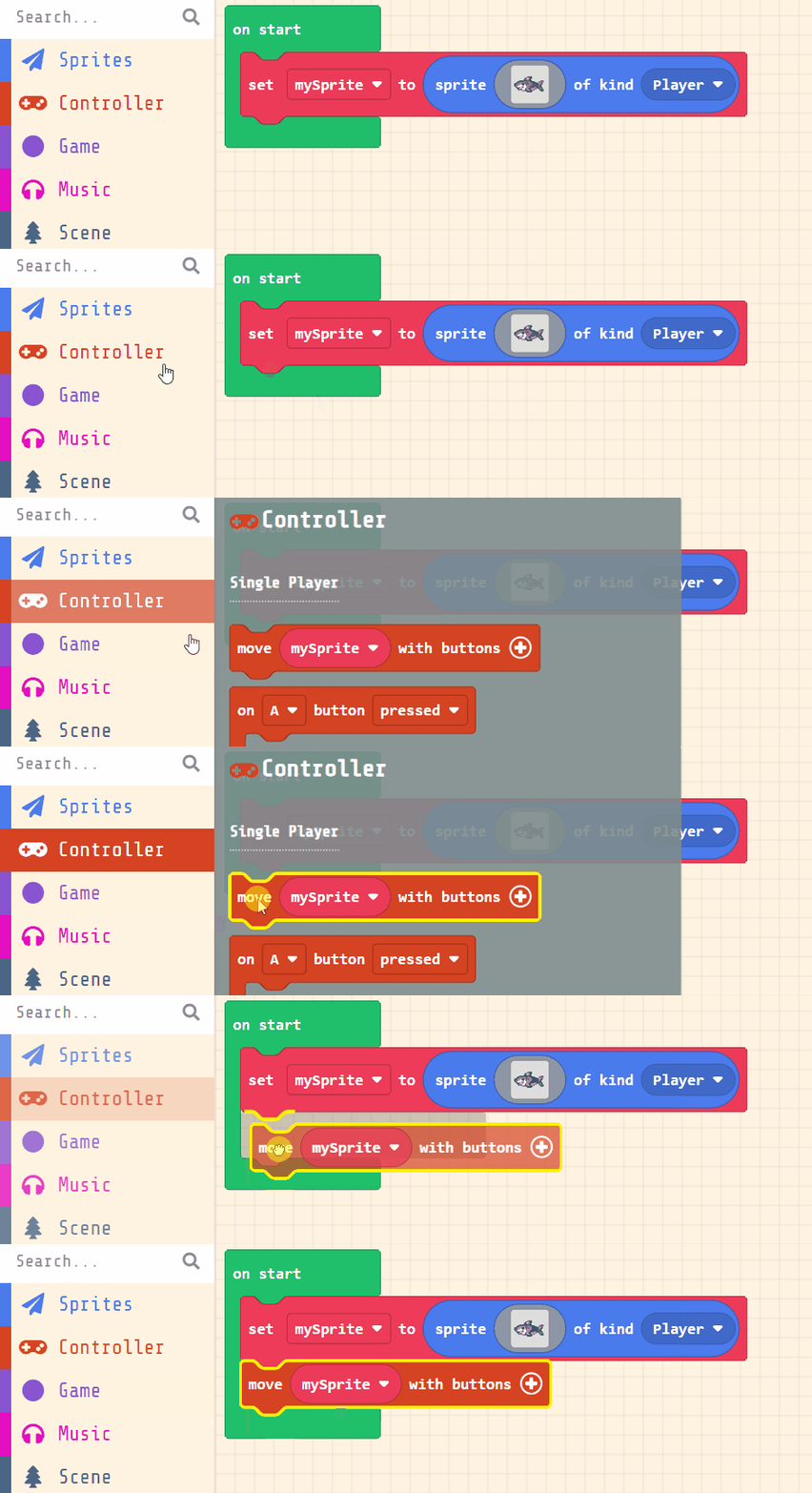
Real programmers rarely finish a program in one go — they build a first version, test it, then improve it. Today you are the technologist returning to your own project. You'll take your saved Shark Attack game, make it better with a loop or an event, hunt down anything that doesn't behave as expected, and tidy up. Watch the board as we reopen a project and make one change, then get your own game running.
Set the scene: today is about improving work already made, not starting from scratch. Ask: <em>what does a programmer do after the first version works?</em> Model reopening a saved project on the IWB before pupils touch devices. Remind pairs to find their own saved file. Safety: agree a sensible volume level if game sound is on.
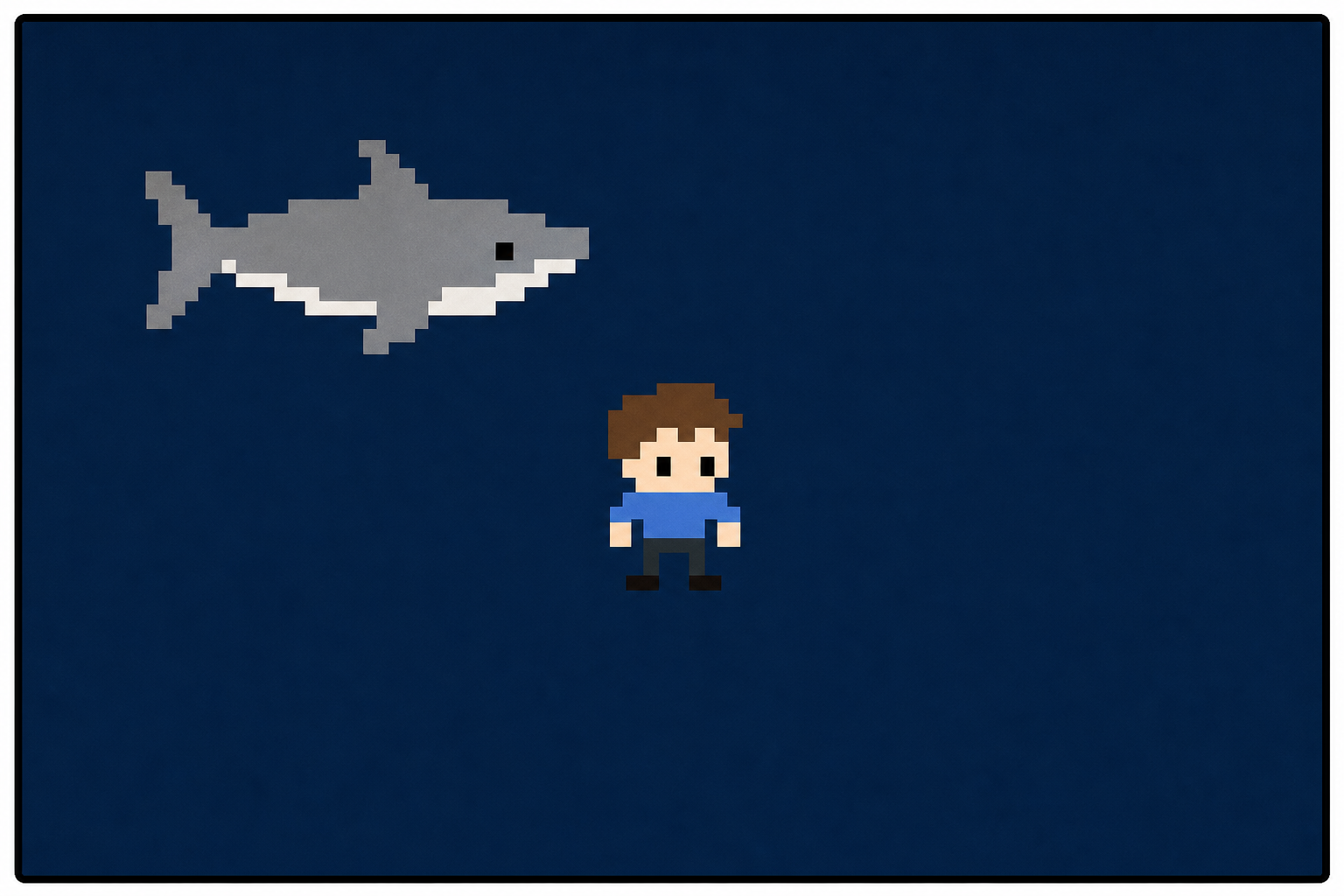
Welcome to our exciting coding adventure! Today, we are going to create a fun game called 'Shark Attack'. In this game, you will control a character who needs to avoid the enemies that are chasing them. We will be using a platform called MakeCode Arcade to build our game. Don't worry if you haven't coded before, we will guide you through each step. Let's get started!
Read the intro aloud to re-orient pupils to Shark Attack. Key question: <em>who remembers what our game already does?</em> Keep this brief — most of the lesson is improving, not re-explaining. Support: quickly recap that a sprite is the character on screen.
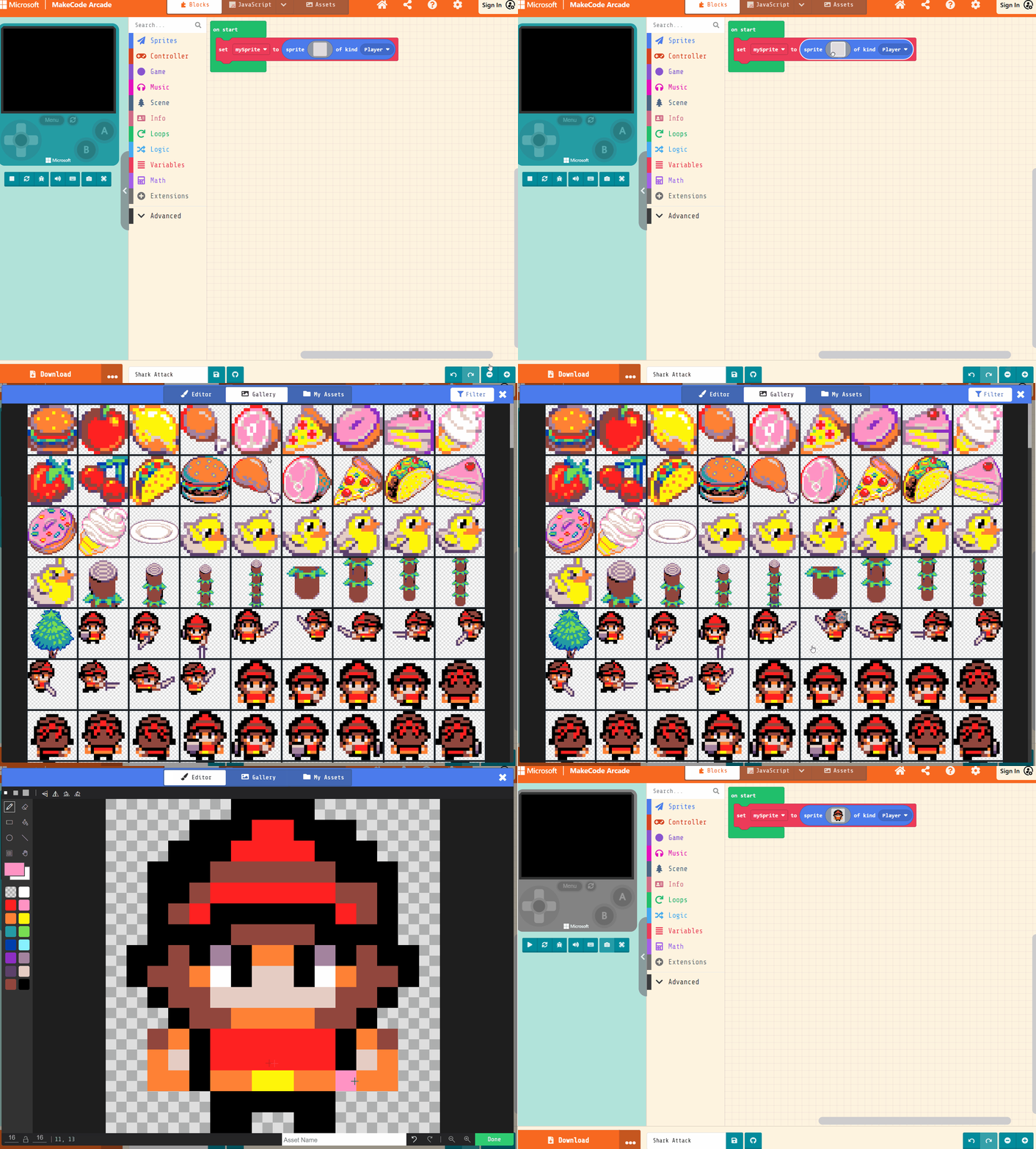
Open the MakeCode Arcade website using the link below and create a new project. You can call the project whatever you want.
Create a new Arcade project using the makecode.com website.
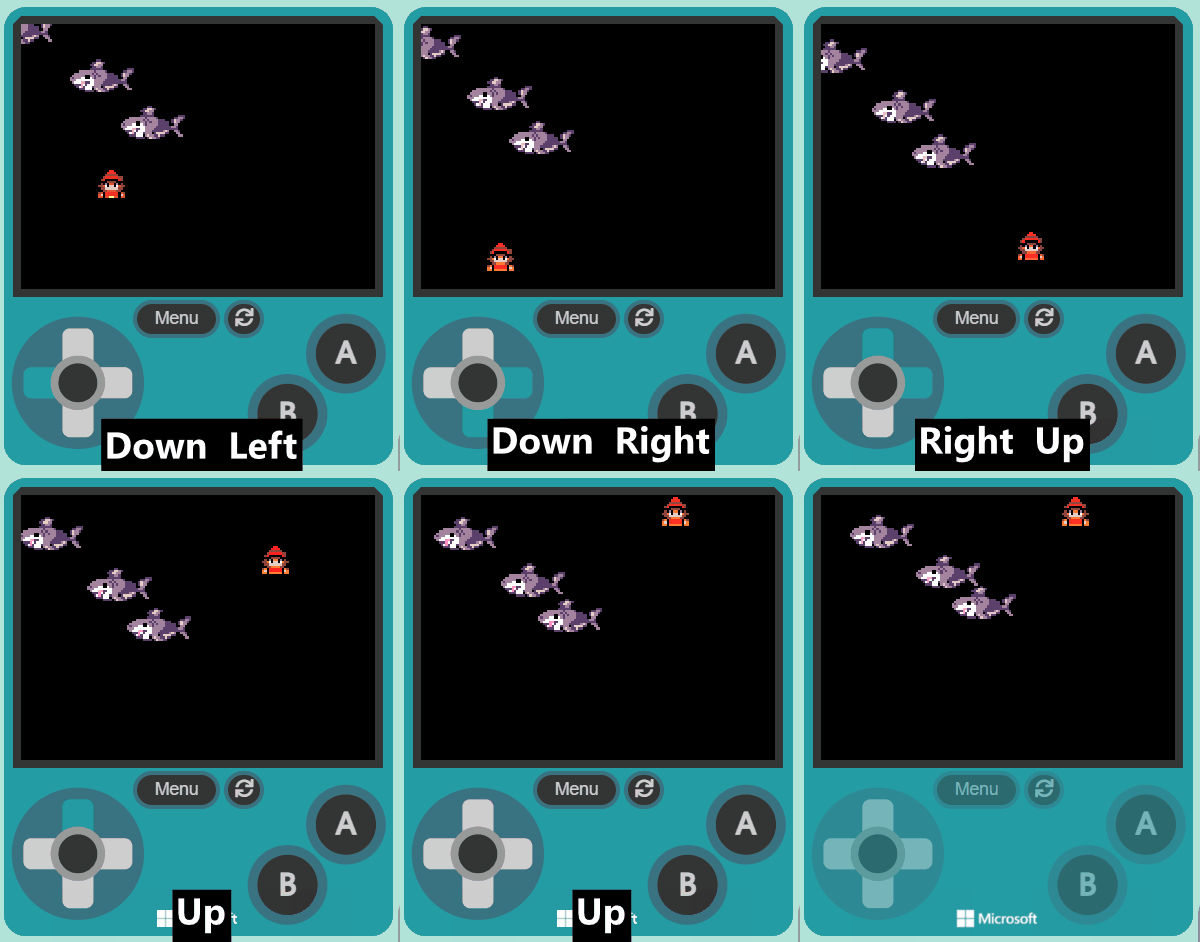
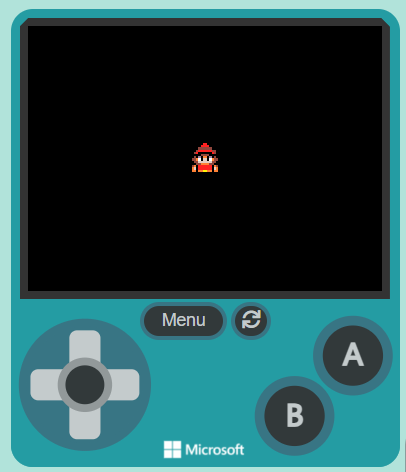
Pupils should be reopening their existing project rather than creating a fresh empty one — check nobody starts blank by mistake. Ask: <em>can you see your player and your sharks when you press play?</em> Bug to watch: a pupil opening the wrong project; help them locate the saved one by name.
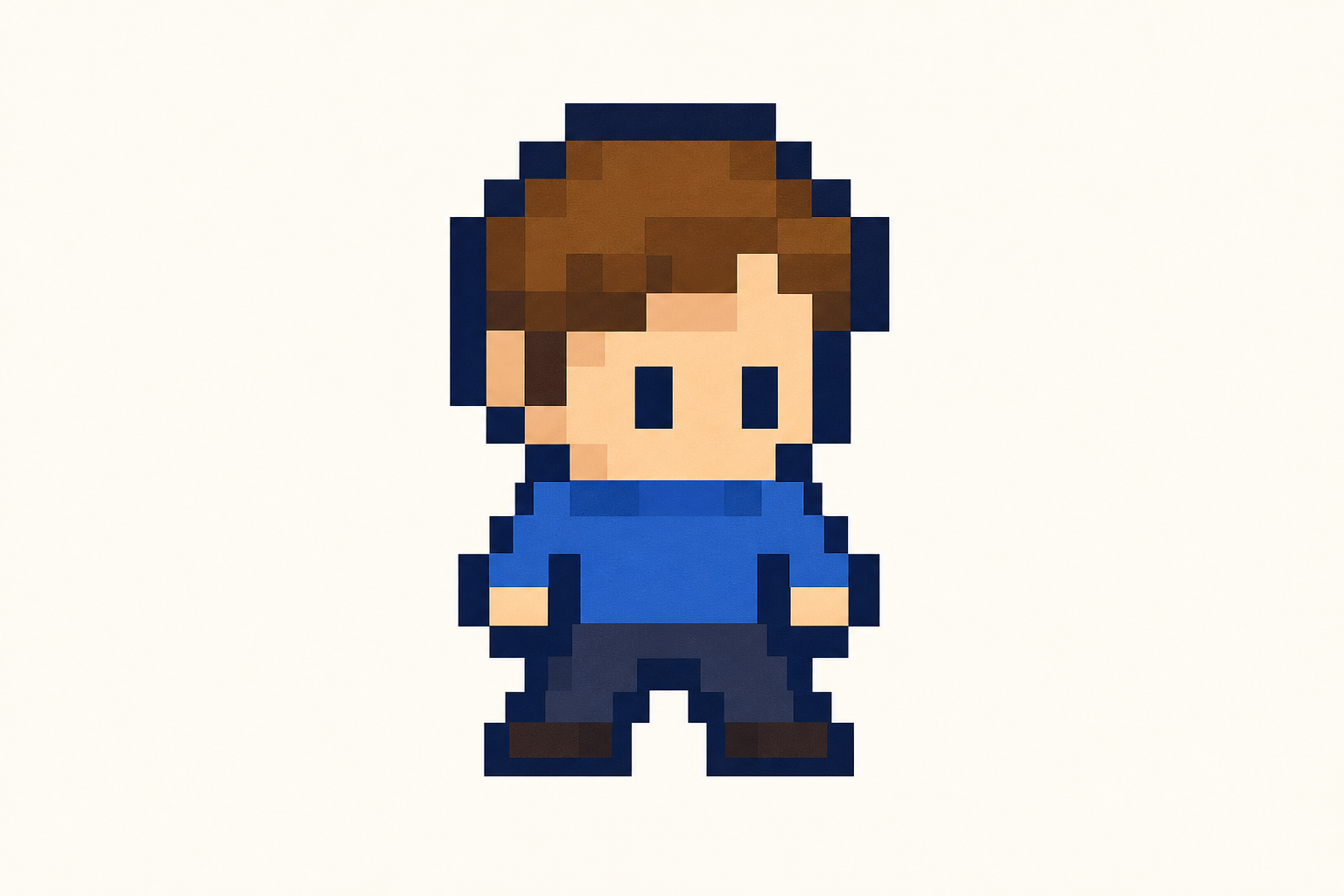
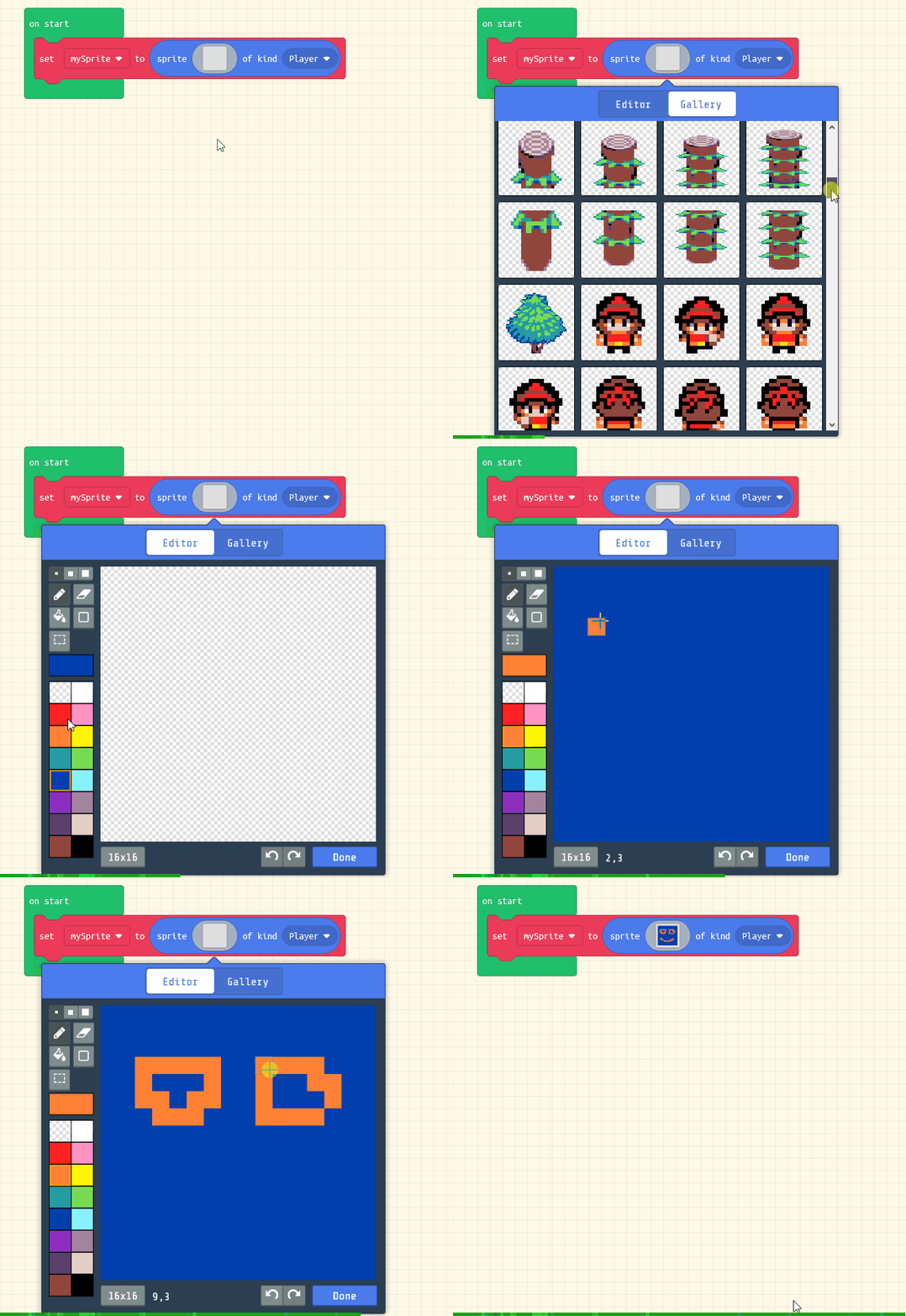
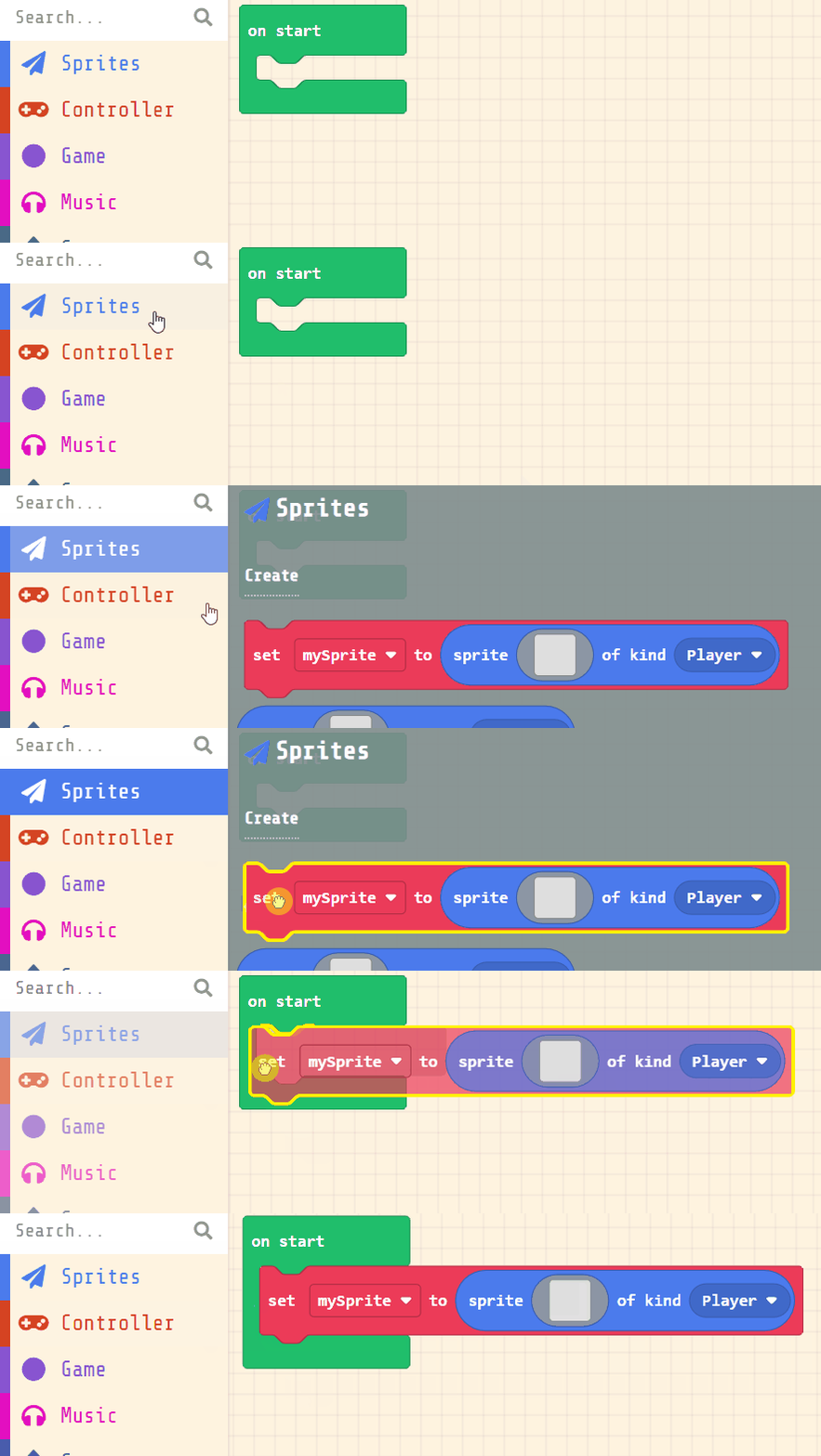
Next, you will create your player sprite. This is the character that you will control in the game. Add the following code:
let mySprite = sprites.create(img`...`, SpriteKind.Player)
Then click on the grey box and choose a sprite character from the gallery.
let mySprite = sprites.create(img`
. . . . . . f f f f . . . . . .
. . . . f f f 2 2 f f f . . . .
. . . f f f 2 2 2 2 f f f . . .
. . f f f e e e e e e f f f . .
. . f f e 2 2 2 2 2 2 e e f . .
. . f e 2 f f f f f f 2 e f . .
. . f f f f e e e e f f f f . .
. f f e f b f 4 4 f b f e f f .
. f e e 4 1 f d d f 1 4 e e f .
. . f e e d d d d d d e e f . .
. . . f e e 4 4 4 4 e e f . . .
. . e 4 f 2 2 2 2 2 2 f 4 e . .
. . 4 d f 2 2 2 2 2 2 f d 4 . .
. . 4 4 f 4 4 5 5 4 4 f 4 4 . .
. . . . . f f f f f f . . . . .
. . . . . f f . . f f . . . . .
`, SpriteKind.Player)
Click on the gray box in the sprite block to open the Editor. You can choose a sprite from the Gallery or you can paint your own sprite using the Editor.
Their player sprite should already exist from before. Model on the IWB where the sprite is defined so pupils can find it if they want to change the character. Common issue: a pupil accidentally creates a second player — point out one player sprite is enough. Extension: swap the player image from the gallery.
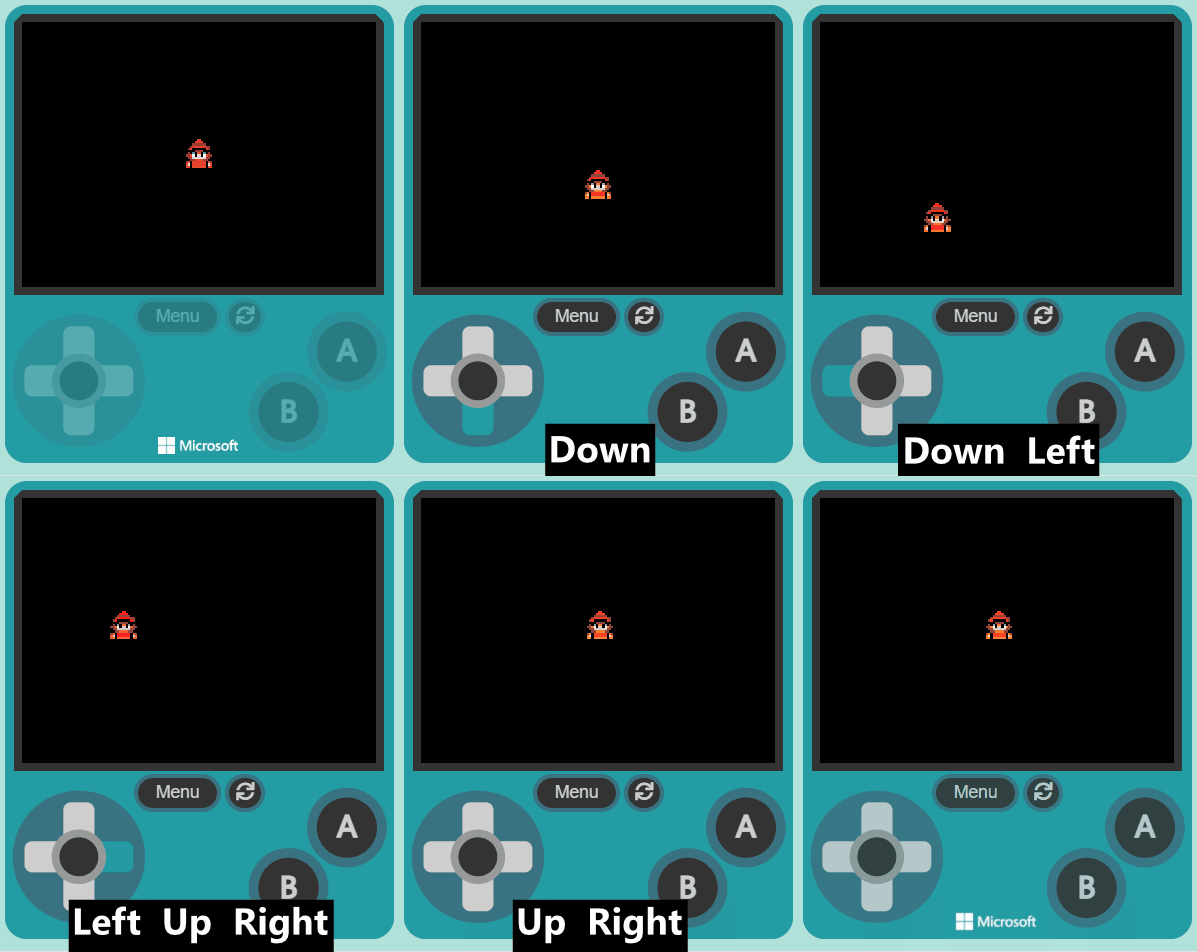
Now, let's make your sprite move using the joystick (or the arrow keys on your keyboard).
Add the following new code:
let mySprite = sprites.create(img`
. . . . . . f f f f . . . . . .
. . . . f f f 2 2 f f f . . . .
. . . f f f 2 2 2 2 f f f . . .
. . f f f e e e e e e f f f . .
. . f f e 2 2 2 2 2 2 e e f . .
. . f e 2 f f f f f f 2 e f . .
. . f f f f e e e e f f f f . .
. f f e f b f 4 4 f b f e f f .
. f e e 4 1 f d d f 1 4 e e f .
. . f e e d d d d d d e e f . .
. . . f e e 4 4 4 4 e e f . . .
. . e 4 f 2 2 2 2 2 2 f 4 e . .
. . 4 d f 2 2 2 2 2 2 f d 4 . .
. . 4 4 f 4 4 5 5 4 4 f 4 4 . .
. . . . . f f f f f f . . . . .
. . . . . f f . . f f . . . . .
`, SpriteKind.Player)
controller.moveSprite(mySprite)
Movement should already work; use this to check the game runs before pupils extend it. Key question: <em>does the joystick still move your player?</em> If not, the last change likely caused it — undo and retest. Support: confirm arrow keys work on the simulator.
You're previewing this lesson. Get full access to this lesson and hundreds more — each one ready to teach, with interactive activities, printable resources and pupil progress tracking built in.