Today you will
- sign into your school OneDrive or Google Drive
- check your whole Project Portfolio is in the cloud
- open it on a second machine
- sign out fully so nobody else can get into your account
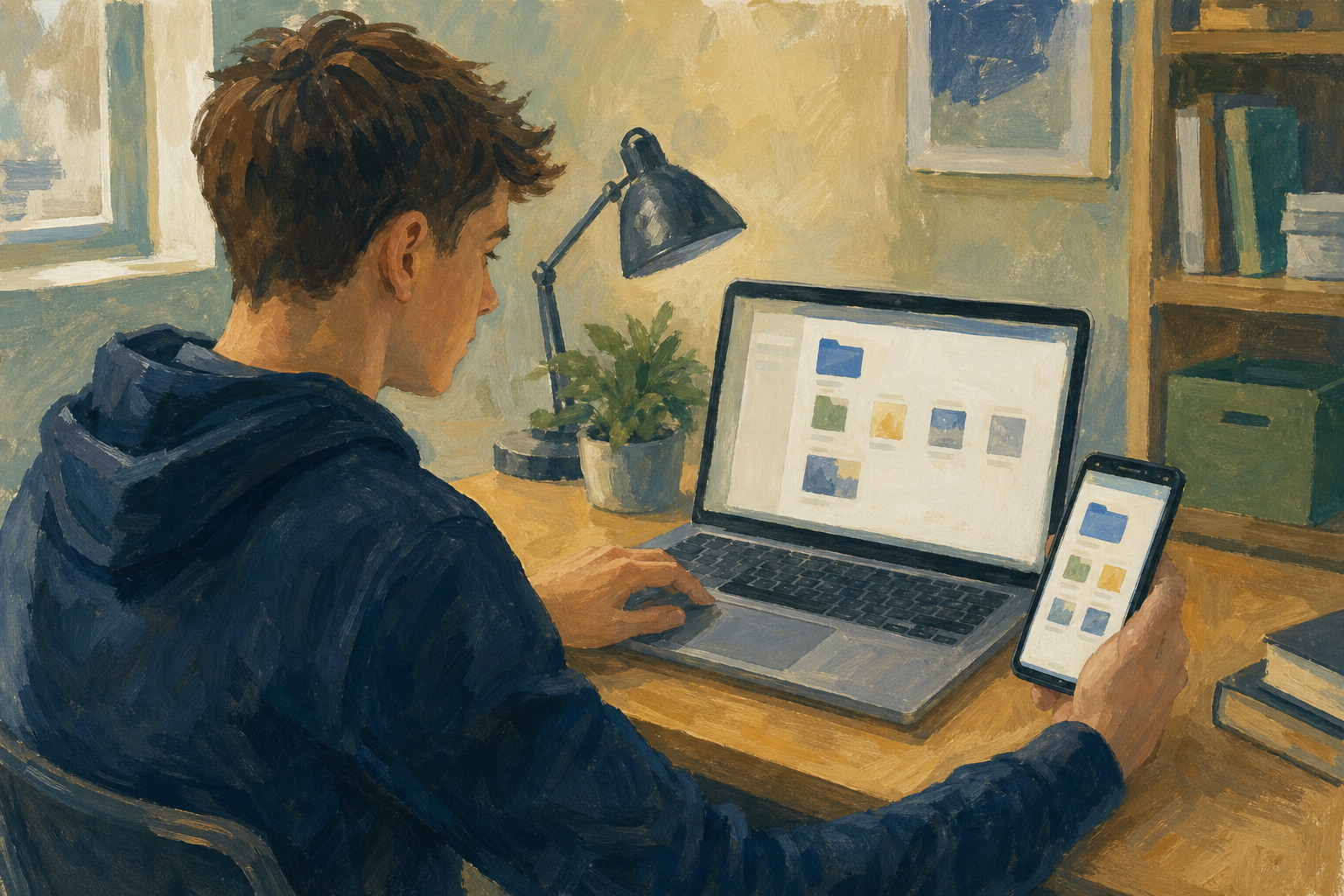 If you cannot find your Project Portfolio, tell your teacher.
Warm-up
If this computer died right now, where would your Project Portfolio be: only on this PC, on a USB stick, or in the cloud?
Cloud storage keeps your files online, so you can open them from any computer.
Your school account is the Microsoft or Google login your school gave you, not a personal one.
Version history is a list of earlier saved copies of a file.
A full sign-out stops the next person at a shared computer getting into your files.
Example
Jordan uploads a Work Experience report to school OneDrive on one lab PC. The next day, Jordan opens it on a different PC and keeps working.
Your teacher will tell you whether this class uses OneDrive or Google Drive. Follow only the steps for that one.
This is practice. You will upload one small file, not your whole Project Portfolio, and make an empty page called {{code:01_cloud_backup_check}}. Follow the steps in the box below, and stay at your seat when you finish.
If something goes wrong
- If you can't sign in, check you are using your school email. Sign out, close the browser and try again.
- If the upload looks stuck, leave the tab open and wait. A big folder can take several minutes.
- If you can't find your portfolio, check you are in the same school account, then use the search box.
Portfolio Build
- Sign back in, and click {{btn:No}} if asked to stay signed in.
- Check your whole Project Portfolio is in the cloud, and upload any file that is only on this PC.
- Open one file, find its version history, then close the panel.
- Move {{code:01_cloud_backup_check}} into your Project Portfolio, then type the checklist below and tick what you can prove.
- When your teacher calls you, open one file on the second machine. Then sign out and close the browser on every machine.
☐ School sign-in
☐ Upload finished
☐ Second-device open
☐ Version history found
☐ Full sign-out
Cloud copy lives at (drive and folder):
- My Project Portfolio is in my school cloud storage.
- I opened a portfolio file on a second machine.
- My checklist is saved in my cloud Project Portfolio.
- I signed out on every machine I used.
Unlock the full learning experience
You're previewing this lesson. Get full access to this lesson and hundreds more — each one ready to teach, with interactive activities, printable resources and pupil progress tracking built in.
This lesson is copyright of Coding Ireland 2017 - 2026. Unauthorised use, copying or distribution is not allowed.