 You can already make sprites move and respond in Scratch. Today you will build Attack of the Dots: a spinning disc in the middle, coloured dots that clone and move in, and if decisions so the game reacts when a dot hits the matching colour.
You will work step by step at your device: predict, build, run, and fix.
Attack of the Dots has three parts, and you will build them in this order:
- A wheel you spin with the left and right arrow keys. That is an event: the program reacts to a key being pressed.
- Dots that appear and move in towards the wheel.
- An if decision that checks the colour a dot hits, so the game can react one way to a match and another way to a mismatch.
Test each part before you add the next.
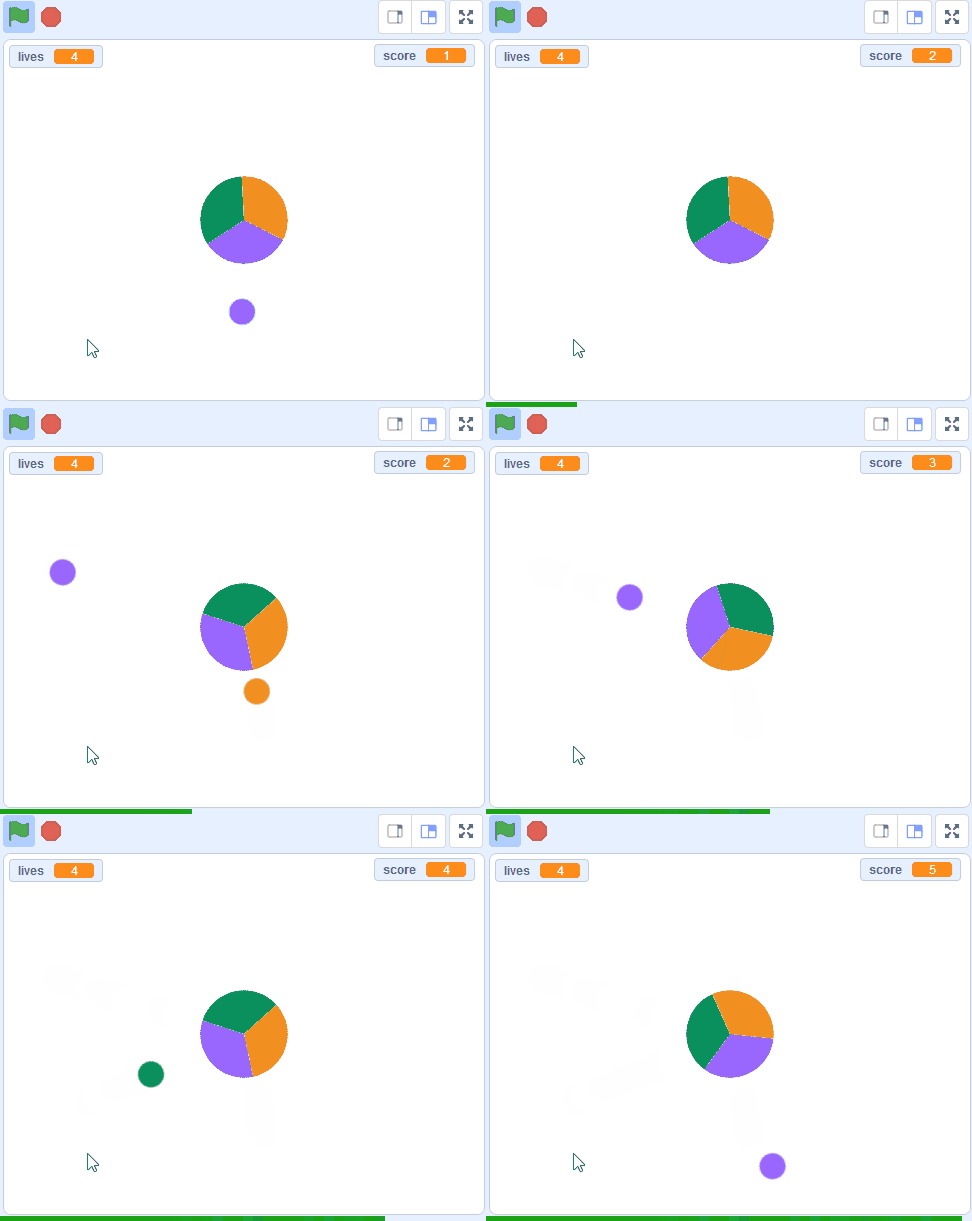
We've created a starter project that has some custom sprites for this game.
Go to the starter project at the below link and click on the Remix button to create a copy of the project.

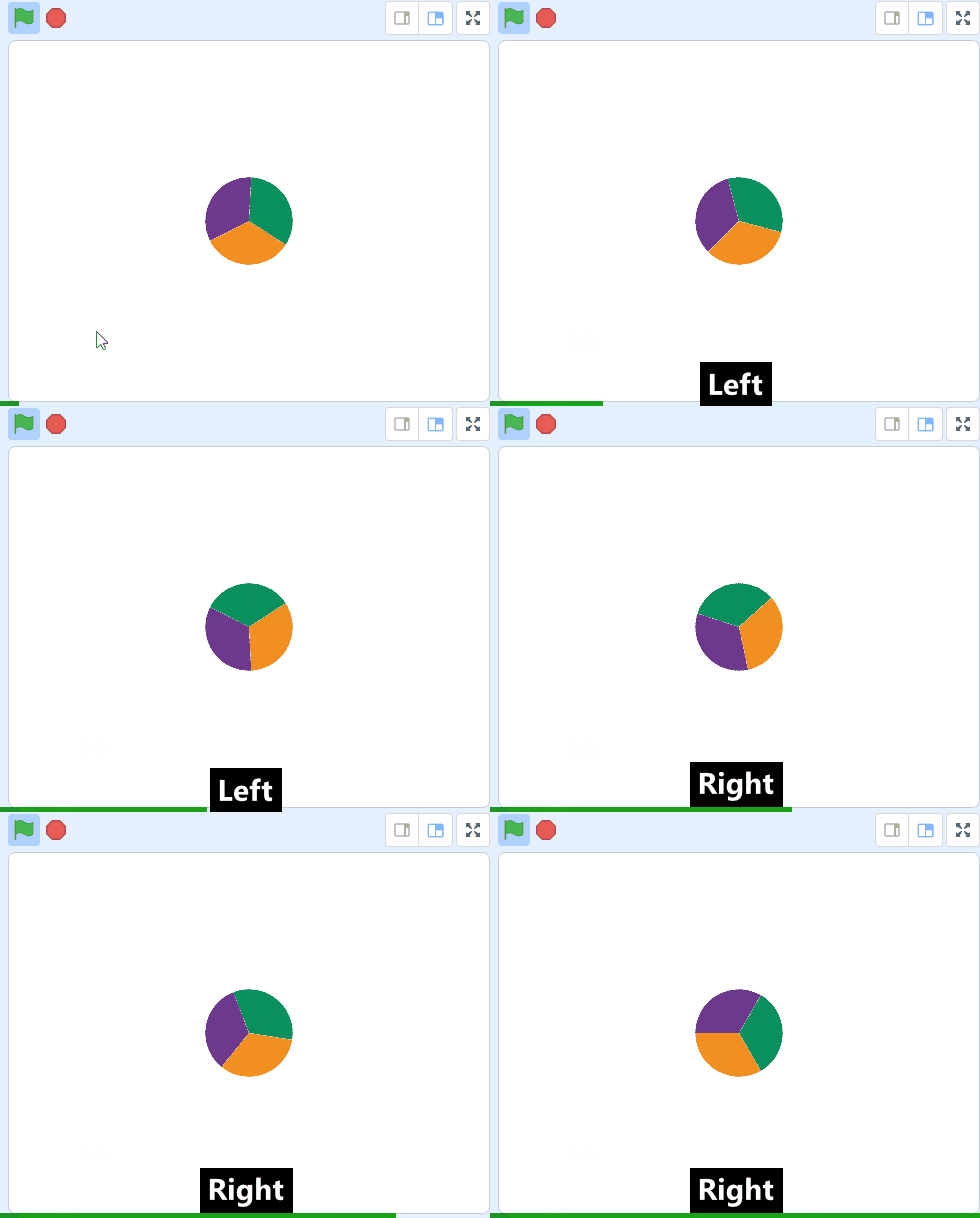
In this game coloured balls will move towards the disc in the middle. You need to spin the wheel to match the colour of each ball as it hits the wheel. So we'll program the left and right arrow keys on our keyboard to spin the wheel in each direction.
Add the following code to the 'wheel' sprite:
when green flag clicked
go to x[0] y [0] // place it in the centre
set size to [30]% // resize the wheel to 30%
forever
if < key (left arrow v) pressed? >  then
turn ccw (3) degrees // turn anti clockwise
end
if < key (right arrow v) pressed? >  then
turn cw (3) degrees // turn clockwise
end
end
If you're using a tablet or iPad without a physical keyboard, you won't be able to use keyboard keys like the arrow keys in your project. Instead, we'll add simple on-screen buttons (using sprites) that you can tap to do the same things. This keeps your project working great! Just follow these steps wherever the lesson talks about pressing a key.
First, add a new sprite for your button:
- Click the "Choose a Sprite" button in the bottom right.
- Pick a simple shape, like an arrow or a circle. Make it small and place it on the screen where it's easy to tap, like the bottom corner.
Now, program your button sprite to make things happen when you tap it. Here's how it works for different situations:
Example 1: If the lesson uses a key to trigger an action on a specific sprite (like making something move, turn, or jump)
Instead of code like this on your target sprite:
when [left arrow v] key pressed
change x by (-10)  // or any action
Or this:
if < key [left arrow v] pressed? > then
change x by (-10)  // or any action
end
Add this code to your new button sprite:
when this sprite clicked
broadcast [do action v]
Then, on your target sprite, add this to receive the message:
when I receive [do action v]
change x by (-10)  // or any action
Tap the button on the screen, and the action will happen, just like pressing the key! Use a unique broadcast name for each different action or key.
Example 2: If the lesson uses a key to change a variable (like adding to a score or setting a value)
Instead of code like this:
when [space v] key pressed
change [score v] by (1)
Or this:
if < key [space v] pressed? > then
change [score v] by (1)
end
Add a new button sprite. Then, put this code on the button sprite:
when this sprite clicked
change [score v] by (1)
(If the variable is "for this sprite only," make sure it's set to "for all sprites" so the button can change it.)
Tap the button, and the variable changes, no message needed since it's something shared!
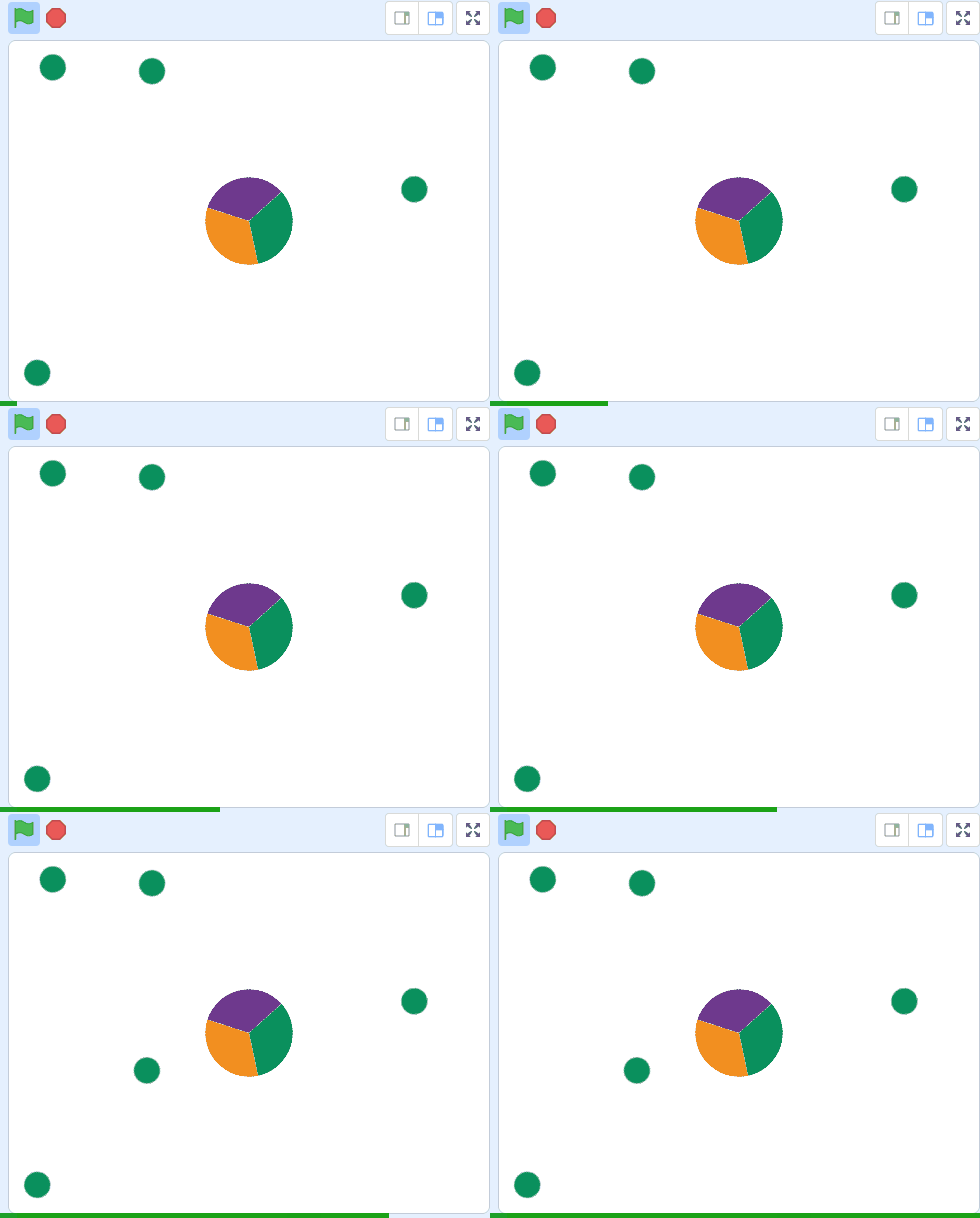
In the game, the balls should appear every few seconds, in a random position and start moving towards the wheel.
Add the following code to the green ball called 'Sprite1':
when green flag clicked
hide
forever
wait (pick random (4) to (8)) seconds // wait a random number of seconds
create clone of (myself v) // create the clone
end

when I start as a clone
go to (random position v) // start in a random position
point towards (wheel v) // point in the direction of the wheel
show
Unlock the full learning experience
You're previewing this lesson. Get full access to this lesson and hundreds more — each one ready to teach, with interactive activities, printable resources and pupil progress tracking built in.
This lesson is copyright of Coding Ireland 2017 - 2026. Unauthorised use, copying or distribution is not allowed.
Scratch is developed by the Lifelong Kindergarten Group at the MIT Media Lab. It is available for free at https://scratch.mit.edu