Today you will
- search and filter your school email
- make two folders or labels and file emails into them
- learn when to archive an email and when to delete it
Warm-up
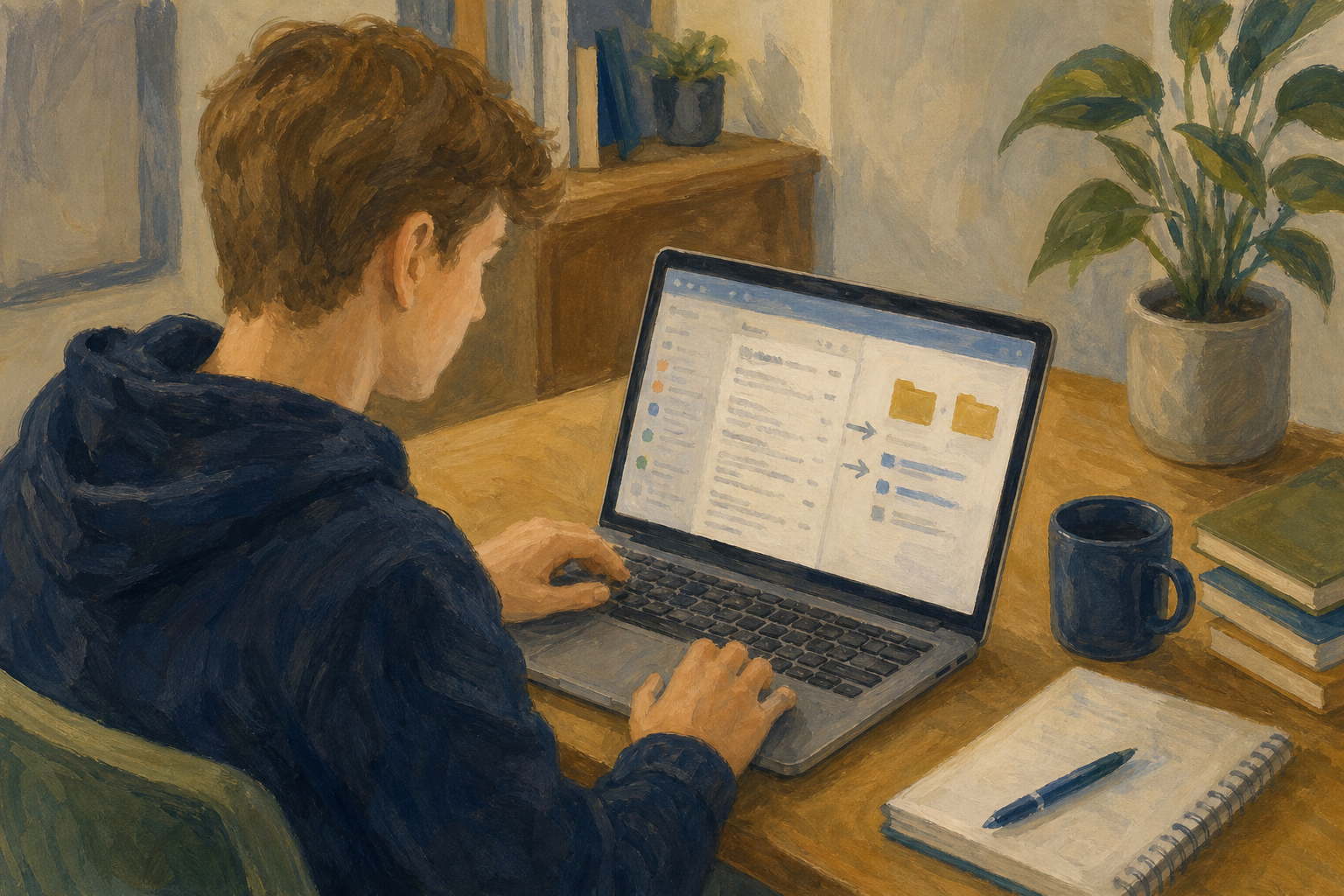 Say your teacher asked you to find the last email about Work Experience or your Something Real project. What would you click first?
Search finds an email from a word you type, like a name.
A filter narrows the results, for example to emails with an attachment.
A folder in Outlook, or a label in Gmail, is a named home for all mail on one topic.
Archive takes an email out of your inbox but keeps it, so you can still search for it. Delete is only for junk.
Example
Aoife makes ICT_Specialism and Enterprise_Pitch for her catering pitch. She files three emails, archives two old ones and deletes spam.
You will search, filter and file your email, then try archive and delete. Follow the steps for your email app in the box below.
If your inbox is nearly empty, send yourself these four emails first. Click {{btn:New mail}} in Outlook or {{btn:Compose}} in Gmail, and put your own school email address in the To box.
| Subject | Message |
|---|---|
| ICT Specialism homework | Save today's work in 09_specialism/sm4 before the bell. |
| ICT Specialism screenshots | Give every screenshot a clear name before you save it. |
| Work Experience first day | Arrive at 9am on Monday and ask for Siobhán at reception. |
| Test, please ignore | This one is for the delete practice. |
Common snags
- If you can't see New folder or Create new label, widen the window.
- If a Gmail email doesn't show under your label, open it, click Labels and tick the label.
- If search finds nothing, try just one word and clear any old filters.
- If you archived or deleted the wrong email, search for it or open Deleted Items or Bin and move it back.
Independent Practice
- Check you have two folders or labels, one for ICT Specialism and one for another topic.
- Check that at least three emails are filed in them.
- Open both so the emails show. Take a screenshot with {{kbd:Win+Shift+S}} on Windows, {{kbd:Cmd+Shift+4}} on a Mac or {{kbd:Ctrl+Show windows}} on a Chromebook.
- In OneDrive or Google Drive, open {{code:Project_Portfolio}}, then {{code:09_specialism/sm4/}}. Make those folders if they are missing.
- Save the screenshot as {{code:sm4_email_filing_evidence.png}} in {{code:sm4}}.
- I have two clearly named folders or labels.
- At least three emails are filed in them.
- My screenshot shows both with emails in them.
- It is saved as {{code:sm4_email_filing_evidence.png}} in {{code:09_specialism/sm4/}}.
Unlock the full learning experience
You're previewing this lesson. Get full access to this lesson and hundreds more — each one ready to teach, with interactive activities, printable resources and pupil progress tracking built in.
This lesson is copyright of Coding Ireland 2017 - 2026. Unauthorised use, copying or distribution is not allowed.