Today you will
- save your spreadsheet as a .csv and a .pdf
- see what changes in each copy
- pick the right format for a job
Warm-up
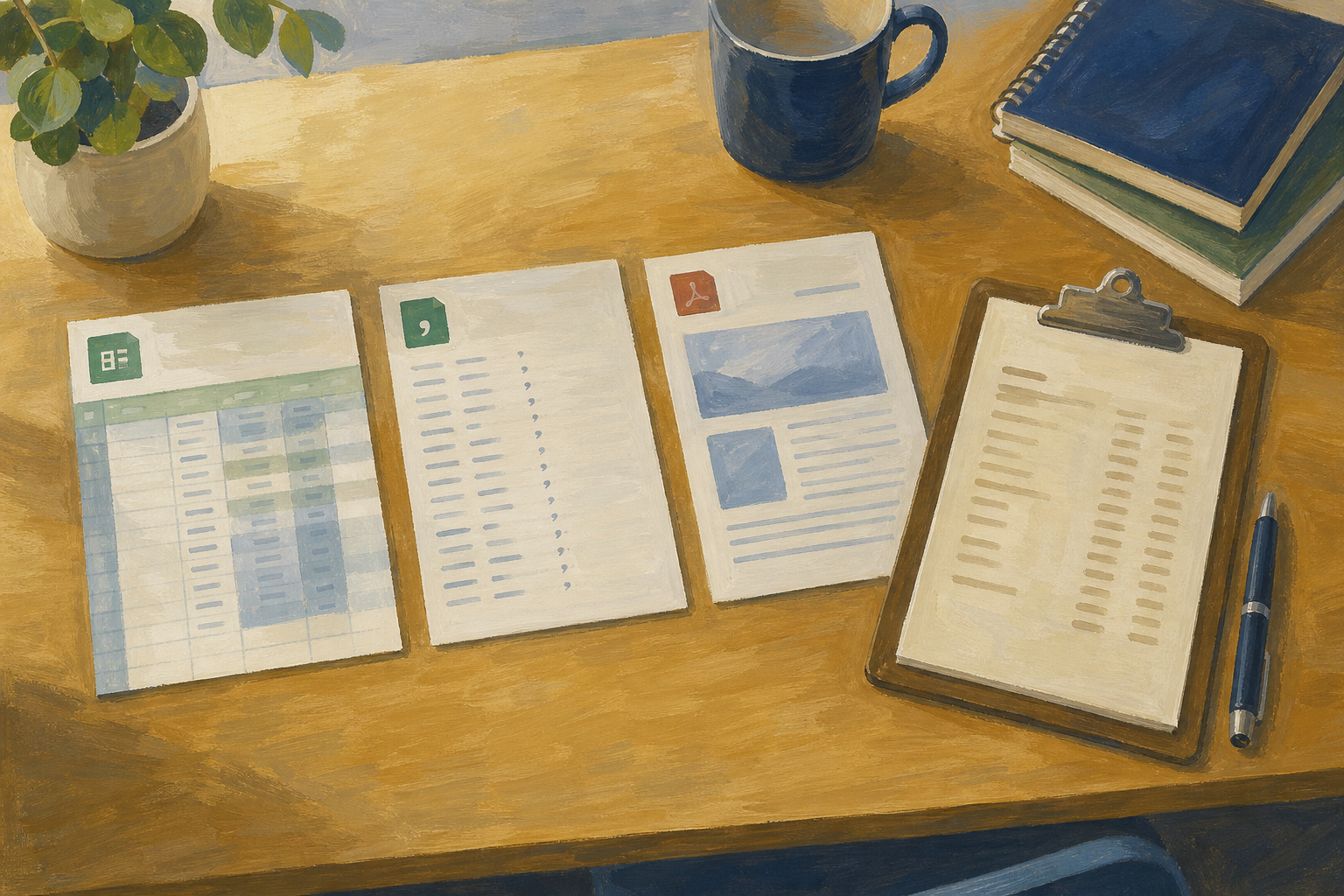 A supplier needs your stock list for their system. A supervisor needs a printout. Which format suits each one?
Before you start
Check that {{code:sm3_from_template}} is in {{code:sm3}}. If it is missing, paste this table into a new spreadsheet with that name.
| Item | Unit cost (€) | Quantity | Line total (€) |
|---|---|---|---|
| Vinyl sticker sheets | 8.50 | 10 | |
| Ink pack | 12.00 | 2 | |
| Packaging envelopes | 0.90 | 30 | |
| Market stall fee | 24.00 | 2 | |
| Printed business cards | 25.00 | 1 | |
| TOTAL |
Then type these formulas.
In {{cell:D2}}: {{formula:=B2*C2}} (fill down to {{cell:D6}})
In {{cell:D7}}: {{formula:=SUM(D2:D6)}}
.xlsx is your working spreadsheet. It keeps formulas, formatting and sheets, so you can keep editing.
.ods is an open spreadsheet format used by LibreOffice. Some groups ask for it.
.csv is plain data with no formatting. Formulas turn into plain numbers.
.pdf is a fixed page for reading and printing. Nobody can edit the cells.
Example
Your stock list stays as your master. You send the .csv to a supplier and the .pdf to your Work Experience supervisor.
Never replace your master with a copy.
You will save your Something Real spreadsheet as a .csv and a .pdf. Then you will open each copy to see what changed. Follow the steps in the box below.
Common issues
- My CSV has no formulas or € signs. That is normal, because a CSV only keeps the data.
- My PDF cuts off columns. Choose landscape and fit to width, then export it again.
- My files aren't in my portfolio. Downloads go to your device first, so upload them into {{code:sm3}}.
Independent Practice
- Check that your master, {{code:sm3_from_template.csv}} and {{code:sm3_from_template.pdf}} are all in {{code:sm3}}.
- In {{code:sm3}}, make a document called {{code:sm3_format_notes}}.
- Use the checklist below to write what the CSV and the PDF kept and lost.
- Fill in the two lines below with a real person or system.
- Finish with one sentence saying which file you would send this week, to whom and why.
Did it keep the formulas?
Did it keep the € formatting?
Did it keep every sheet?
CSV use-case:
PDF recipient:
- My master still opens for editing.
- My .csv and .pdf are in {{code:sm3}}.
- {{code:sm3_format_notes}} says what each copy kept and lost.
- I chose one file to send and said why.
Unlock the full learning experience
You're previewing this lesson. Get full access to this lesson and hundreds more — each one ready to teach, with interactive activities, printable resources and pupil progress tracking built in.
This lesson is copyright of Coding Ireland 2017 - 2026. Unauthorised use, copying or distribution is not allowed.