Today you will
- turn gridlines on and off, on screen and on the printed page
- set a print area so your working cells stay off the page
- save a print-ready PDF of a portfolio spreadsheet
Warm-up
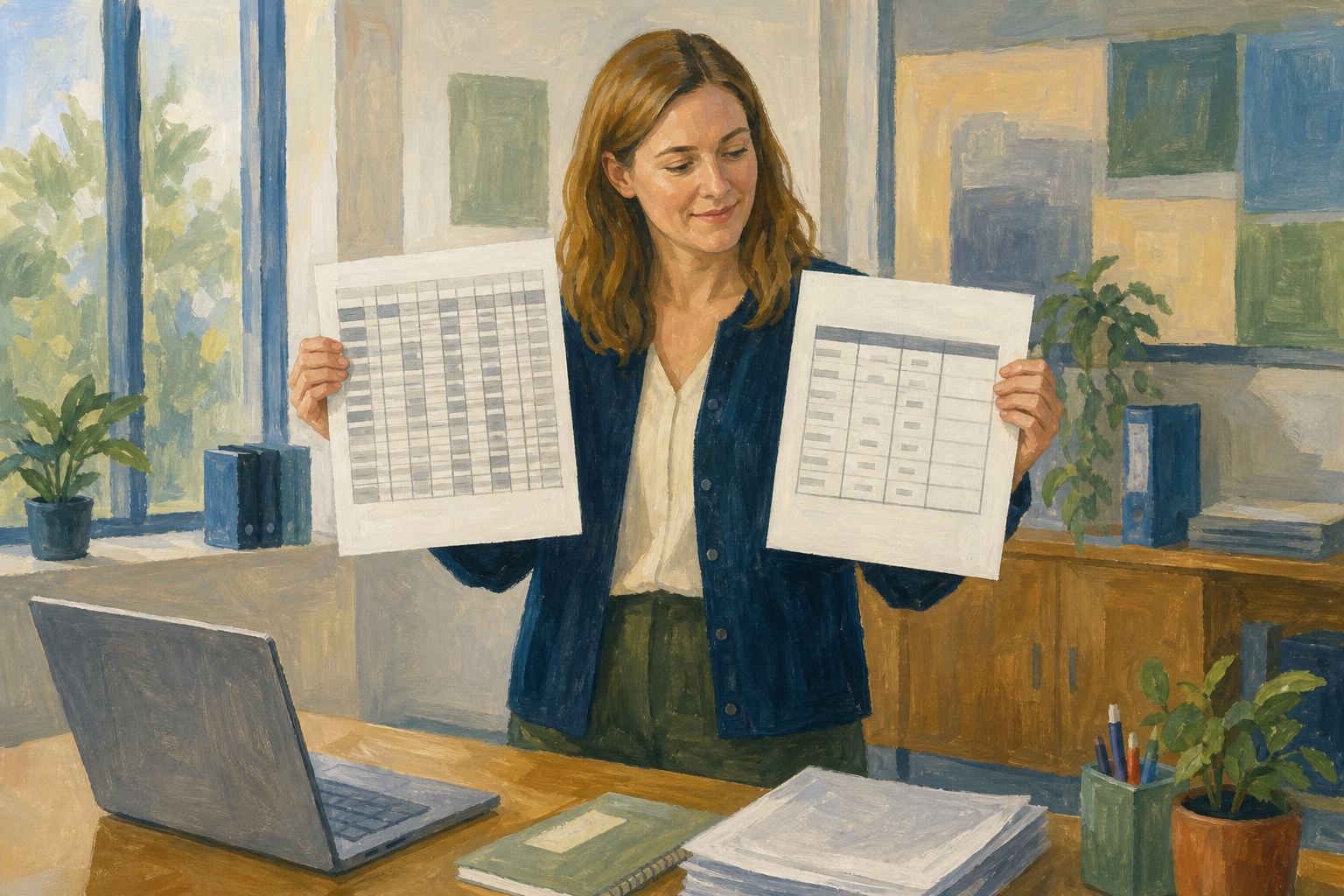 An hours log has the columns Date, Start, End, Hours and Check. Which columns should a real reader see on paper? Which ones are just for you?
On-screen gridlines are the grey lines you see while you work. You switch them under View.
Print gridlines are lines on paper or in a PDF. Sheets lets you choose them when you print.
A print area is the cells that will print. The rest stays in the file, off the page.
A working column holds checks or rough maths just for you.
In an hours log, column E is a working Check column. So the print area is {{range:A1:D4}}, which leaves E off the page.
You will set up a sheet so only the reader's columns print. Watch your teacher first, then follow the steps for your app below.
If you need a practice sheet, make a new spreadsheet called {{code:sm3_hours_log_practice}} in {{code:09_specialism/sm3/}}. Type this in, starting in cell {{cell:A1}}.
| Date | Start | End | Hours | Check |
|---|---|---|---|---|
| 03/03/2026 | 09:00 | 13:00 | 4.0 | OK |
| 04/03/2026 | 09:00 | 17:00 | 8.0 | OK |
| 05/03/2026 | 10:00 | 14:30 | 4.5 | OK |
Common issues
- Gridlines still show in the preview. Screen and print gridlines are separate, so change them in {{menu:File -> Print}}.
- The working column still prints. Clear the print area or cancel printing. Then select only the reader's columns and set it again.
- You can't find Print Area in Google Sheets. Sheets doesn't have one, so choose {{btn:Selected cells}} in {{menu:File -> Print}} instead.
Independent Practice
- Open a Something Real spreadsheet in {{code:09_specialism/sm3/}}, or {{code:sm3_hours_log_practice}}.
- If it has no working column, add a Check column that won't print.
- Select the reader's columns with their headings. Set the print area, or choose {{btn:Selected cells}} in Sheets.
- Choose print gridlines (Sheets) or borders (Excel) to suit your reader, and check the preview.
- Save the preview as a PDF called {{code:sm3_print_ready_preview}} and upload it to {{code:sm3/}}.
- My PDF shows only the reader's columns, with headings.
- I chose lines on or off for a reason.
- {{code:sm3_print_ready_preview}} is saved in {{code:sm3/}}.
- In Excel, my print area is still set.
Unlock the full learning experience
You're previewing this lesson. Get full access to this lesson and hundreds more — each one ready to teach, with interactive activities, printable resources and pupil progress tracking built in.
This lesson is copyright of Coding Ireland 2017 - 2026. Unauthorised use, copying or distribution is not allowed.