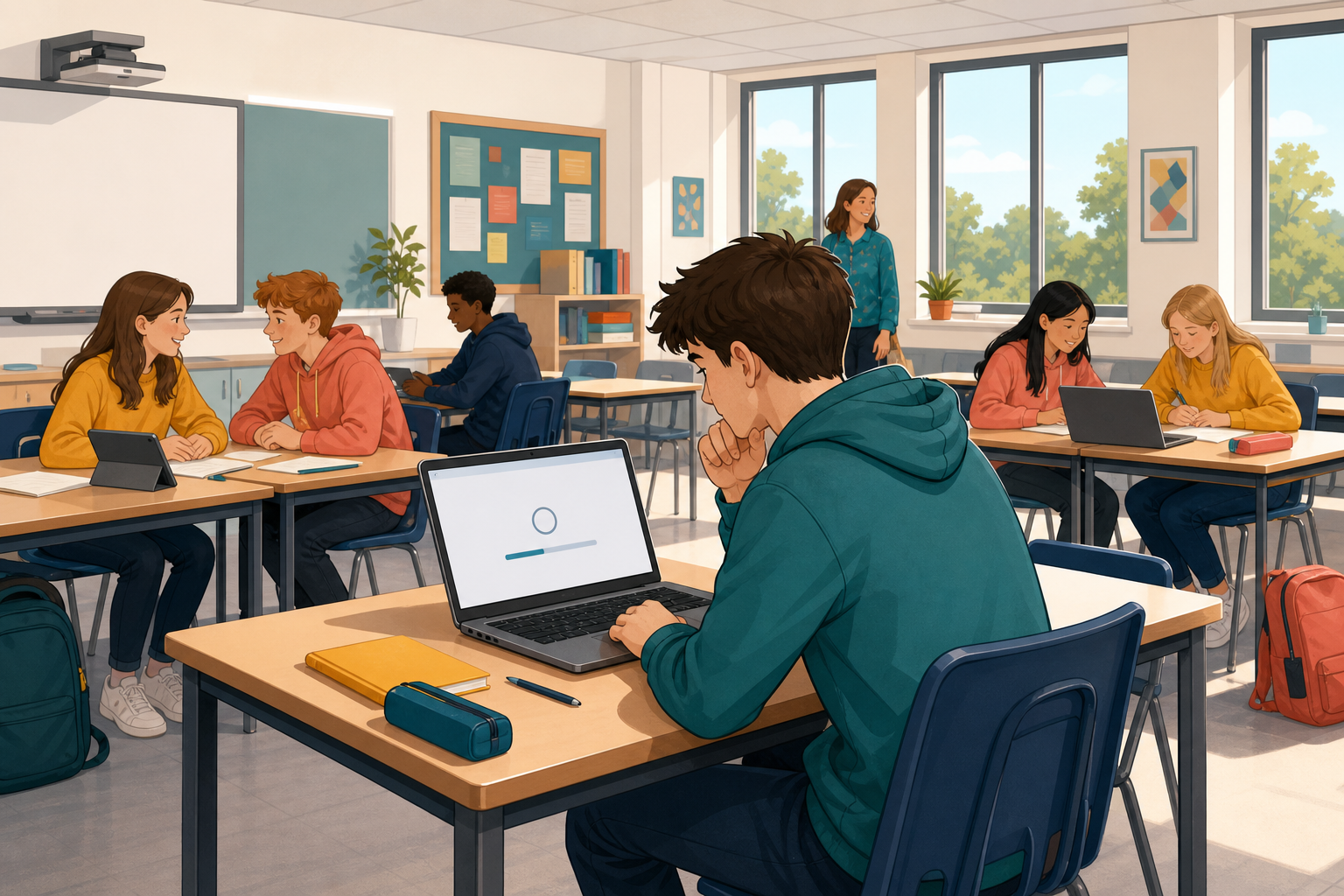
So far your programs have run on the machine in front of you. Today the question is different: when you open a page like met.ie, how does a message leave your device, find a computer somewhere else, and come back as a full page?
You will put the journey in order yourself, then watch a real page load and see the traffic fly past.
Quick hook only. Ask who has ever waited on a spinning page and wondered what was actually happening. Do not explain the full path yet; the flow-builder is where they assemble it. Devices ready for the interactive and a browser with a network tools panel later.
Picture this. You type met.ie into the address bar. Your device is not holding the weather page. A computer somewhere else is. Your device has to ask for the page, and that computer has to send it back.
Three ideas will help you put the journey in order:
Devices only understand each other because they follow agreed rules, so the pieces make sense at the other end. You will meet the name for those rules later.
You already know enough to put the journey in order. Next you will try.
Do not lay out the full ordered sequence on the board. Name server, packet and router, then stop. The short line about agreed rules seeds the idea of a protocol without naming it yet; leave the word itself for Make sense after they have ordered the journey. The flow-builder is the place students assemble the path; spelling it out first hands them the answer.
Keep examples concrete: met.ie, a GAA results page, or the school website. If a student asks about Wi-Fi versus the internet, a short line is enough: Wi-Fi is how your device reaches the local network; the internet is the bigger web of networks beyond it.
Common misconception: students think the whole page travels as one file down one fixed wire. Packets and multiple hops are the idea to plant.
Open the interactive activity. You will see the steps a message takes when you load a page, but they are jumbled.
Drag the cards into the order you think really happens, from the moment you enter the address to the moment the page appears. When you are happy with your sequence, check it. If a card is in the wrong place, move it and try again.
When your sequence is correct, answer the two prompts at the end in your head before we move on.
Project the interactive once so everyone sees how cards drag. Then let them work. Circulate; listen for the packet and router language from the set-up.
If a group stalls, ask which card has to come first, before anything can leave your device? (looking up the address). Another useful nudge: can the page appear before the packets are put back in order?
The strength of multiple routes is worth naming when you hear it: if one path is busy or broken, packets can take another. That is why the internet stays up when a single link fails.
Now watch the same journey happen for real. Most of you will watch on the board; opening the tools yourself is optional extension.
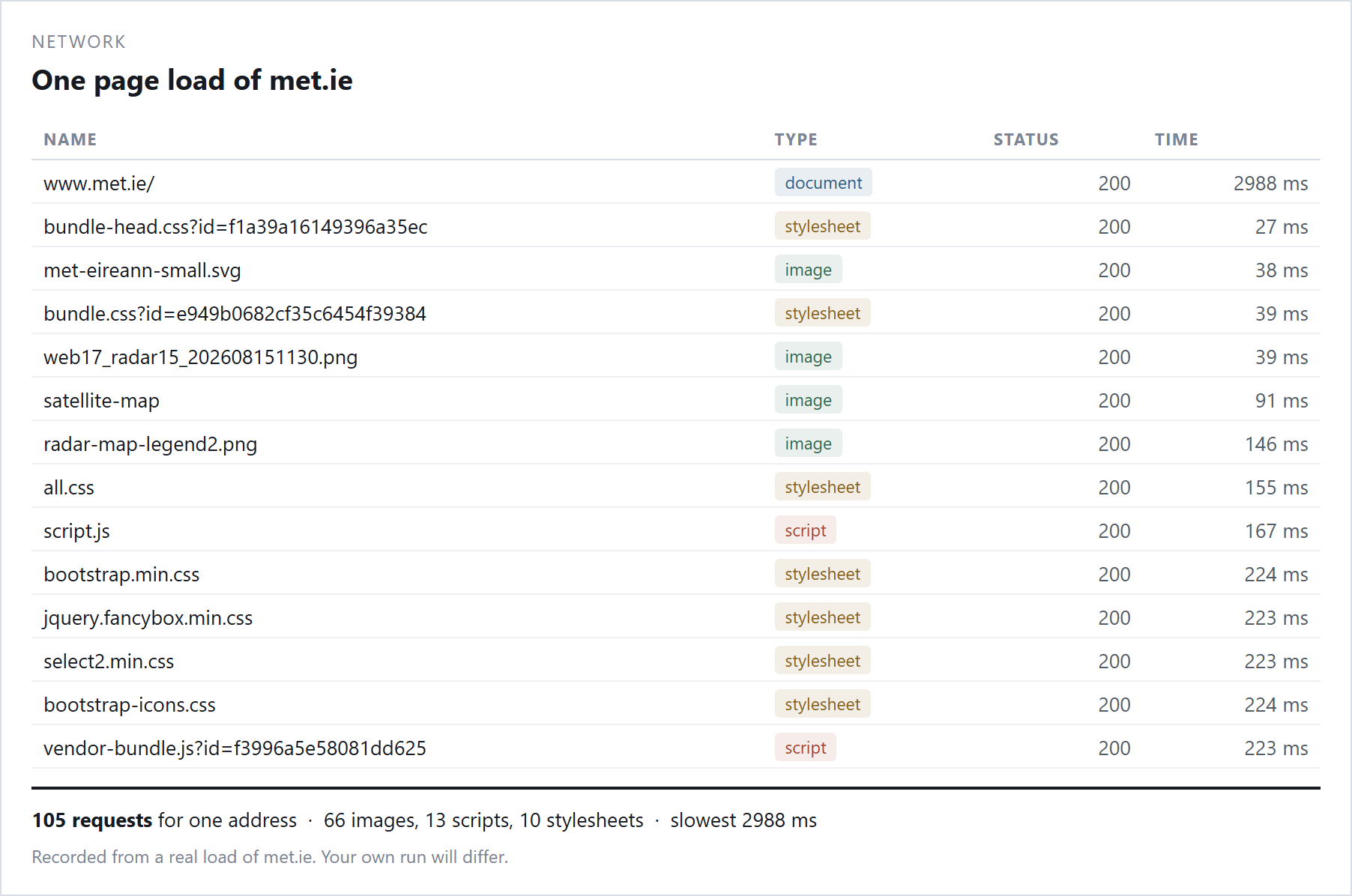
Your teacher will open a simple page (met.ie, a GAA club page, or the school site) with the Network tab visible and reload it so the class can see the list of requests fill up. After each reload, talk briefly with the person beside you and be ready to call out what you noticed.
As you watch, note three things:
Be ready to share one surprise with the class.
Extension (if your device can open the tools and you finish early): open the Network tab yourself, reload a simple page, and check the same three notes against what you saw on the board.
Know the shortcut for your school's browser (Chrome/Edge: F12 or Ctrl+Shift+I, then Network; Firefox similar). Practise once on the board so you can unstick students quickly. Put a one-line cheat-sheet on the board: browser name plus how to open Inspect and the Network tab.
Optional backup if the live demo is hard to read from the back: print or project a simple Network waterfall screenshot so every pair can annotate the same three prompts on paper while you still lead the live reloads.
Lead with a 2-minute teacher model every time. Open the Network tab on the board first, then reload a quiet page so the list is readable. Steer away from huge news homepages; a simple site keeps the request list short enough to read.
Structure the remaining time as short pair call-outs, not a long silent watch:
Keep each call-out to about 30 seconds so hands and voices stay busy. Default to projected whole-class observation unless devices were pre-checked and DevTools are known to work. Students solo-use is extension only for those who finish early and whose devices allow it.
They do not need status-code fluency. Spotting that one page triggers many requests, and that images and scripts travel as separate files, is enough. Keep the three labelled prompts on screen so every student has something concrete to feed back.
Stay with the projected Network tab (or the printed waterfall) and run the same three pair call-outs while you reload. Same learning, whole-class.
Pull the two parts together. A page load is not one file sliding down a wire. Your browser finds the server's address, your device splits the request into packets, routers hop those packets across the network, the server replies, and the packets are rebuilt into the page you see.
Those agreed rules you met earlier are called protocols: a shared plan for how to start a conversation, how to split and label data, and how to put it back together at the far end. One everyday example is HTTP, the rule your browser follows when it asks a server for a page.
The Network tab showed a related idea in the wild: one address you typed became many separate requests (a page, images, scripts), each travelling as its own message made of packets.
In your own words, what job does a protocol do?
Take two or three voices only: one card that surprised them in the flow-builder, one thing from the Network tab, then one short answer to the protocol check prompt. Accept plain language such as "the rules devices share so the message still makes sense". Name packet, router, server and protocol so the vocabulary sticks. Keep HTTP as a single concrete label, not a deep dive. Keep it tight; the reflect prompts do the rest.
You're previewing this lesson. Get full access to this lesson and hundreds more — each one ready to teach, with interactive activities, printable resources and pupil progress tracking built in.