Beginner
60 mins
Teacher/Student led
+90 XP

Input and Output: Devices and How They Work Together

Learn to distinguish input devices from output devices and match them to everyday tasks. Complete a quick ergonomic check at your desk and assess your confidence with different tools for project work.

Teacher Class Feed

Load previous activity

    1 - Introduction ~5 mins

    Welcome

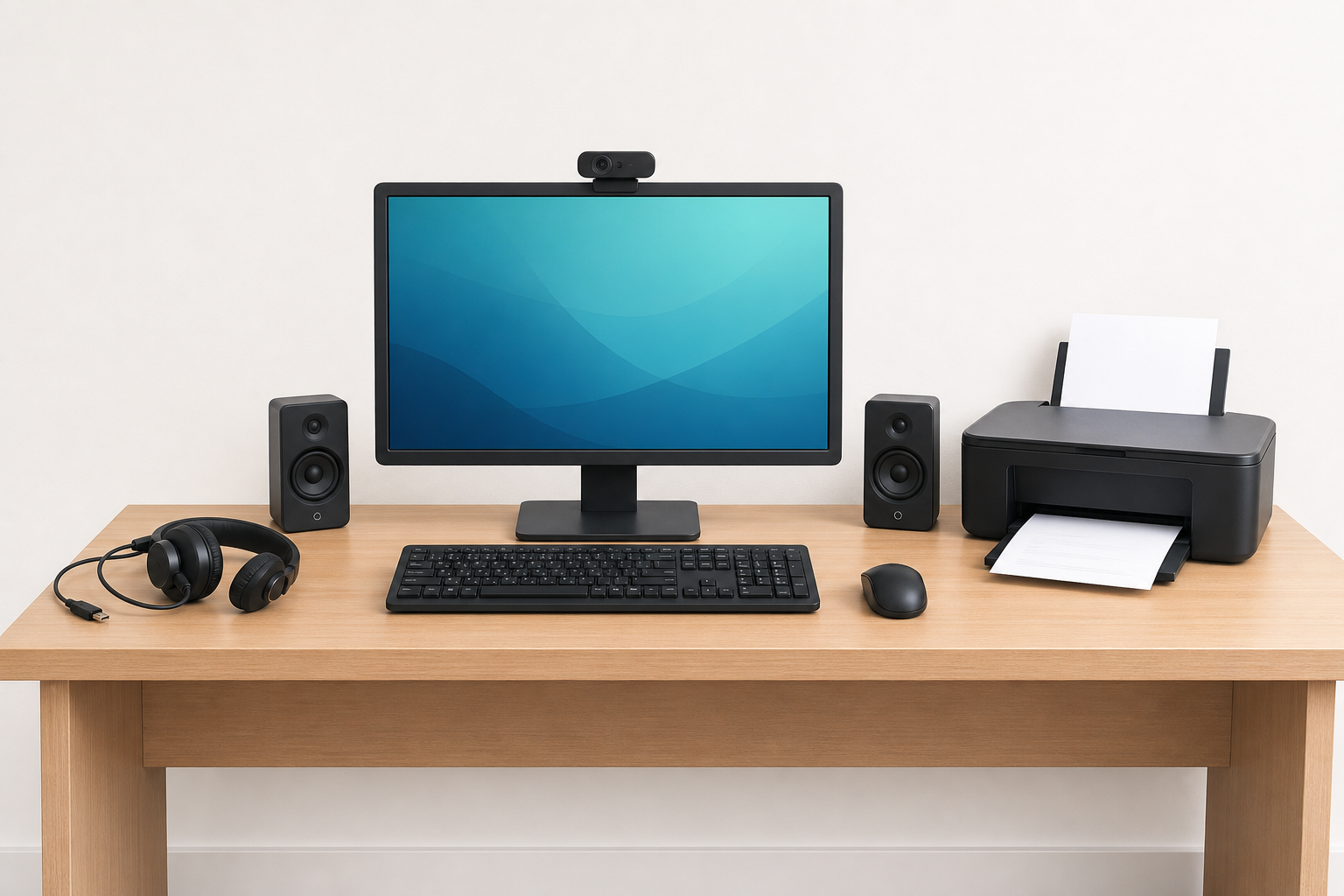
    Diagram showing input devices feeding a laptop and output devices presenting results

    Every time you type a project note, take a photo for a promo, print a CV, or play back a pitch recording, you are using input and output devices. Today you sort those devices clearly, try a short ergonomic check at your seat, and record which tools you already handle well for your Something Real project (or for Work Experience and class tasks if your project is still taking shape).

    By the end of this lesson, you will be able to:

    • Identify common input devices and explain how each supports LCA-style tasks
    • Identify common output devices and match them to practical uses
    • Apply a brief ergonomic check when sitting at a computer
    • Self-assess device confidence and name one device to improve on

    Warm-up

    Look at the machine in front of you. Without touching anything yet, name one part that sends information in and one part that sends information out. Keep both answers in your head; you will use them in a moment.

    While you wait: put both feet on the floor (or a footrest) and sit back so your back is supported. That is the start of today's ergonomic check.

    2 - Key Concepts ~4 mins

    Key point

    Direction test: Does this device send information into the computer, or send results out to a person? That single question sorts almost every device you will meet today.

    Diagram showing input devices feeding a laptop and output devices presenting results

    ConceptWhy it mattersExample
    Input device — hardware that sends information into the computerYou need clear ways to capture text, clicks, voice, and photos for real project workTyping a Work Experience log on a keyboard; filming a short product demo on a webcam
    Output device — hardware that presents information so you can see, hear, or hold itFinished work only helps if someone can read, hear, or print itPrinting a CV for an Intreo appointment; projecting a pitch deck on a classroom wall

    A peripheral is an add-on device that plugs into the main computer but is not the core unit itself, such as a USB headset for a remote chat with a placement supervisor. Built-in laptop screens and add-on USB mice both still pass the same in/out direction test.

    3 - Ergonomic Mini-check ~2 mins

    Ergonomic mini-check (use this at your seat)

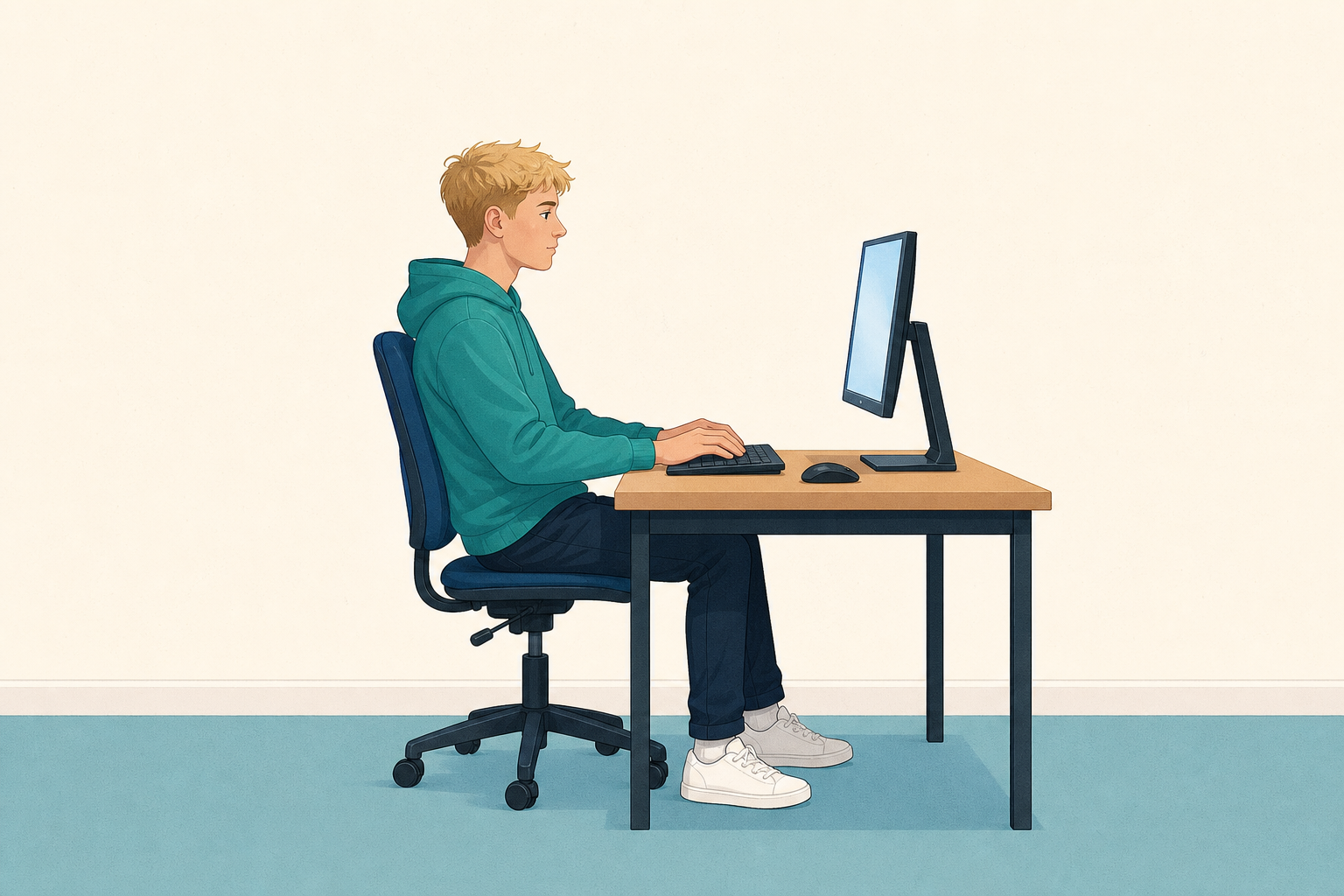
    Student seated with labelled ergonomic posture checkpoints at a computer

    Key point

    Ergonomics means setting up your body and screen so you can work without strain. Long portfolio sessions feel easier when posture is sorted early.

    • Feet flat on the floor (or a footrest), back supported
    • Screen roughly at eye level, about an arm's length away
    • Wrists straight when typing; shoulders relaxed
    • Take a short stretch break every 20 to 30 minutes of focused work

    You will note how your seat and screen are set when you build your device checklist later.

    4 - Input or Output? ~15 mins

    Sort each device card into Input or Output. First talk the placements through as a class. Then drag the cards and use Check to confirm.

    Input or output?

    5 - Common Issues ~4 mins

    Common Issues

    IssueSolution
    I keep calling the screen an input device because I tap itA plain monitor only shows information (output). A touchscreen can also take taps (input). For today's sort, treat "monitor or screen" as output unless the card clearly says touch.
    I am not sure about webcam versus projectorUse the direction test. A webcam captures video and sends it in. A projector takes what is already on the computer and sends a picture out onto a wall.
    My neck or wrists hurt after ten minutesRun the ergonomic mini-check again: feet supported, screen nearer eye level, wrists straight, shoulders down. Adjust one thing, then keep working.
    123learn · Online learning platform

    Unlock the full learning experience

    You're previewing this lesson. Get full access to this lesson and hundreds more — each one ready to teach, with interactive activities, printable resources and pupil progress tracking built in.

    Hundreds of curriculum-aligned lessons
    Interactive activities in every lesson
    Printable resources & progress tracking
    Copyright Notice
    This lesson is copyright of Coding Ireland 2017 - 2025. Unauthorised use, copying or distribution is not allowed.
    🍪 Our website uses cookies to make your browsing experience better. By using our website you agree to our use of cookies. Learn more