Intermediate
60 mins
Teacher/Student led
+80 XP

KA1 Workshop Part 2: Polish Format 2

In this workshop you finalise the second presentation format for your Something Real project. Apply a polish checklist to make it publication ready and different from format one. Both formats should then be ready for teacher verification.

Teacher Class Feed

Load previous activity

    1 - Introduction ~5 mins

    {{img:img_ka1_two_formats_concept}}

    Welcome

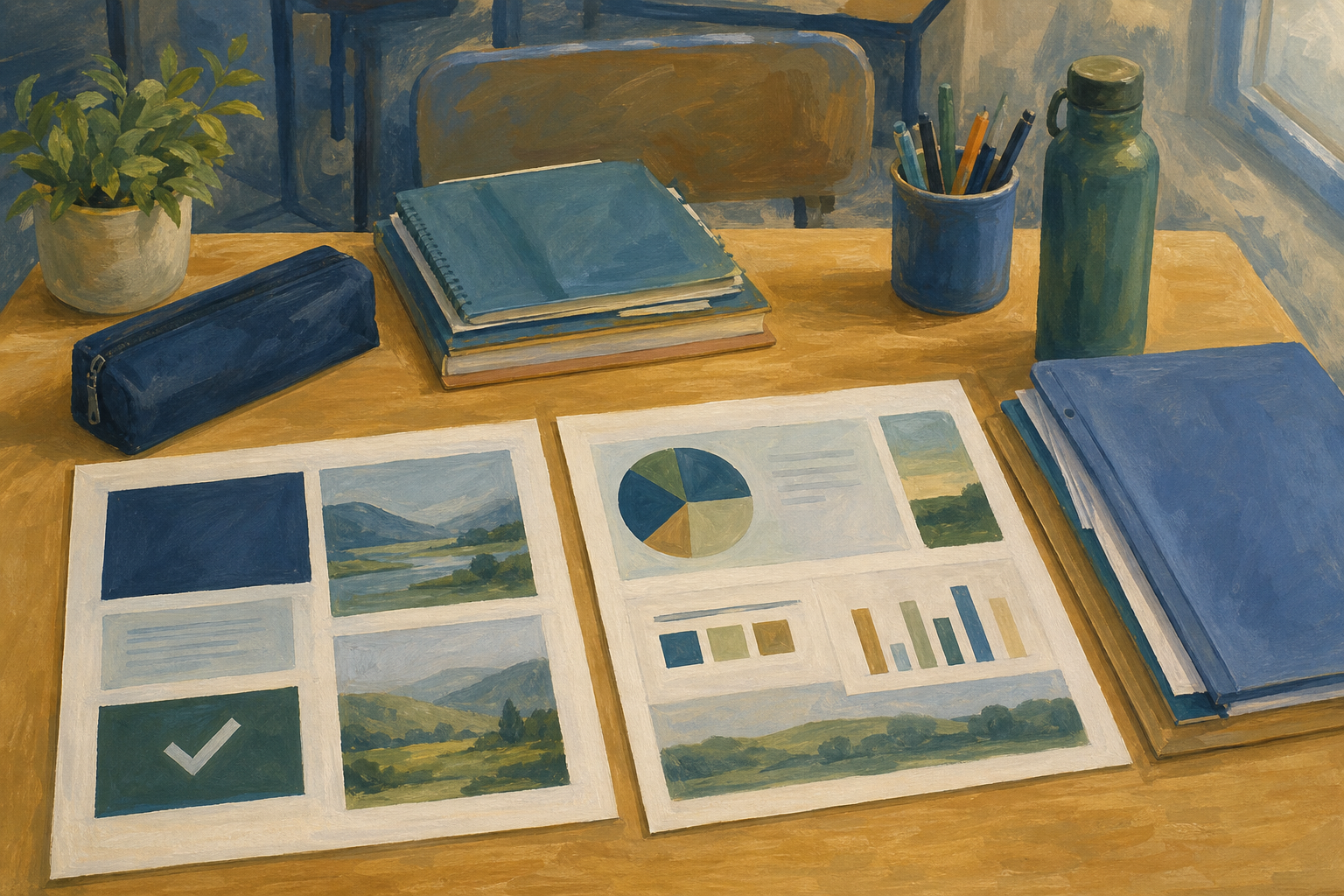
    Illustration for IntroductionEarlier in this module you finished format 1. Today you finish format 2 so your Something Real project exists in two real, different pieces. When both pass your teacher's check, Specialism Module 2 Key Assignment 1 (SM2 KA1) is banked.

    Need a hand before we start? If format 1 is not finished, you are unsure what format 2 is, or you do not have a format 2 draft open yet, tell your teacher now. They will pair you or give a quick fallback (Canva one-page infographic or a short vertical explainer) so you can still bank KA1 today.

    By the end of this lesson, you will be able to:

    • Finalise the second digital presentation format
    • Bank Specialism Module 2 Key Assignment 1 with two different formats
    • Confirm both formats meet best-practice techniques from the module

    Warm-up

    Name format 2 in one phrase (for example: Canva infographic, short vertical video, Instagram-style carousel, podcast clip, or second slide deck for a different audience). On a sticky note or at the top of your draft, jot one purpose sentence and who the piece is for (one line each). Who should walk away knowing something that format 1 does not already cover? If your teacher calls it, take 30 seconds to tell a partner before Key concepts.

    2 - Key Concepts ~5 mins

    Key point

    Today's job in one line: finish a second, different presentation of your Something Real project and leave a publication file named {{code:sm2_ka1_format2}} in {{code:sm2}}.

    {{img:img_ka1_two_formats_concept}}
    ConceptWhy it mattersExample
    Two different formats — distinct media or presentation shapes, not a colour swap of format 1KA1 needs two pieces; the second proves you can match medium to purposeVET interview slide deck plus a one-page Canva flyer for a local Centra manager
    Publication copy — finished export a real audience can open (PDF, MP4, MP3, PNG)Working files stay for edits; the named publication file is what you bank{{code:sm2_ka1_format2.pdf}} next to the editable source in {{code:sm2}}
    {{img:img_publication_vs_working_workflow}}

    Worked polish target (sample format 2)

    Worked example

    Aoife's Something Real is a small enterprise pitch for custom GAA boot laces. Format 1 is her five-slide VET deck. Format 2 is a vertical one-page Canva promo. Her polish pass cut three decorative stickers, raised contrast on the price line, and saved {{code:sm2_ka1_format2.pdf}} in {{code:sm2}}. That is today's quality bar: tight, audience-clear, and ready to hand over.

    3 - Common Issues ~3 mins

    Common Issues

    Tip

    Skim this pre-flight before you open your draft. Keep the table open while you polish and while you wait for teacher check.

    IssueSolution
    My format 2 looks like a thinner copy of format 1Change the medium or the job it does. Keep the same topic, but switch structure (for example deck to one-page visual, or video to audio). Re-read your purpose sentence and rebuild the opening.
    I cannot find the draft in my portfolioGo to {{code:onedrive.com}} or {{code:drive.google.com}}, open {{code:Project_Portfolio}} → {{code:09_specialism}} → {{code:sm2}}. Use search for part of the project name. Ask your teacher before starting a brand-new file from scratch.
    Export looks different from the editor (fonts, crop, audio loudness)Re-export after checking print or preview mode. For slides, try PDF. For video, re-export and watch the first five seconds on the classroom machine. Fix once, then replace the old publication file.
    I only have an editable file, not a publication copyDownload or export now (PDF, MP4, MP3, or PNG). Keep both files. Name the audience-ready one {{code:sm2_ka1_format2}} clearly so it is obvious which file is bankable evidence.
    File name does not match the Specialism patternRename to {{code:sm2_ka1_format2}} with the right extension. It must live directly under {{code:sm2}}, matching the {{code:sm2_}} prefix rule, beside format 1.

    4 - Polish Workshop: Format 2 Content Pass ~15 mins

    Work through this polish pass on your format 2 draft. Your teacher will demo one full pass on the classroom screen (including one hierarchy fix and one accessibility fix matched to the media in the room), then you apply the must-do list to your own piece. Use the printed five-item checklist on your desk if you have one.

    Mid-checkpoint for this block: purpose and audience clear, hierarchy and basic accessibility done, words proofed, and a draft export started (or ready to export). Perfect design is not required. Final naming, folder check, side-by-side with format 1, and teacher bankable sign-off come in the next block.

    Must-do polish checklist

    You do not need a perfect design. A clear, different, openable publication copy beats a fancy draft stuck in the editor. If export fights you, ask early; your teacher would rather fix the file path than polish stickers.

    1. Open the right file. In your cloud drive, open {{code:Project_Portfolio}} → {{code:09_specialism}} → {{code:sm2}} and open your latest format 2 draft (not format 1).
    2. Purpose and audience. Use the purpose sentence and audience line you jotted in the warm-up (inform, persuade, instruct, report, or reflect). Cut anything that does not serve it. Check: would the intended reader understand the first screen, first slide, or first three seconds without you beside them?
    3. Hierarchy and accessibility basics. One main idea at a time; headings bigger than body; readable size and contrast; no information carried only by colour. Add alt text, a short image description, captions, or a transcript where your tool allows. Copy the two fixes your teacher just showed for your kind of medium.
    4. Proof the words and names. Project title, your name if required, euro amounts, Irish place names, and any brand spelling. Read aloud once if time allows.
    5. Start the publication export. Begin download or export of the audience-ready file (PDF, MP4, MP3, PNG, or the format your teacher approved). Keep the editable source. You will finish naming and filing in the next block.

    Nice if time remains

    • Keep at most one or two restrained motion or effect choices; remove pure decoration.
    • Extra accessibility polish (fuller captions, transcript tidy-up) after the draft export is underway.

    Tool notes (match your format 2)

    • PowerPoint in the browser (Microsoft 365): final edit from your portfolio folder, then {{menu:File -> Download -> PDF Document (.pdf)}}. Keep the editable deck in {{code:sm2}} as well.
    • Google Slides: {{menu:File -> Download -> PDF Document (.pdf)}}. Keep the editable deck in {{code:sm2}} as well.
    • Canva: open your design, run the must-do list, then use Share/Download, choose PDF Print or PNG as agreed with your teacher, and save the file.
    • Short video (Chromebook-safe first): prefer a phone vertical clip uploaded to {{code:sm2}}, or a browser-based tool your school already allows. CapCut only if it is installed and permitted. Check hook in the first three seconds, on-screen text, and captions or a short transcript, then export or save MP4.
    • Audio / podcast clip: check open and close cleanly, add a one-line transcript note if you can, export MP3, upload into {{code:sm2}}.

    When the must-do list is done, stay logged in. The next block is export finish, naming, and teacher verification.

    5 - Portfolio Build: Teacher Check ~25 mins

    Portfolio Build: teacher check

    Your goal: Leave class with a finished second presentation of your Something Real project and teacher confirmation that Specialism Module 2 Key Assignment 1 is bankable.
    Time: ~25 minutes
    Task: If your publication copy is not exported yet, do that first using the path for your medium below. Save it as {{code:sm2_ka1_format2}} (correct extension) directly in {{code:Project_Portfolio/09_specialism/sm2/}} beside {{code:sm2_ka1_format1.pptx}}. Keep the editable source too. Complete the three-tick self-check, then join the verification queue your teacher sets (for example row order or traffic-light on the board). Queues move slowly at first — if your three ticks are done, you are waiting, not behind. Keep both files open so sign-off is quick when your turn comes. While you wait, stay on any small export or naming fix; do not start a third presentation. If you are not signed off, leave with the written next step your teacher gives you. Optional stretch only after sign-off.
    Success criteria:
    • {{code:sm2_ka1_format2}} is saved in {{code:sm2}} as a clear publication copy a real audience could open
    • Format 2 is a genuinely different medium or presentation shape from format 1, on the same Something Real topic
    • Purpose and audience are obvious in the opening moments, and spare decoration has been cut
    • Your teacher has confirmed both KA1 formats are present and SM2 KA1 is bankable

    Three-tick self-check (before you call the teacher)

    1. Both {{code:sm2_ka1_format1.pptx}} and {{code:sm2_ka1_format2}} open on a classroom machine without the authoring app where possible.
    2. They are clearly different formats (not the same deck with a new theme).
    3. Both files sit in {{code:sm2}} with the {{code:sm2_ka1_format1.pptx}} / {{code:sm2_ka1_format2}} names.

    Your teacher stamps bankable only after those three are true.

    Publication paths by medium

    Slides (Microsoft 365 or Google Workspace)

    Follow the Microsoft 365 or Google Workspace steps in this activity for PDF export, rename, place in {{code:sm2}}, open-once check, three-tick self-check, and join queue.

    Canva
    1. Open your design and finish any must-do polish still open.
    2. Use Share/Download, choose PDF Print or PNG as agreed with your teacher, and download the file.
    3. Find the file in Downloads (or your browser download bar). Rename it to {{code:sm2_ka1_format2}} (keep the {{code:.pdf}} or {{code:.png}} extension).
    4. Go to {{code:onedrive.com}} or {{code:drive.google.com}}, open {{code:Project_Portfolio}} → {{code:09_specialism}} → {{code:sm2}}, and upload or move {{code:sm2_ka1_format2}} so it sits beside {{code:sm2_ka1_format1.pptx}}. Do not use a separate sub-folder for the bankable copy.
    5. Open {{code:sm2_ka1_format2}} once on the classroom machine and check the first screen looks clean. Then open {{code:sm2_ka1_format1.pptx}} beside it and confirm the two formats are different.
    6. Complete the three-tick self-check, then join your teacher's verification queue for SM2 KA1 sign-off.
    Video (MP4)
    1. Export or save your clip as MP4 (phone record then upload is fine on Chromebooks). Prefer the school-approved browser tool or phone upload before CapCut unless CapCut is installed and permitted.
    2. Rename the file to {{code:sm2_ka1_format2}} (keep the {{code:.mp4}} extension).
    3. Upload or move it into {{code:Project_Portfolio}} → {{code:09_specialism}} → {{code:sm2}} beside {{code:sm2_ka1_format1.pptx}}. No nested sub-folder for the bankable copy.
    4. Play the first five seconds on the classroom machine. Check the hook and that captions or on-screen text are readable.
    5. Open {{code:sm2_ka1_format1.pptx}} beside it and confirm the two formats are different.
    6. Complete the three-tick self-check, then join your teacher's verification queue.
    Audio (MP3)
    1. Export your clip as MP3. Check open and close are clean; keep any one-line transcript note with the file if you made one.
    2. Rename the file to {{code:sm2_ka1_format2}} (keep the {{code:.mp3}} extension).
    3. Upload or move it into {{code:Project_Portfolio}} → {{code:09_specialism}} → {{code:sm2}} beside {{code:sm2_ka1_format1.pptx}}. No nested sub-folder for the bankable copy.
    4. Play open and close once on the classroom machine.
    5. Open {{code:sm2_ka1_format1.pptx}} beside it and confirm the two formats are different.
    6. Complete the three-tick self-check, then join your teacher's verification queue.
    123learn · Online learning platform

    Unlock the full learning experience

    You're previewing this lesson. Get full access to this lesson and hundreds more — each one ready to teach, with interactive activities, printable resources and pupil progress tracking built in.

    Hundreds of curriculum-aligned lessons
    Interactive activities in every lesson
    Printable resources & progress tracking
    Copyright Notice
    This lesson is copyright of Coding Ireland 2017 - 2025. Unauthorised use, copying or distribution is not allowed.
    🍪 Our website uses cookies to make your browsing experience better. By using our website you agree to our use of cookies. Learn more