Today you will
- set line spacing and paragraph spacing in a practice file
- spot rivers in justified text
- make your project document easier to read, using spacing alone
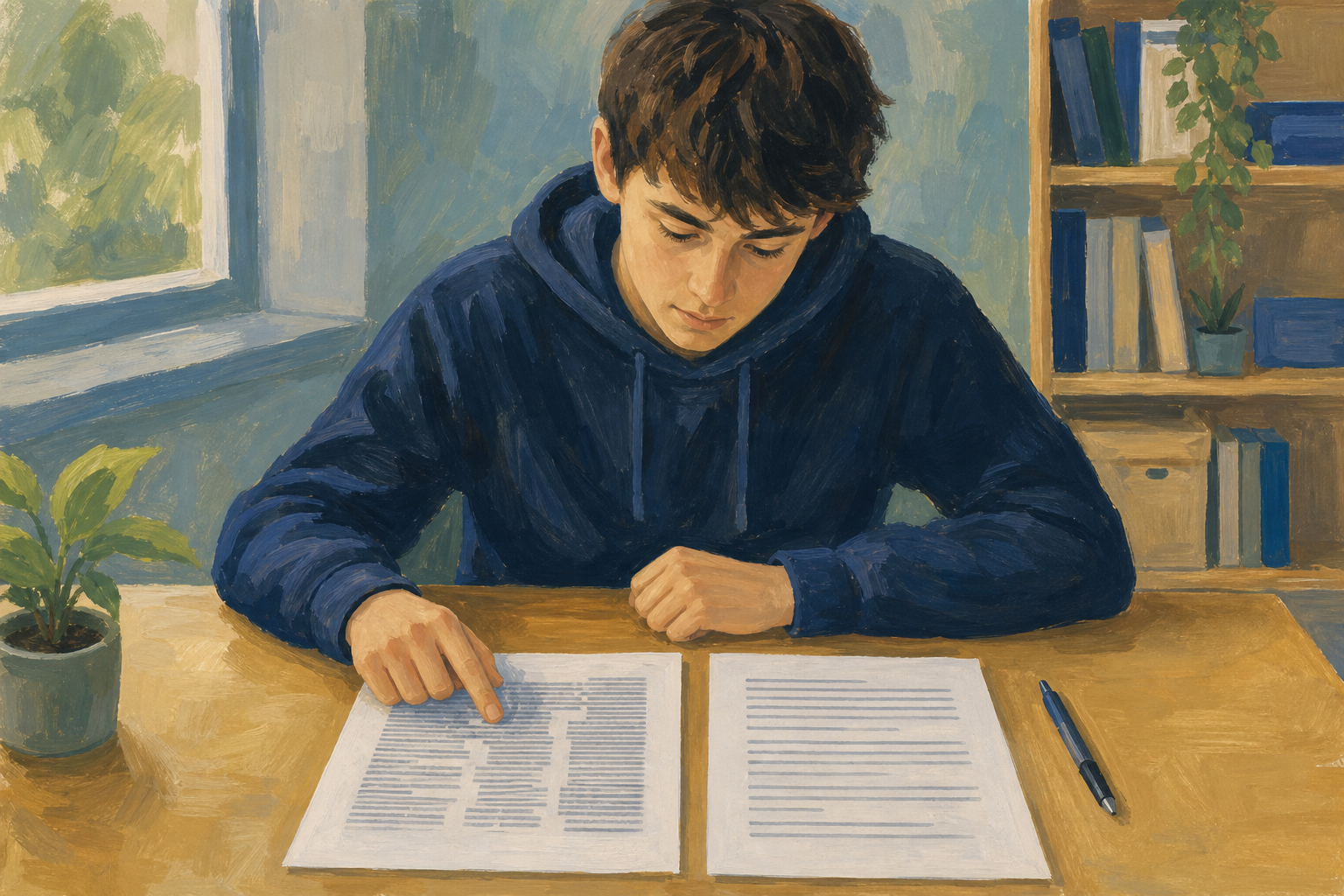 You won't change a single word today.
Warm-up
Think of a document that felt cramped or strangely empty. Was it the words, or was it the gaps between the lines?
Line spacing is the gap between lines in a paragraph, and 1.15 suits body text.
Space after is an even gap under each paragraph. You use it instead of pressing Enter twice.
Left align keeps the left edge straight. It is the safe choice for CVs and pitches.
Rivers are pale gaps running down through justified text, and they distract the reader.
Example
Single spacing with double Enters looks cramped and patchy. The same words with 1.15 spacing and 8 pt after look calm and finished.
You will make a short practice file and try out spacing on it. Watch your teacher first, then follow the steps in the box below.
Copy these three paragraphs into your practice file.
I offer same-week screen and battery repairs for common phone models from a small bench at home in Galway.
My starter kit already covers tools, a parts float, and basic insurance, so the next step is a clear price list customers can trust.
This one-page pitch is for a local repair-cafe stall and for my Work Experience supervisor who asked how the side hustle is organised.
Stuck?
- If the gaps between paragraphs look uneven, delete the extra blank lines and use Space after instead.
- If the line spacing won't change, select all the body text first, then set 1.15 again.
- If justified text is full of holes, those are rivers, so switch to left align.
- If your buttons look different, look for the icon with stacked lines.
Independent Practice
- Open {{code:sm1_doc1_from_template_v2}} in {{code:09_specialism/sm1/03_finished}}, or your latest sm1 project file.
- Make a copy called {{code:sm1_doc1_from_template_v3}} in {{code:03_finished}}. Work in the copy.
- Select the body text under the first heading, not the heading.
- Set line spacing to 1.15, with 0 pt before and 8 pt after.
- Delete any blank lines and click left align. Repeat for each section.
No project file yet? Tell your teacher.
- My body text uses 1.15 line spacing.
- My paragraph gaps come from Space after, not blank lines.
- My text is left-aligned, or justified only where there are no rivers.
- {{code:sm1_doc1_from_template_v3}} is saved in {{code:03_finished}}.
Unlock the full learning experience
You're previewing this lesson. Get full access to this lesson and hundreds more — each one ready to teach, with interactive activities, printable resources and pupil progress tracking built in.
This lesson is copyright of Coding Ireland 2017 - 2026. Unauthorised use, copying or distribution is not allowed.