1 - Introduction ~4 mins
Welcome
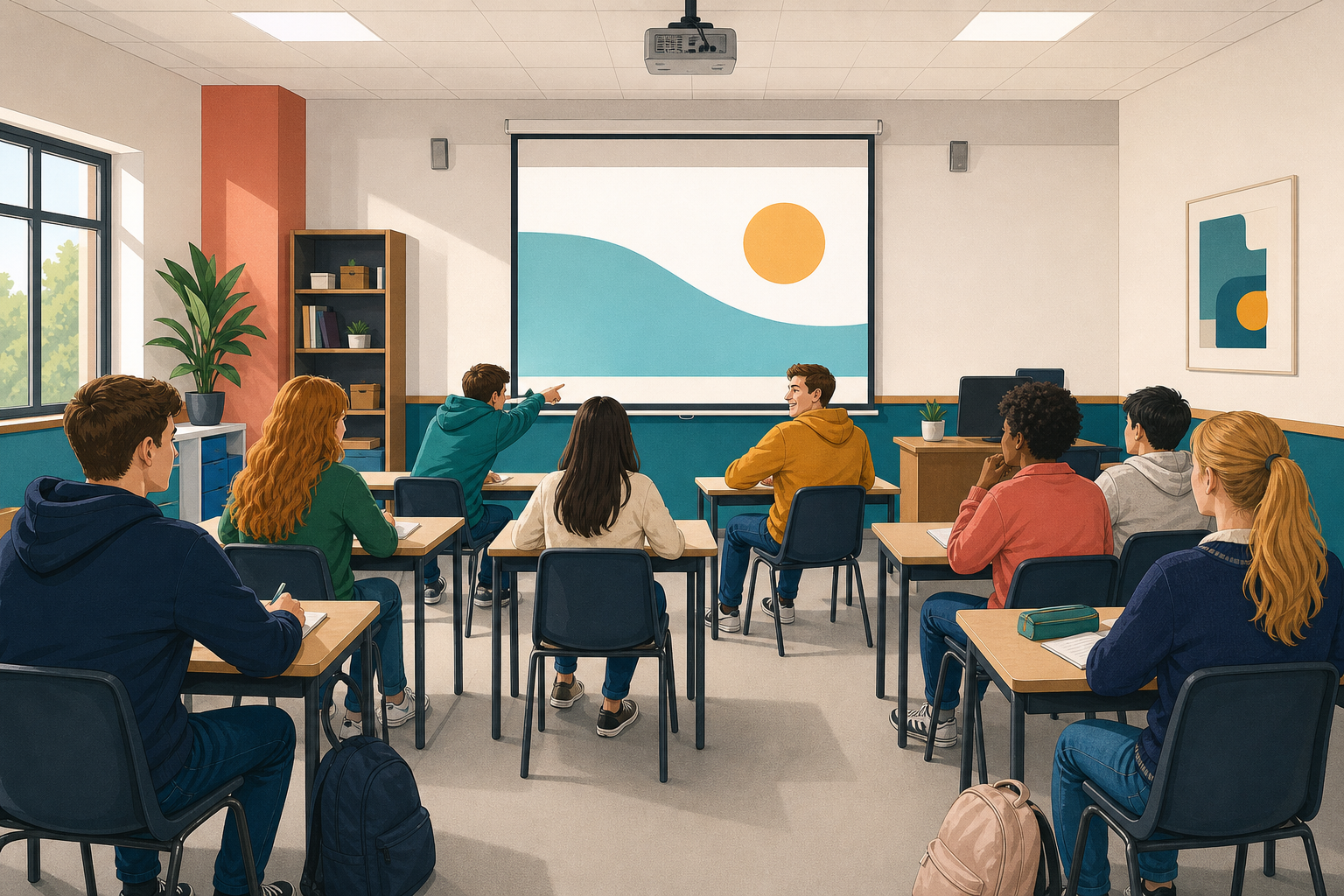 Classmates at the back, people with low vision, and people who are hard of hearing still need to follow your talk. Today you fix {{code:02_talk_deck}} so they can.
By the end of this lesson, you will be able to:
- Check text size and contrast from the back row.
- Add slide titles and picture alt text.
- Run the checker or checklist and test live captions.
Warm-up
At the last talk you watched, could you read every slide from your seat?
2 - Key Concepts ~5 mins
| Concept | Why it matters | Example |
|---|---|---|
| Size and contrast, 36pt+ titles, 24pt+ body; dark on light | Back row can read | GAA title at 40pt |
| Slide title, title placeholder, every slide | Screen readers; clear story | Why walkers choose the Wild Atlantic Way |
| Alt text, short picture description | Meaning without sight | Cliffs of Moher at sunset |
| Live captions, speech to text live | Hard-of-hearing can follow | You say Doolin; words appear |
Tools: PowerPoint web uses {{menu:Review -> Check Accessibility}}. Google Slides uses the checklist next (no built-in checker).
3 - Step-by-step Task: Practise on Two Slides ~18 mins
Learn the moves on two slides only. Portfolio Build owns the whole deck and the filled log.
If {{code:02_talk_deck}} is missing: in {{code:Digital_Presentations}} create a new presentation and name it {{code:02_talk_deck}}. Add a title slide, one body slide, and one slide with a picture ({{menu:Insert -> Pictures}} or {{menu:Insert -> Image}}; any school-safe photo). Then continue from Choose two slides.
Phases (still only your two practise slides): A Size and contrast · B Titles and alt text · C Checker or checklist · D Captions test
Accessibility checklist (Google Slides has no built-in checker; use this list. PowerPoint users can double-check with it too.)
- Every slide has a clear title in the title placeholder
- Titles at least 36 point; body at least 24 point; labels or captions never under 18 point
- Strong contrast (dark on light or light on dark; not grey on grey)
- Every picture has short alt text that describes what it shows
- Live captions appear when you speak in a slideshow
Log shape for later (you create and fill {{code:08_accessibility_check}} in Portfolio Build):
Accessibility check, Wild Atlantic Way talk
Text size: body on slides 3 and 5 raised to 24 point
Contrast: lightened background on slide 4
Titles: added title to slide 6
Alt text: added to three pictures
Captions: tested on slides 1 and 2, working
4 - Common Issues ~3 mins
Common Issues
| Issue | Solution |
|---|---|
| No captions when I speak | Allow mic, turn CC on, short phrase. Slides: Chrome online. {{kbd:Ctrl+Shift+C}} or {{kbd:Cmd+Shift+C}} (Mac). |
| No subtitles in PowerPoint web | Start the show; use the slideshow toolbar CC control. |
| Checker clean but text still small | Check yourself: titles 36+, body 24+. |
| Cannot find Alt Text | Click the picture first, then right-click. |
5 - Portfolio Build: 08_accessibility_check ~25 mins
Independent Practice
- Open {{code:02_talk_deck}}. Finish titles, size, contrast, and content alt text on every slide. Quiet captions retest if you can.
- In the browser, open {{code:Digital_Presentations}}. Open or create {{code:08_accessibility_check}} ({{btn:New}} then Word or Google Doc; name it exactly).
- Paste the shape below and fill real fixes.
Accessibility check
Text size:
Contrast:
Titles:
Alt text:
Captions:
Long stretch: work slide by slide. If the checker is noisy, fix titles and alt text first.
Minimum if slow: every slide titled, body 24pt+, alt text on all pictures, log filled. Captions are stretch if the mic is blocked.
- {{code:02_talk_deck}}: titles, readable size and contrast, content-style alt text on every picture
- Captions tested on two slides, or mic block noted in the log
- {{code:08_accessibility_check}} in {{code:Digital_Presentations}} lists real fixes under the five labels
Unlock the full learning experience
You're previewing this lesson. Get full access to this lesson and hundreds more — each one ready to teach, with interactive activities, printable resources and pupil progress tracking built in.
This lesson is copyright of Coding Ireland 2017 - 2025. Unauthorised use, copying or distribution is not allowed.