 Today you are coding on the micro:bit. You will build a Higher or Lower chance game step by step: a number appears, you guess whether the next one is higher or lower with the buttons, and you try for a strong score.
You can already use the micro:bit editor and simple inputs. This lesson adds random numbers and decisions so the game can check each guess.
Before you run anything, think: when the micro:bit picks two numbers from 1 to 100, what should happen if you press A for lower and you are right? What if you are wrong?
Go to the https://makecode.microbit.org website and create a new project.
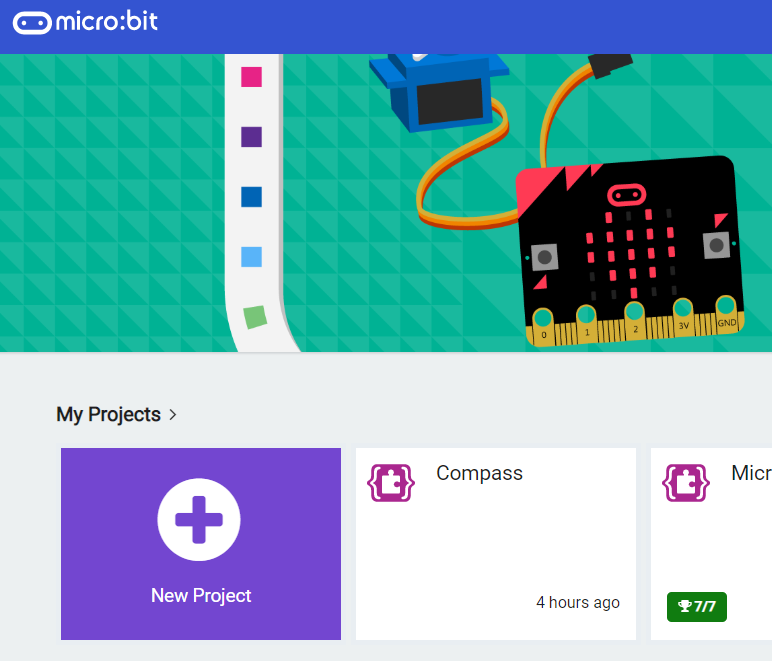
Go to the Makecode.com Microbit website using the link below and click on the 'New Project' button underneath the 'My Projects' heading.
https://makecode.microbit.org/
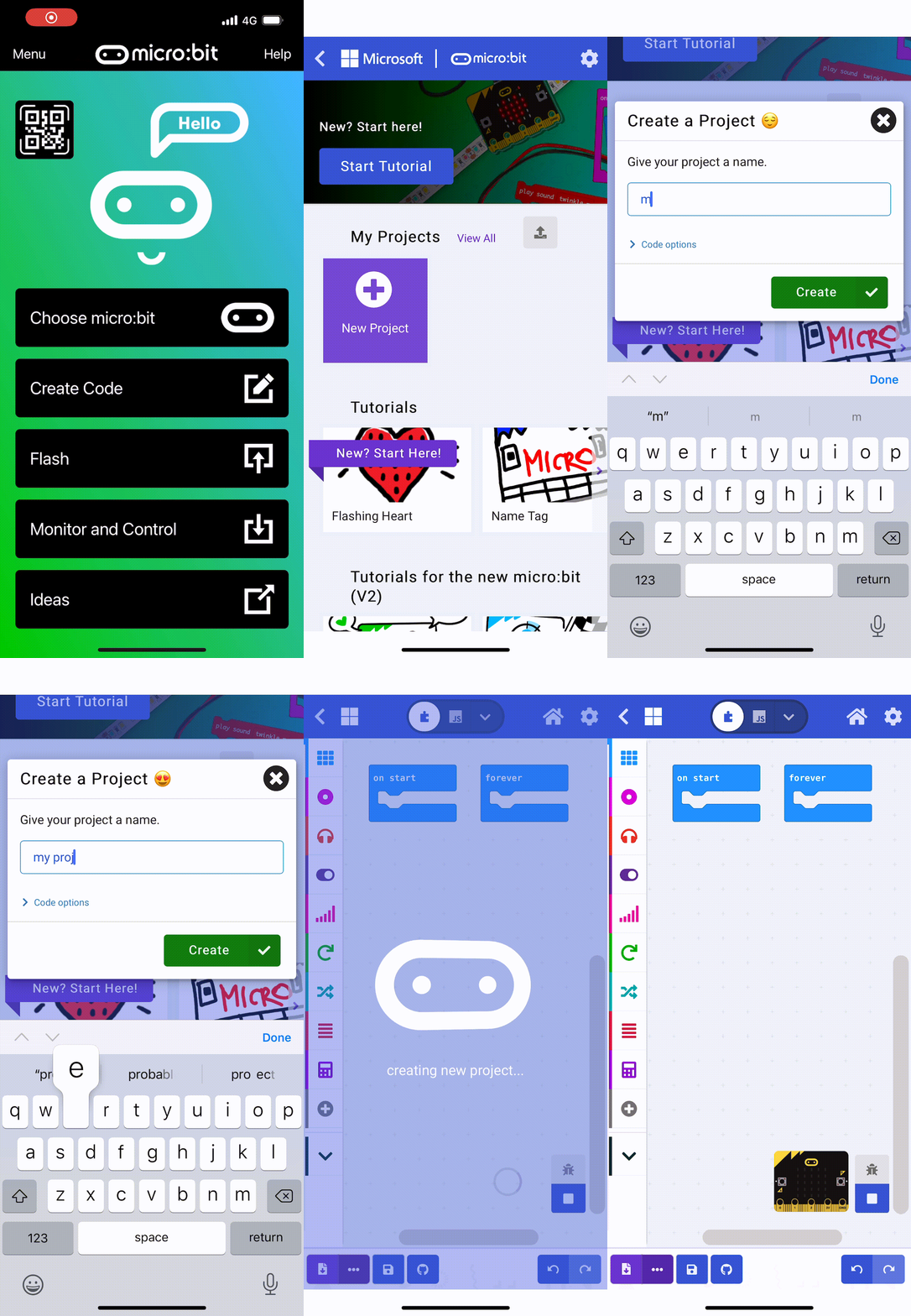
Install the micro:bit app on your iPad or tablet.
Open the app, tap 'Create code' and then create a new project.
Create 2 new variables called 'number' and 'nextnumber'.
We will use these to store the number that displays on the screen and the next number that the player needs to guess if it's higher or lower.
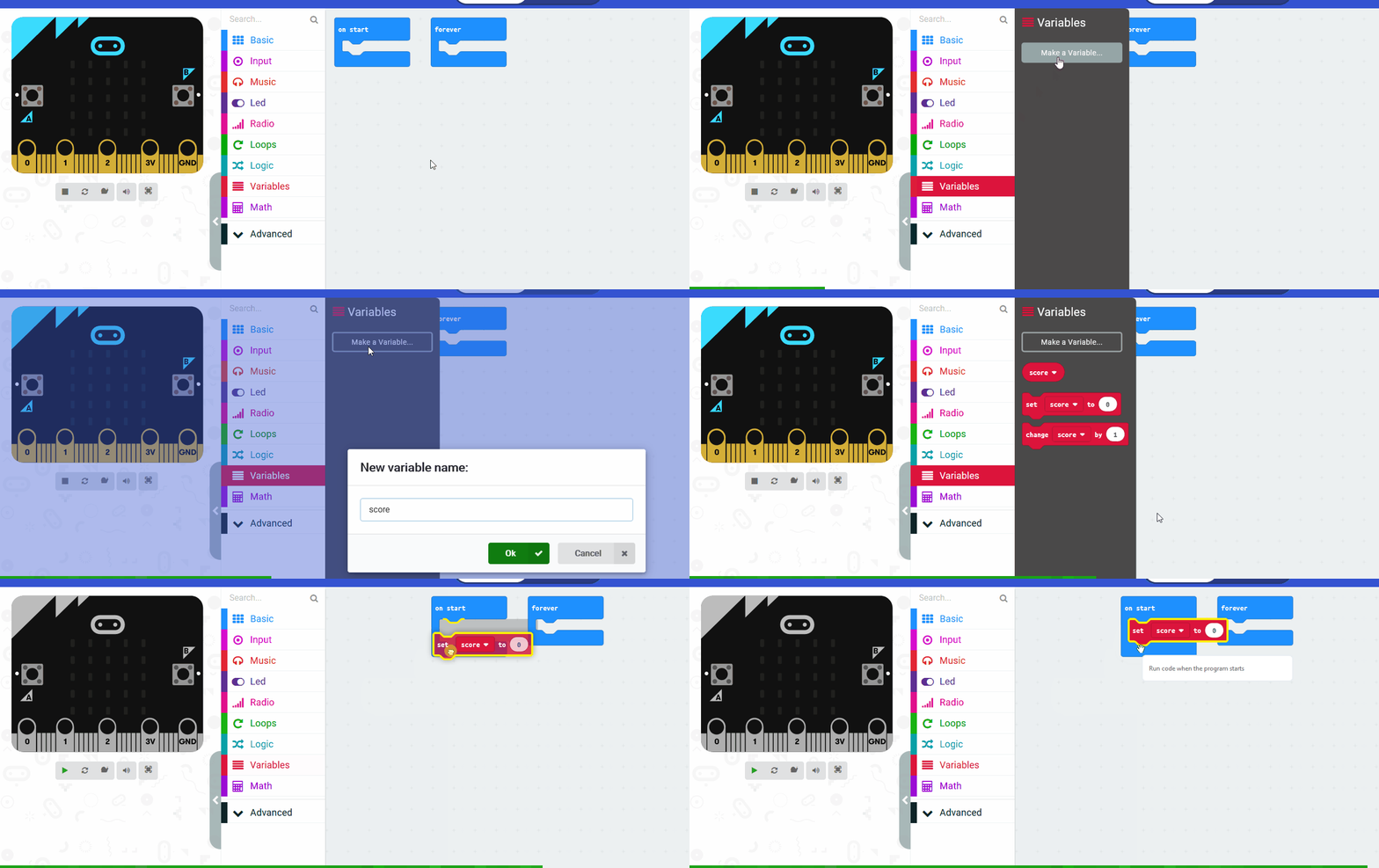
In the Variables toolbox, create a new variable by clicking the 'Make a Variable' button.
Once you click this button a box will appear asking what you want to call your variable. Give it a name that reminds you what you will be using it for. For example, if you wanted to keep track of your score in a game, you would create a variable called 'score'.
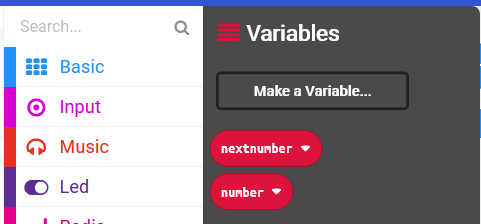
At the start of the game we're going to set the 'number' variable to a random number between 1 and 100, and we'll also set the 'nextnumber' variable to a random number between 1 and 100.
Once we've set the numbers we'll display the 'number' variable on our Microbit.
Add the following code.
let number = randint(1, 100)
let nextnumber = randint(1, 100)
basic.showNumber(number)
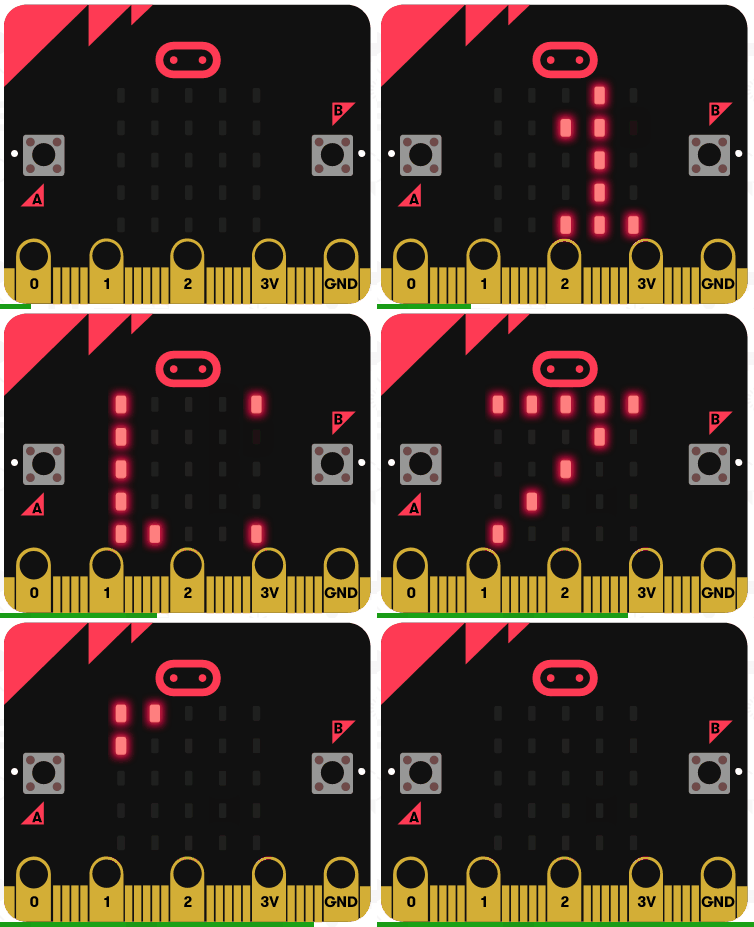
To play the game, the player needs to guess if the next number will be higher or lower than the number that's currently being displayed.
To guess lower they will press the A button, to guess higher they will press the B button.
Program the A button to guess lower
Add the following code to program the A button to:
- pause half a second
- check if the 'nextnumber' is less than or equal to 'number'
- if it is then show the correct icon as they guessed correctly
- else show the incorrect icon as they guessed incorrectly
input.onButtonPressed(Button.A, function () {
    basic.pause(500)
    if (nextnumber <= number) {
        basic.showIcon(IconNames.Yes)
    } else {
        basic.showIcon(IconNames.No)
    }
})
Unlock the full learning experience
You're previewing this lesson. Get full access to this lesson and hundreds more — each one ready to teach, with interactive activities, printable resources and pupil progress tracking built in.
This lesson is copyright of Coding Ireland 2017 - 2026. Unauthorised use, copying or distribution is not allowed.