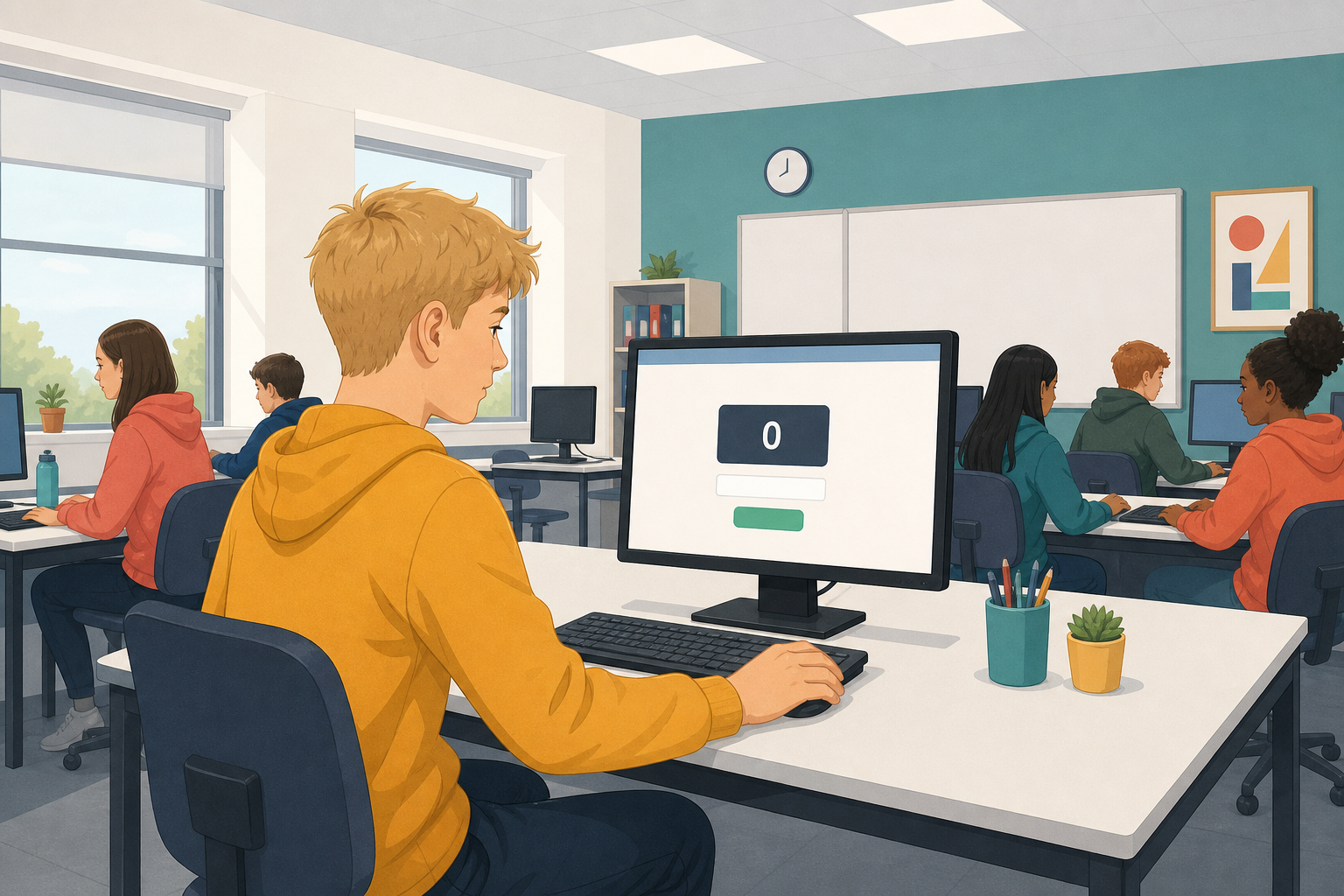
 Every page you have built has been the same page for everybody who opens it. Today it changes while somebody uses it.
Getting started: open the builder on the next step. It has a small counter page in it to work on.
You will build a counter a button changes, and a box people can type into that adds what they typed to a list.
Three new kinds of block, all in the Apps category:
- A counter is a number on the page with a name.
- A text box is somewhere a reader can type.
- A button when clicked holds action blocks, and runs them on each click.
The blocks inside the button are the instructions. The button is what starts them. That is the same shape as the blocks you used in Scratch, where something happens first and then a list of instructions runs.
The page already has a counter called score on it.
- From Apps, drag a button when clicked block onto the page, under the counter, and label it something like "Goal".
- From Apps, drag a change counter block and drop it inside the button, in the gap in it.
- Leave the dropdown on score and the amount on 1.
- Before you click it, predict out loud what the number will do on the first click, and what it will do on the fifth.
- Open Your web page and click your button several times. Were you right?
Here are the blocks:
{"blocks": {"languageVersion": 0, "blocks": [{"type": "wp_counter", "fields": {"NAME": "score", "START": 0}, "next": {"block": {"type": "wp_do_button", "fields": {"LABEL": "Goal"}, "inputs": {"DO": {"block": {"type": "wp_act_change", "fields": {"COUNTER": "score", "AMOUNT": 1}}}}}}, "x": 10, "y": 10}]}}
Interactive activity
One button is a start. Two is a thing that works.
- Add a second button when clicked block from Apps, labelled "Reset".
- Put a set counter block inside it, on score, to 0.
- Test both buttons.
- Now open the HTML tab and scroll to the very bottom, past your page. There is a block of instructions the blocks wrote for you. Find counter-score in it: that is your counter, looked up by name.
That is JavaScript, the third web language. You are not writing it today, but that is where a button's behaviour lives. The jumble after btn- will be different on your screen: it is the name the builder gave your button. Here is what your Goal button wrote:
(function () {
  var b = document.getElementById("btn-k5LnxF2vQ");
  if (!b) return;
  b.addEventListener("click", function () {
    var c = document.getElementById("counter-score"); if (c) c.textContent = String((Number(c.textContent) || 0) + (1));
  });
})();
Interactive activity
Last piece: take something from the person using the page.
- From Apps, add a text box block and a list box block to the page.
- Add another button when clicked, labelled "Add".
- Inside that button, put an add text box to list box block, with the dropdowns pointing at the two you just made.
- Test it: type something, click Add, and watch it appear in the list.
Here are the blocks:
{"blocks": {"languageVersion": 0, "blocks": [{"type": "wp_input", "fields": {"NAME": "name", "PLACEHOLDER": "Type here..."}, "next": {"block": {"type": "wp_listbox", "fields": {"NAME": "things"}, "next": {"block": {"type": "wp_do_button", "fields": {"LABEL": "Add"}, "inputs": {"DO": {"block": {"type": "wp_act_add", "fields": {"INPUT": "name", "LIST": "things"}}}}}}}}, "x": 10, "y": 10}]}}
Interactive activity
Unlock the full learning experience
You're previewing this lesson. Get full access to this lesson and hundreds more — each one ready to teach, with interactive activities, printable resources and pupil progress tracking built in.
This lesson is copyright of Coding Ireland 2017 - 2026. Unauthorised use, copying or distribution is not allowed.