 You can already make sprites move and respond in Scratch. Today you will build a Paddle Ball game step by step.
Before you run anything new, think: if the ball's step size is stored in a variable called speed, what might happen when that value goes up after each hit?
You will predict, build, run, and fix as you go, and use mouse input so you can control the paddle.
Paddle Ball has four parts. You will build them in this order, and test each one before you add the next:
- A ball that bounces around the stage on its own.
- A speed value stored in a variable, so the ball can get faster later.
- A paddle you control with the mouse, that the ball bounces off.
- A game over line that stops the game when the ball gets past you.
Splitting a build into parts like this is called decomposition. It is also what makes bugs findable: when something breaks, you already know which part to look at.
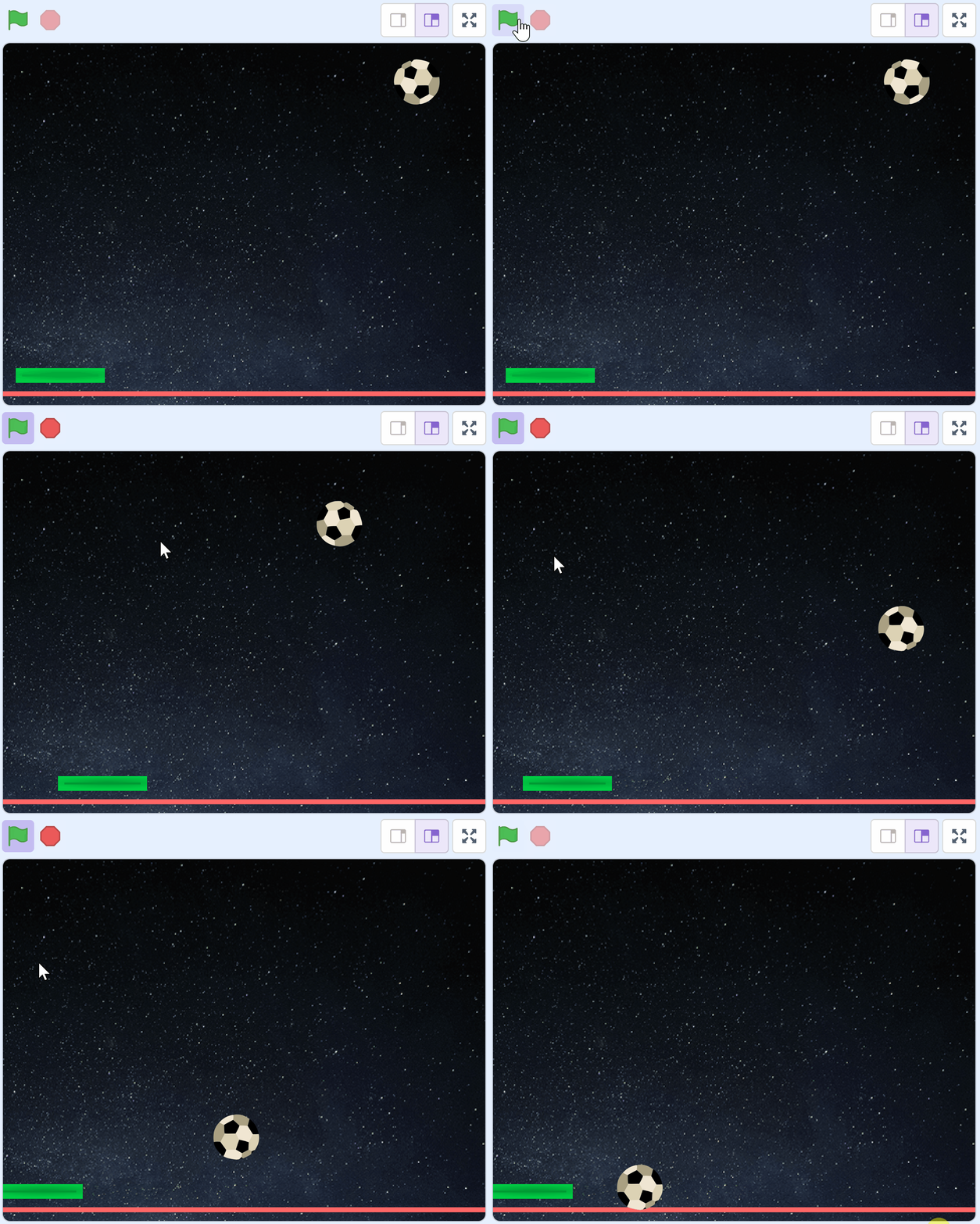
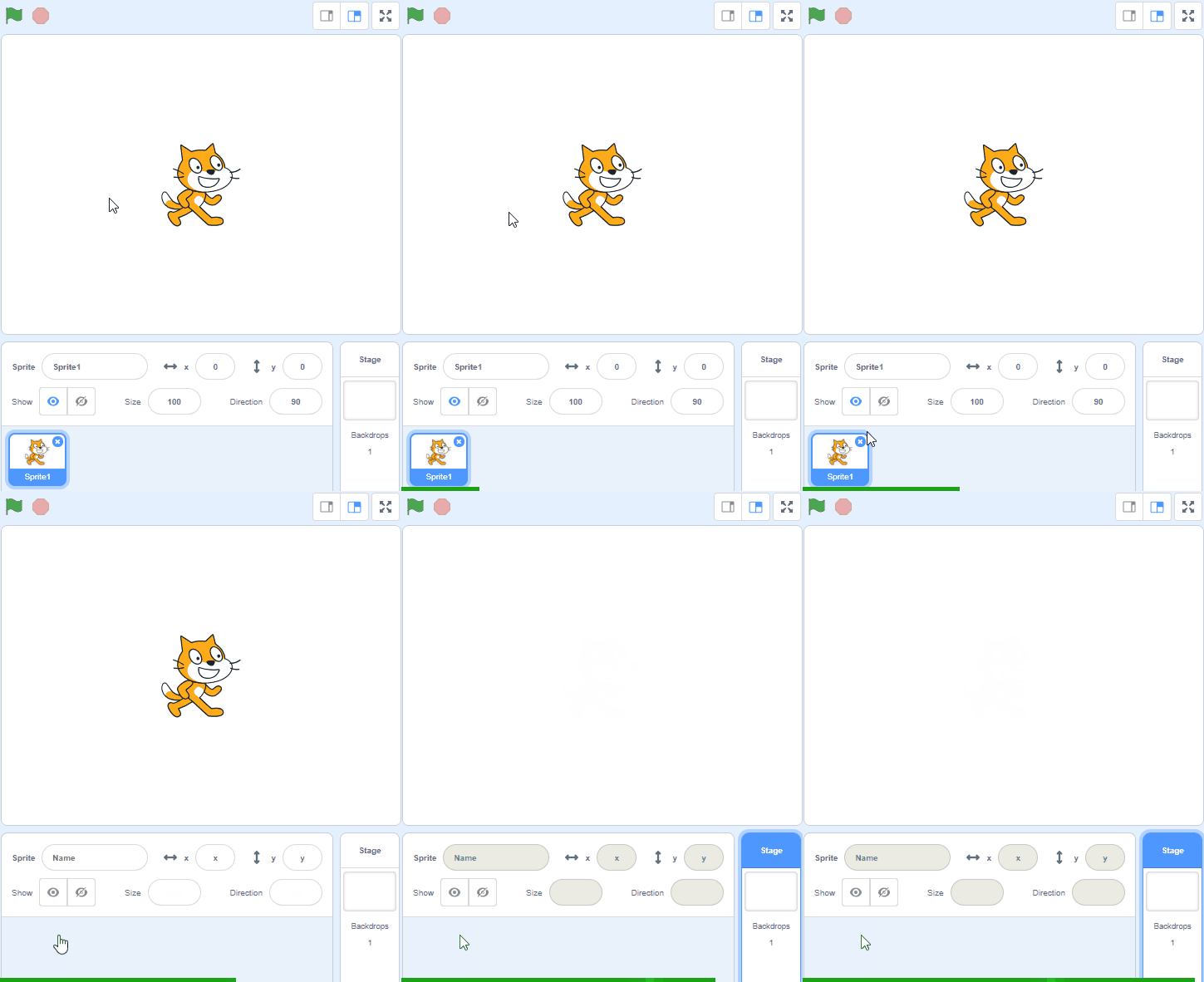
Create a new Scratch project and delete the cat sprite that's added by default.
Go to the Scratch website using the link below and click on the 'Create' link in the blue bar at the top.
By default, each new project starts with the cat sprite already added. To delete the cat click on the x in the blue circle beside the cat in the sprite list.
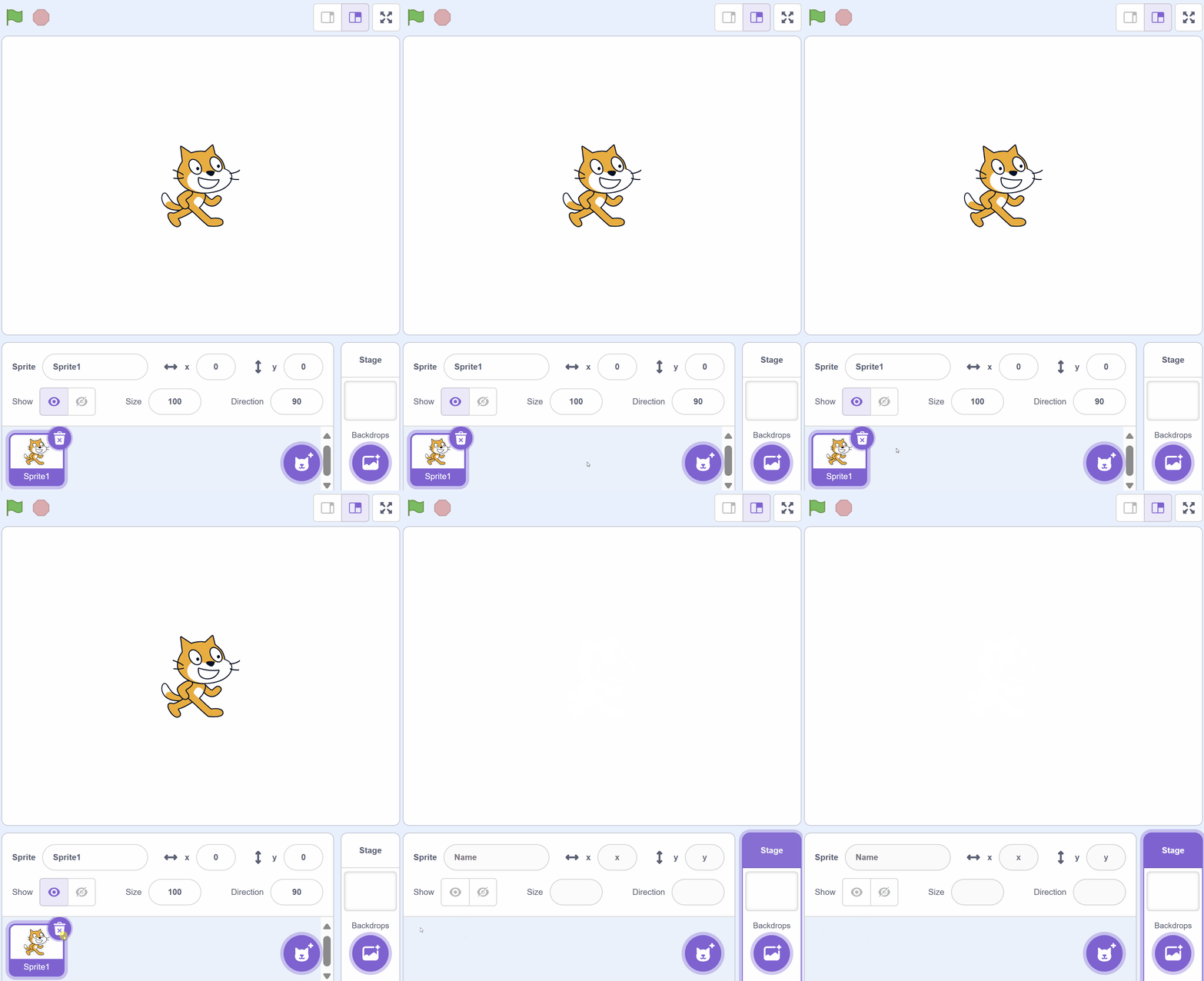
Add the sprite called 'Paddle' from the sprite library.
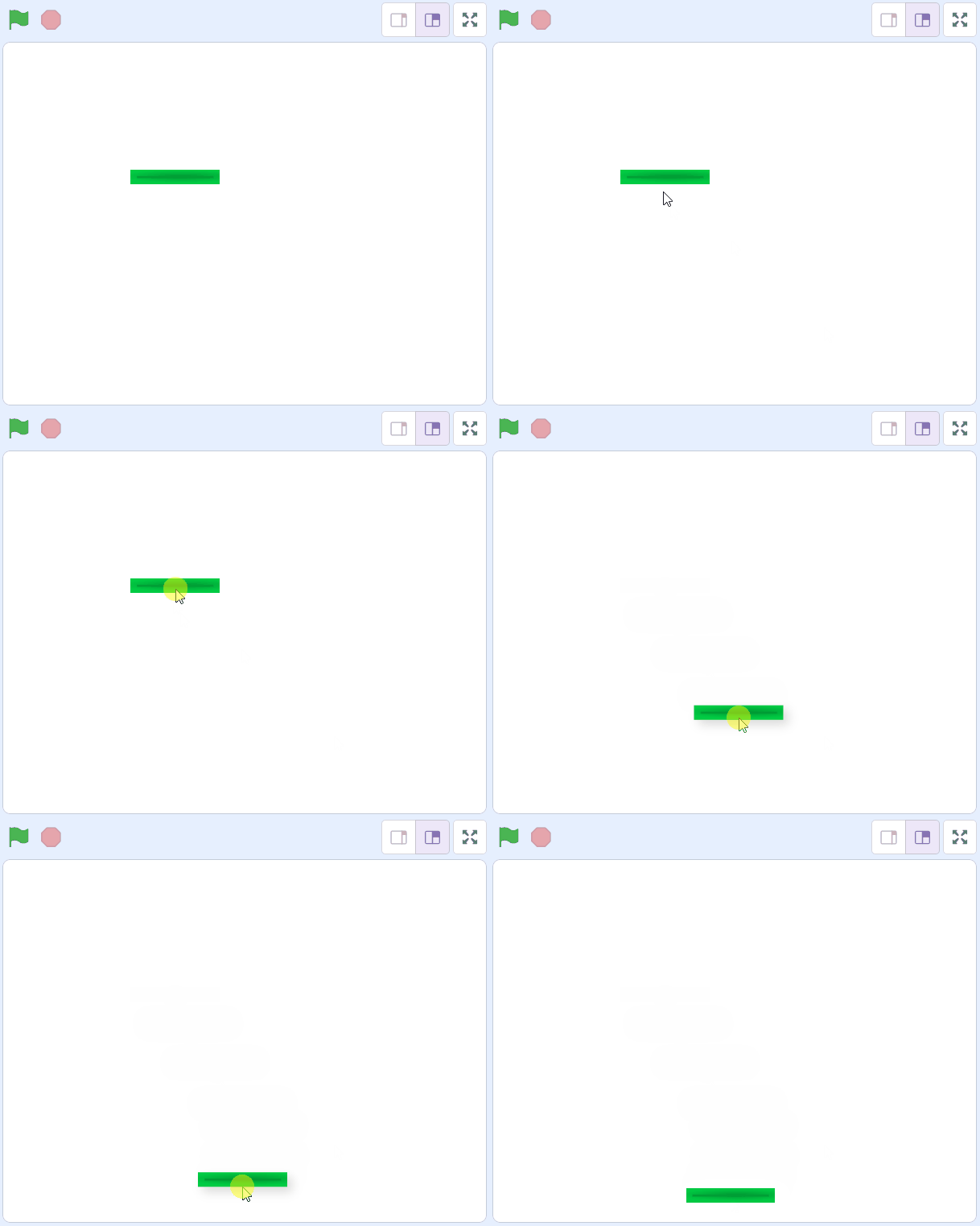
Drag the paddle to near the bottom of the stage area (by holding down the left mouse button and moving your mouse). Make sure to leave some space between the bottom of the stage area and the paddle (this is important later on as we'll be putting something there).
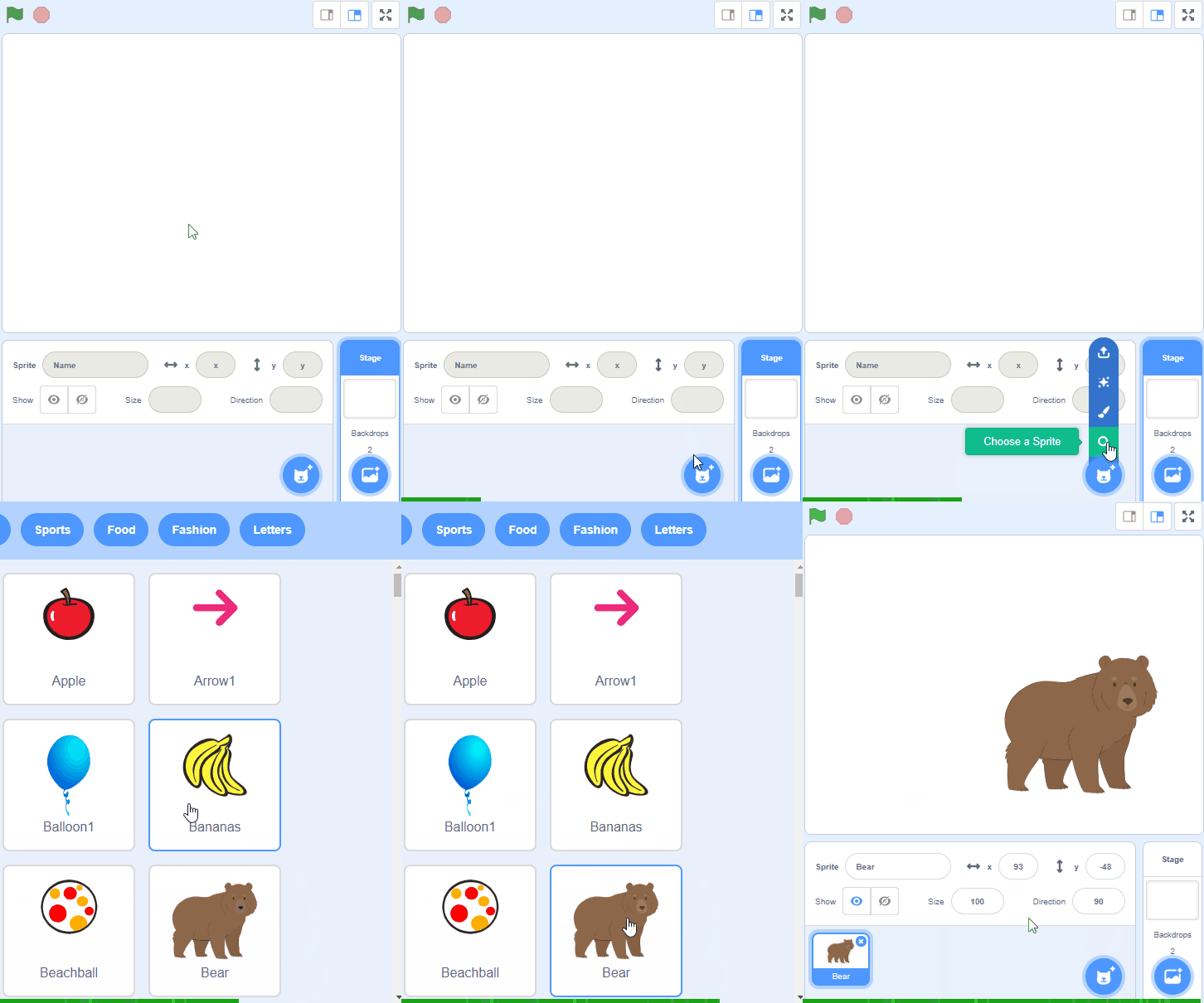
To add a sprite from the sprite library follow these steps:
- Put your mouse over the Choose a Sprite button
- Click on the magnifying glass
- Find the sprite you want in the library
- Click on your chosen sprite
You can use search box or the filter links (Animals, People, Fantasy etc) to locate your sprite.

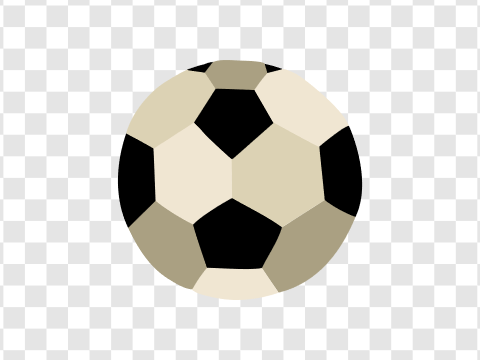
Add the sprite called Soccer Ball from the sprite library. This is the ball the paddle will bounce.
To add a sprite from the sprite library follow these steps:
- Put your mouse over the Choose a Sprite button
- Click on the magnifying glass
- Find the sprite you want in the library
- Click on your chosen sprite
You can use search box or the filter links (Animals, People, Fantasy etc) to locate your sprite.
Unlock the full learning experience
You're previewing this lesson. Get full access to this lesson and hundreds more — each one ready to teach, with interactive activities, printable resources and pupil progress tracking built in.
This lesson is copyright of Coding Ireland 2017 - 2026. Unauthorised use, copying or distribution is not allowed.
Scratch is developed by the Lifelong Kindergarten Group at the MIT Media Lab. It is available for free at https://scratch.mit.edu