1 - Introduction
 Devices like phones, tablets, and computers come with some basic apps already installed, but to do more specific tasks, you need to add new ones.
Knowing how to safely install, update, and remove apps keeps your device running smoothly and securely.
- Understand what software and apps are and why they matter.
- Learn to download apps from trusted sources.
- Check app details before installing.
- Install apps on Windows, Mac, iPhone, and Android.
- Open apps and manage permissions.
- Keep apps updated for better performance and security.
- Uninstall apps you no longer need.
- Practice installing and uninstalling a simple app.
2 - What Are Software and Apps?
 Software or apps are programs you install on a device to help you do different tasks.
For example, a web browser, a video call app, a photo editor, or a music app are all software.
Some apps come already installed on your device, while others need to be downloaded and installed.
Learning how to install and remove apps helps you keep your device useful, organised, and up to date.
3 - Download from Safe Sources
It is important to get apps from a trusted source. This helps reduce the risk of downloading harmful, fake, or poor-quality software.
- Windows: Microsoft Store or the official website of a trusted company
- Mac: App Store or the official website of a trusted company
- iPhone: App Store
- Android: Google Play Store
Before installing anything, check the app name carefully and make sure it is the one you want. Some fake apps use names or logos that look very similar to real ones.
It is also a good idea to avoid apps from unknown links, suspicious pop-ups, or messages asking you to install something quickly.
4 - Check Before You Install

- Make sure you have enough storage space
- Check that the app matches your device type
- Read the app name and description carefully
- Check whether the app is free or paid
- Be ready to sign in with your Apple, Google, or Microsoft account if needed
Some apps are completely free, while others may need payment, a subscription, or in-app purchases. It is helpful to know this before you select Install, Get, or Buy.
Taking a few seconds to check these details can save time later and help you avoid downloading the wrong thing.
5 - Install an App on Windows or Mac
On a computer, apps are often installed from an app store or from a file you downloaded from a trusted website.
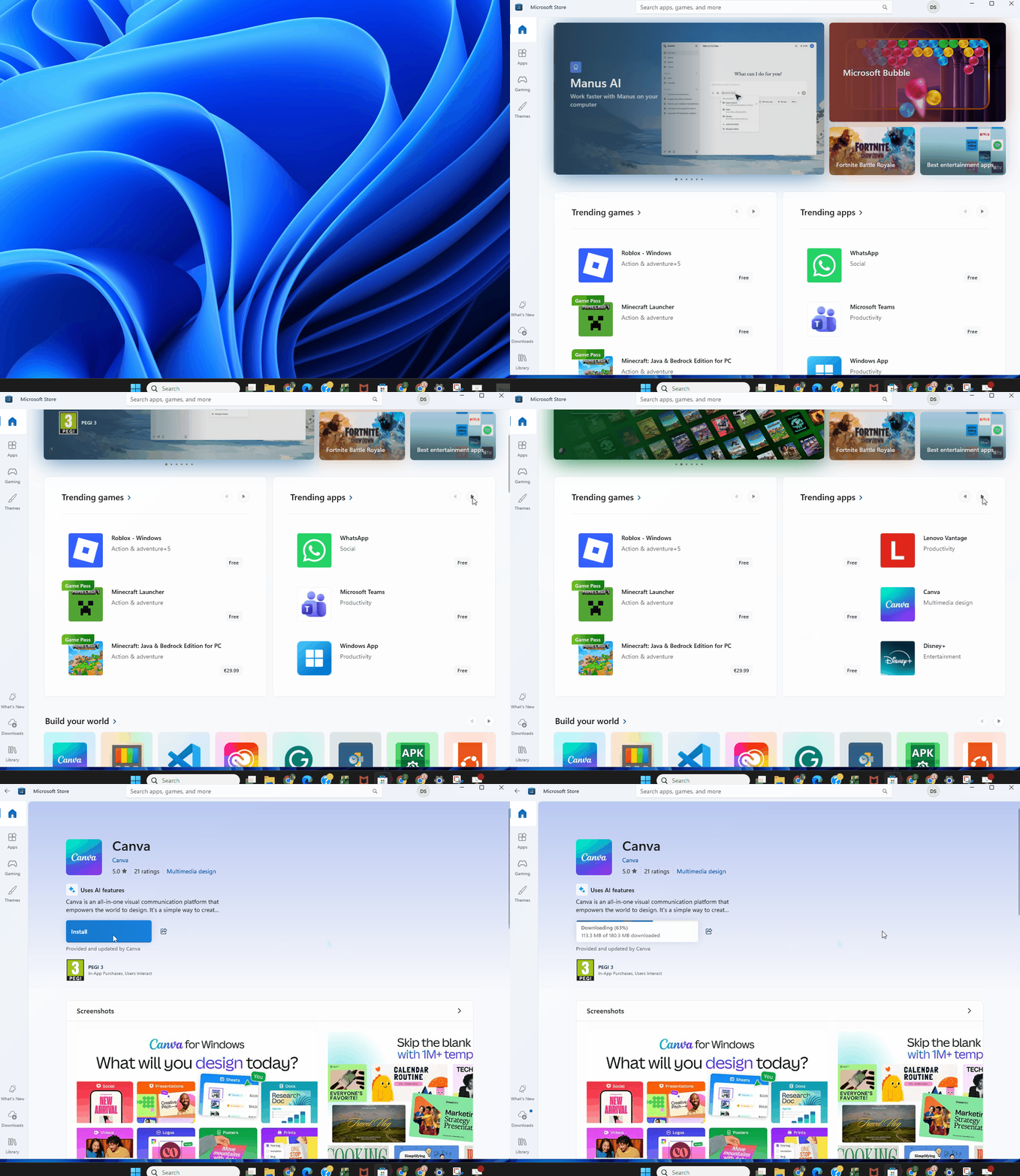
- Windows: Open Microsoft Store, search for the app, then choose Install or Get
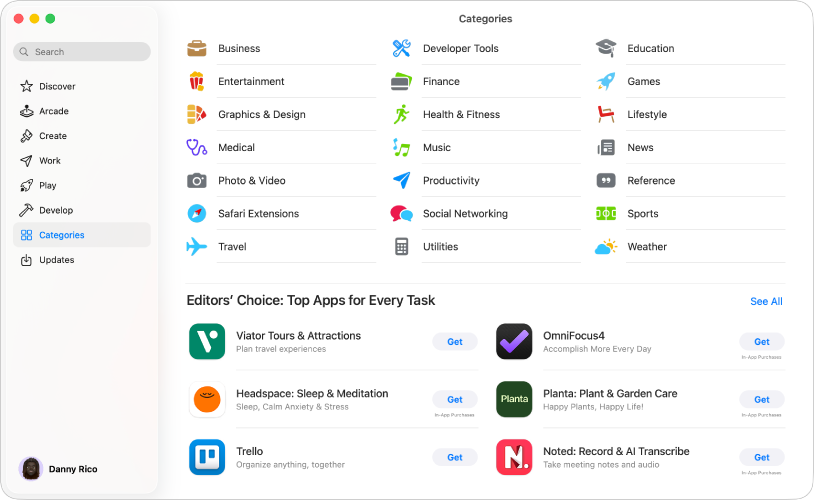
- Mac: Open the App Store, search for the app, then choose Get or Install
Sometimes you may download an installer file from an official website. In that case, open the downloaded file and follow the steps shown on screen.
During installation, you may be asked to confirm that you want to continue, agree to terms, or choose where the app should be installed. On many devices, the default options are fine for beginners.
When the install finishes, the app should appear in your apps list, applications folder, or search results.
Unlock the full learning experience
You're previewing this lesson. Get full access to this lesson and hundreds more — each one ready to teach, with interactive activities, printable resources and pupil progress tracking built in.
This lesson is copyright of Coding Ireland 2017 - 2026. Unauthorised use, copying or distribution is not allowed.