 Welcome to Basic Digital Skills, a course to build essential computer and device skills for school and everyday use. You'll cover powering on your device, navigating the desktop, file management, safe browsing, email basics, and common apps like word processors and spreadsheets. These skills support schoolwork, job applications, online banking, checking Met.ie, and staying connected.
Digital tools are part of daily life in Ireland – from school tasks to planning around the weather. Starting with the basics builds confidence and avoids frustration.
This first lesson, Introduction to Your Computer/Device, covers:
- Identifying types of devices like desktops, laptops, tablets, and smartphones.
- Finding key hardware parts such as screen, keyboard, and ports.
- Powering on and off your device safely.
- Basic care tips to keep it running well.
- A hands-on task to check the weather on Met.ie.
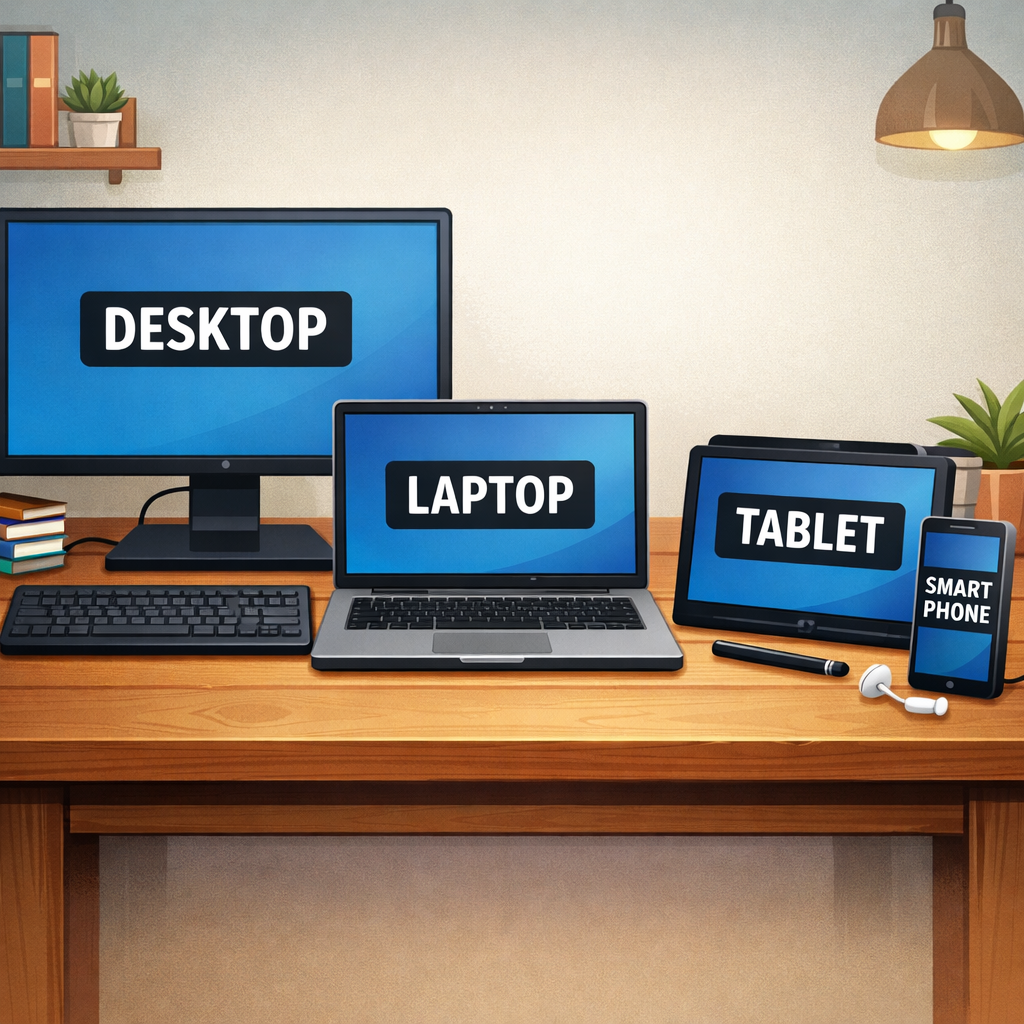 Devices vary by design and purpose. Knowing the type helps you understand its features and limitations. Here are the main categories:
- Desktop computer: Fixed setup with a separate monitor, keyboard, mouse, and system unit (tower). It connects to mains power. Strengths: High performance for tasks like video editing, managing documents, or online banking; easy to upgrade parts. Common in homes or offices. Usually runs Windows, macOS (iMac), or Linux.
- Laptop: All-in-one portable unit with a hinged screen, built-in keyboard, touchpad, and battery. Strengths: Mobile for work, appointments, or travel; decent power for most tasks. Charge via USB-C or barrel plug. Runs Windows, macOS, ChromeOS, or Linux.
- Tablet: Slim touch-screen device, e.g., iPad or Android tablet. No physical keyboard (uses on-screen or attachable). Strengths: Lightweight for reading documents, note-taking apps, browsing; long battery life. Best for media consumption and simple apps. Runs iPadOS or Android.
- Smartphone: Compact touch-screen for pocket carry, e.g., iPhone or Android phone. Strengths: Always available for calls, messaging, quick searches, apps; cameras and GPS built-in. Limited screen size for heavy work. Runs iOS or Android.
Examine your current device. Identify its type based on these descriptions. Jot it down, along with its operating system if you can spot it (e.g., Windows logo, Apple menu).
Consider your needs: For reports, emails, or online banking, a laptop or desktop offers better multitasking. Tablets and phones suit quick checks like Met.ie weather. In Ireland, homes often mix Windows desktops/laptops and iPhones. Each type connects to the internet similarly, but input methods differ – touch for tablets/phones, mouse/keyboard for computers.
Devices can overlap, like 2-in-1 laptops that fold into tablets or tablets with keyboards. Understanding this sets you up for the hardware and software steps ahead.
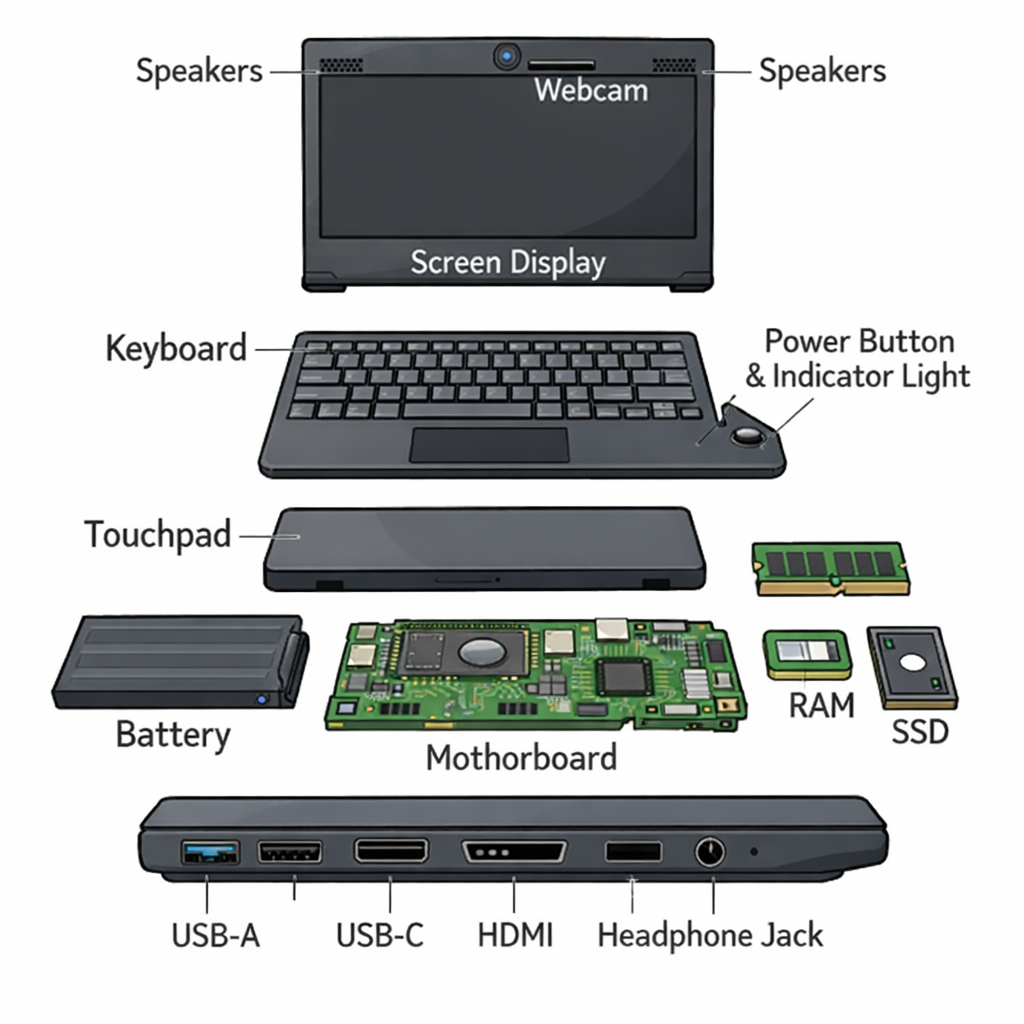 Hardware refers to the physical components of your device that you can see and touch. Familiarising yourself with these will help you troubleshoot issues and connect peripherals later. Focus on these core parts:
- Screen/Display: Shows all content, apps, and websites. On laptops and tablets, it's the lid; on desktops, a separate monitor.
- Keyboard: Used for typing text, commands, and shortcuts. Laptops and desktops have physical keys; tablets and phones use on-screen versions.
- Mouse or Touchpad: Controls the cursor for clicking and scrolling. Desktops use an external mouse; laptops have a touchpad below the keyboard. Alternative: Use Tab to navigate and Enter to select.
- Ports: Connection points for chargers, USB drives, headphones, or external displays. Common types: USB-A (rectangular), USB-C (oval, versatile), HDMI (trapezoid for screens), headphone jack (3.5mm).
- Power button/indicator: Turns the device on/off; often lights up when charging or running.
- Webcam and speakers: Webcam at top of screen for video calls; speakers for audio (grilles on sides/bottom).
Locate each part on your device now. Match them to the descriptions. Note any differences based on your device type (e.g., no mouse on a tablet).
Pro tip: Ports are often on the sides or back. Hover your finger near them without plugging anything in yet. If your device has a webcam, cover it for privacy during video calls. This knowledge prepares you for connecting external devices in future lessons.
 Follow these steps to power your device on and off safely. This prevents data loss and hardware damage.
Procedures vary slightly by device type and operating system.
Follow these steps to power your device on and off safely. This prevents data loss and hardware damage.
Procedures vary slightly by device type and operating system.
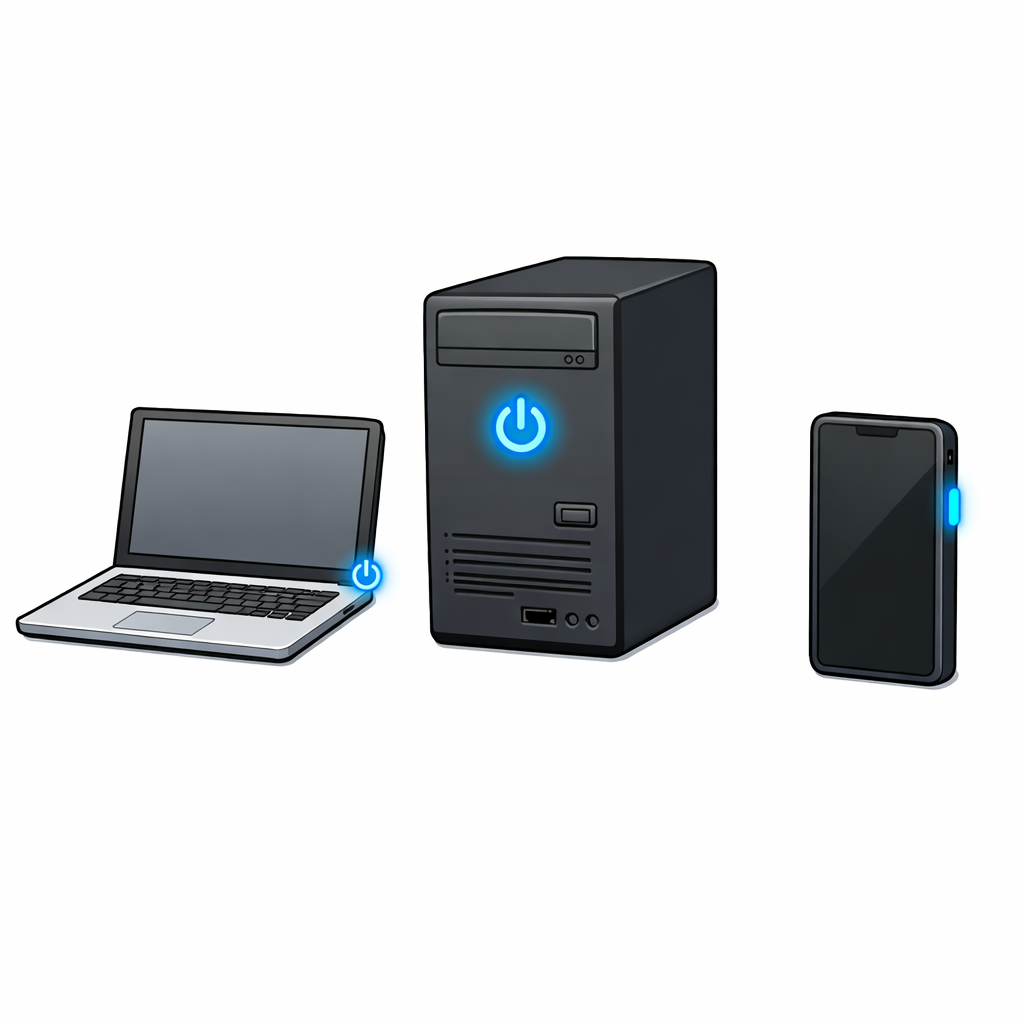
Locating the power button:
- Laptops: Top-right corner of keyboard area or along the side edge. Often marked with a circle and vertical line symbol (⏻).
- Desktops: Front panel of the tower (system unit) or on the monitor. Check for the power symbol.
- Tablets: Top edge or side (e.g., iPad: top button; Android: side).
- Smartphones: Side edge (e.g., iPhone: right side; Android: varies, often power + volume).
Step 1: Power on
Press the power button once briefly (1 second). Release it.
- Listen for fans spinning (desktops/laptops).
- Watch for lights: Power indicator glows; screen backlight turns on.
- Screen shows manufacturer logo, then login screen or home screen.
If the screen stays black after 30 seconds:
- Check power cable/charger is plugged in securely.
- Hold power button for 10 seconds to force off, wait 10 seconds, press again to turn on.
- For laptops/tablets/phones: Plug in charger first – look for charging light

Step 2: Shut down properly Always shut down this way to close apps and save the system state.
- Windows (laptops/desktops): Click Start button (bottom-left, Windows logo) > Power icon > Shut down. Or keyboard: Windows key + X > U > U.
- macOS (MacBooks/iMacs): Click Apple menu (top-left) > Shut Down. Confirm if prompted.
-
Tablets/Smartphones:
- iPad/iPhone (iOS/iPadOS): Press and hold top/side button + volume button until slider appears > slide to power off.
- Android: Press and hold power button > select Power off (or Restart). Some have swipe-down menu: tap power icon > Power off.
Never do: Unplug power abruptly (risks file corruption). Force restart only if frozen (Ctrl+Alt+Del on Windows; Cmd+Ctrl+Power on Mac).
Practice now: If your device is on, shut it down safely. Then power it back on. Note what the login screen looks like on your device.
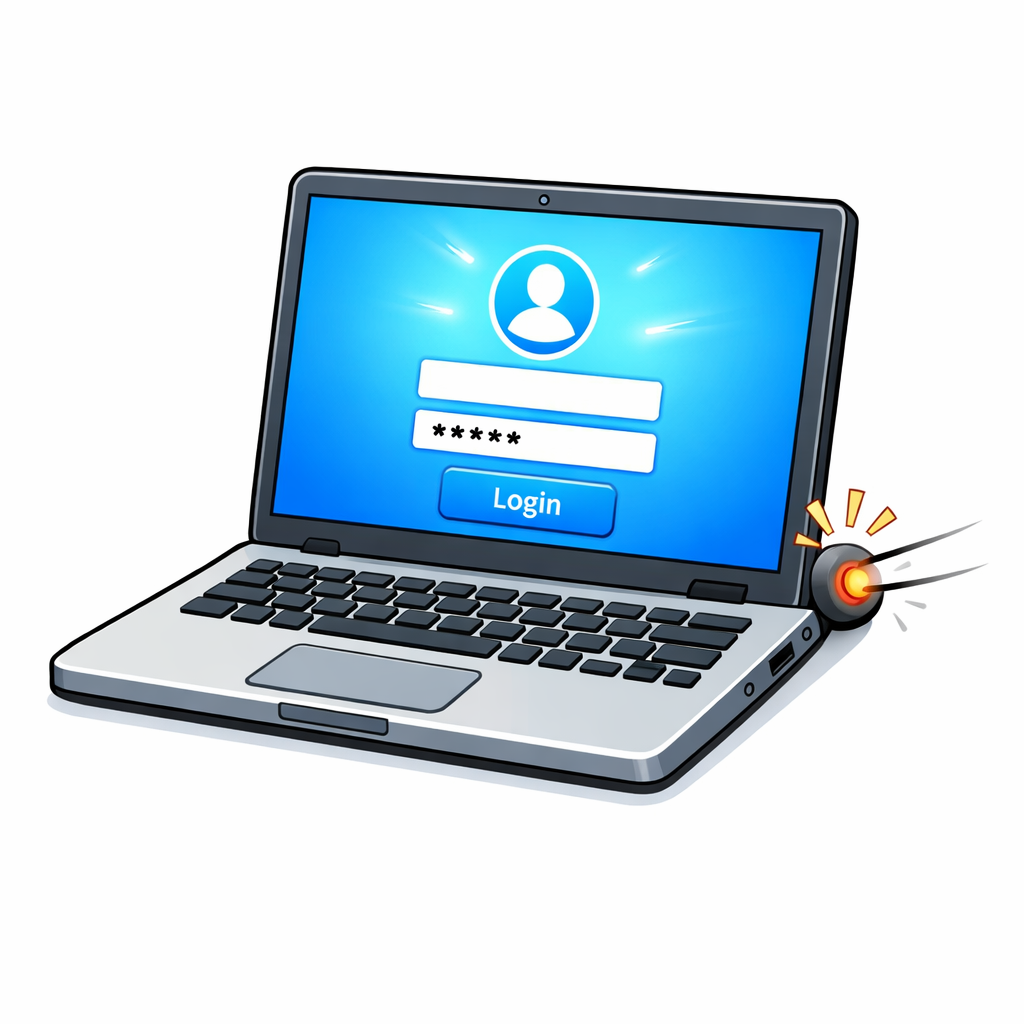 Now it's your turn to practise powering on and off your device. Follow these steps exactly as described in the previous section. This builds muscle memory for safe use.
Step 1: Power on
Locate the power button based on your device type. Press it briefly (1 second) and release. Watch and listen: screen lights up, fans may spin, login screen appears.
Step 2: Log in
If prompted, enter your password or PIN. If no login, you'll see the desktop/home screen.
Step 3: Shut down safely
Use the proper method for your OS: Start > Power > Shut down (Windows); Apple menu > Shut Down (macOS); hold power button > slide or select Power off (iOS/Android).
Step 4: Repeat
Power on and shut down twice more. Each time, note how long it takes from button press to login screen.
Practice now: Complete the full cycle three times. If your device shows 'low battery', plug in the charger first – check for USB-C (oval) or other ports on the side. Confirm the charging light appears before powering on.
Troubleshooting: Screen black? Ensure cable is secure. Hold power button 10 seconds to force off, wait, then retry. Avoid unplugging while on. You're gaining confidence with each cycle – essential for reliable device use.
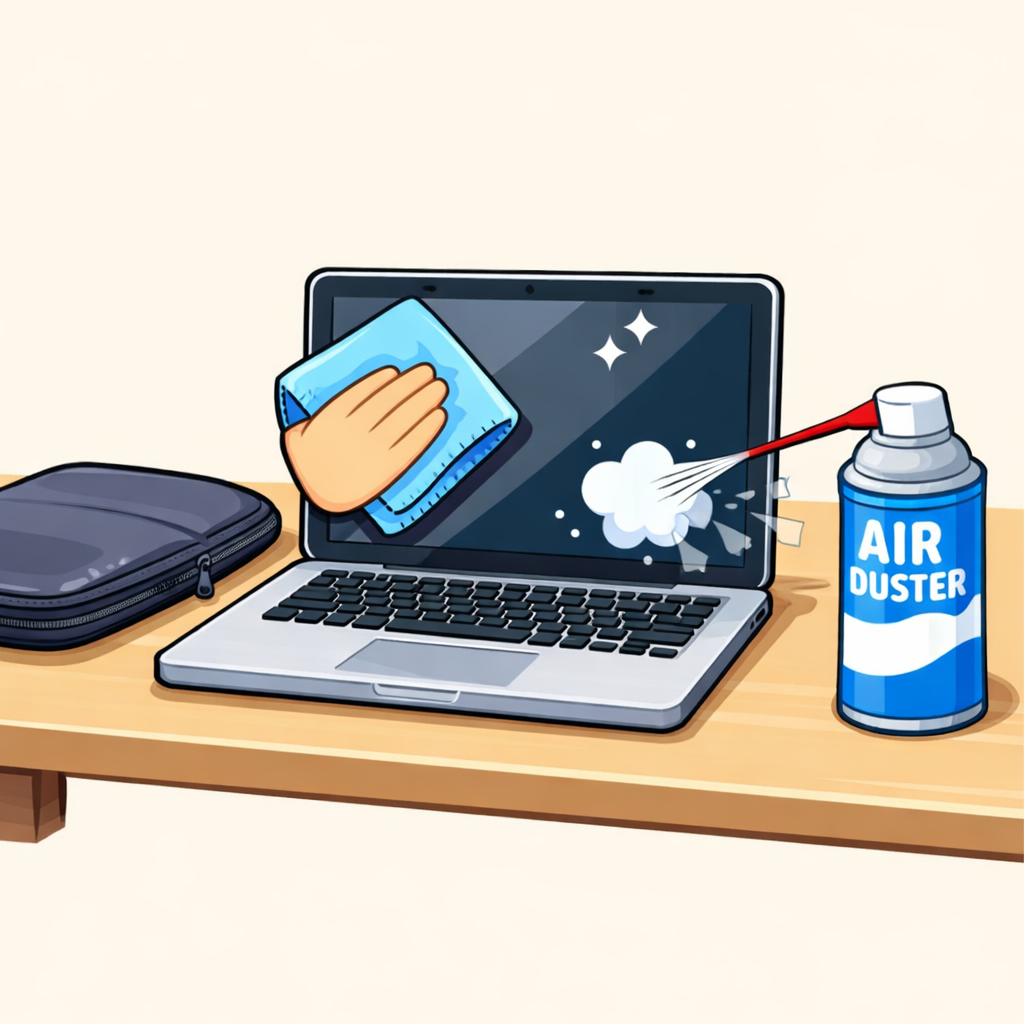 Proper care extends your device's life and prevents issues like overheating or data loss. These routines take little time but save hassle later, especially for schoolwork or job applications.
Follow these key practices:
- Cleaning: Wipe the screen and exterior with a soft, lint-free microfibre cloth. Dampen slightly with water or screen cleaner (never spray directly). For keyboards, use compressed air for dust; avoid vacuum cleaners. Clean every week.
- Avoid liquids and food: Keep drinks at least 30cm away. Spills can short-circuit internals – if it happens, power off immediately and dry upright for 48 hours.
- Storage and environment: Store in a cool, dry place (under 35°C). Use a padded case or sleeve for laptops/tablets when carrying. Avoid direct sunlight or car dashboards in Irish summers.
- Battery management: For laptops/tablets/phones, charge to 80-100% regularly but avoid constant 100% (use battery settings if available). Don't let it fully drain to 0% often.
- Software updates: Check weekly – they'll be covered in this module. They fix bugs and improve security for online banking or Met.ie.
Check your device now: Inspect for dust or marks. Wipe the screen with a dry cloth. Ensure it's on a stable, flat surface away from edges. Note your battery level and if it's charging.
Pro tip: In Ireland's damp climate, silica gel packets in bags help prevent moisture. These habits build reliability – your device will handle school projects without failing.
Put what you've learned into practice with this challenge. You'll power on your device, open a web browser, check the weather on Met.ie – a site used daily in Ireland for planning around rain or wind – and shut down safely. This reinforces device handling and introduces browsing.
Step 1: Power on
Locate the power button for your device type. Press it briefly (1 second). Log in if prompted. Wait for the home screen or desktop.
Step 2: Open a web browser
Look for a browser icon on your desktop, taskbar/dock, or home screen:
- Microsoft Edge: Blue-green waves.
- Google Chrome: Red, yellow, green, blue circle.
- Safari (Apple): Blue compass.
- Firefox: Orange fox.
Click or tap the icon to launch. The window opens to a start page.
Step 3: Visit Met.ie
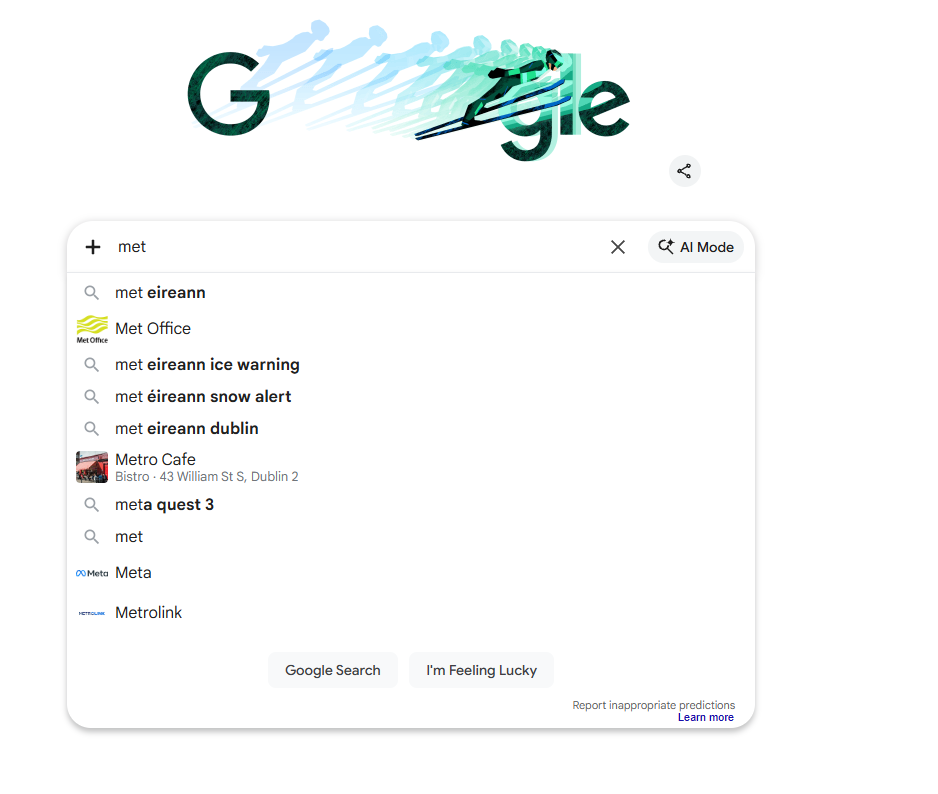
In the address bar at the top (where the web address appears), type or paste: https://www.met.ie
Press Enter or tap Go. The homepage loads with Ireland's weather maps and forecasts.
Step 4: Check the forecast
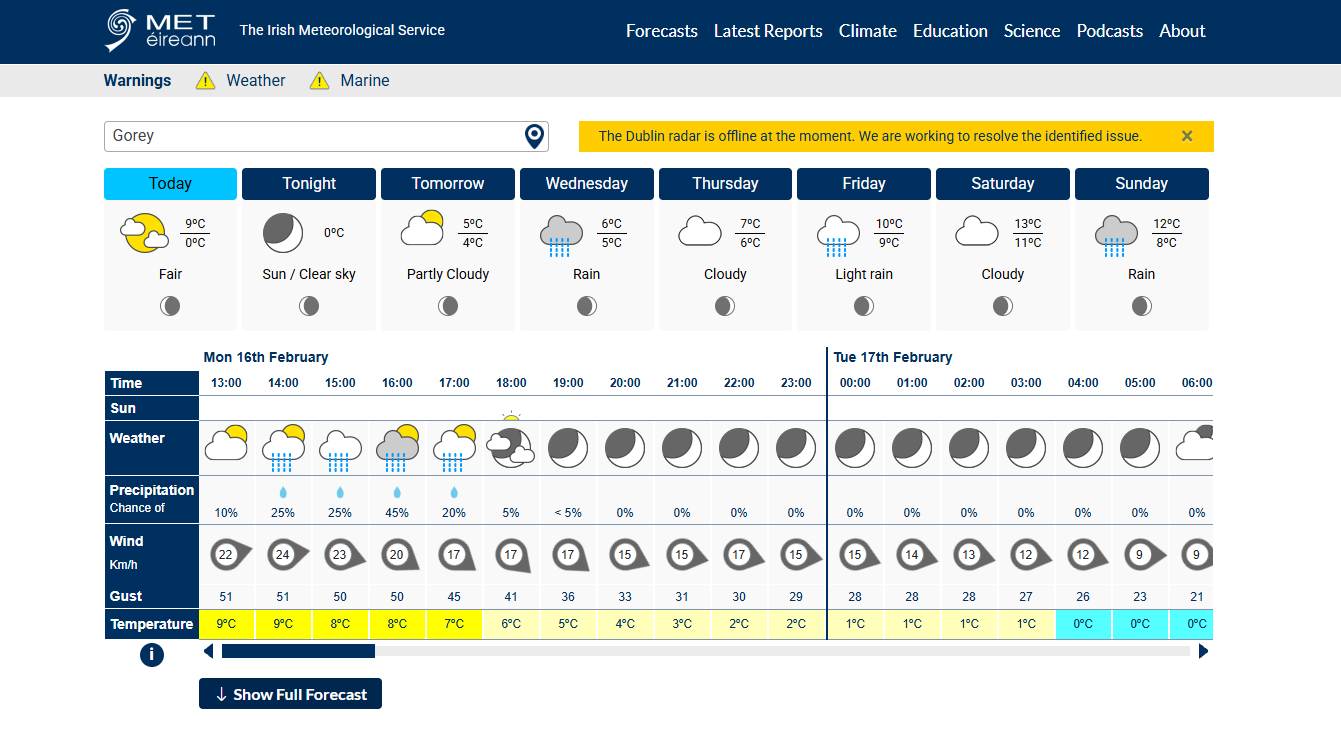
Find the current conditions for Dublin or your nearest location (use the search bar or map). Note:
- Temperature.
- Wind speed.
- Chance of rain.
Step 5: Close browser and shut down
Close the browser window (X button top-right/corner). Then shut down using the proper method: Start > Power > Shut down (Windows); Apple menu > Shut Down (macOS); hold power > Power off (iOS/Android).
Success checklist:
- ✓ Device powered on and logged in.
- ✓ Key hardware used (screen, keyboard/touch, mouse/touchpad).
- ✓ Met.ie opened and forecast noted (write it down).
- ✓ Browser closed and device shut down safely.
Repeat if needed. This skill applies to school research, job sites, or banking.
Troubleshooting: Browser won't open? Restart device. Site slow? Check internet (Wi-Fi icon). You've now handled a full cycle – ready for desktop navigation next.
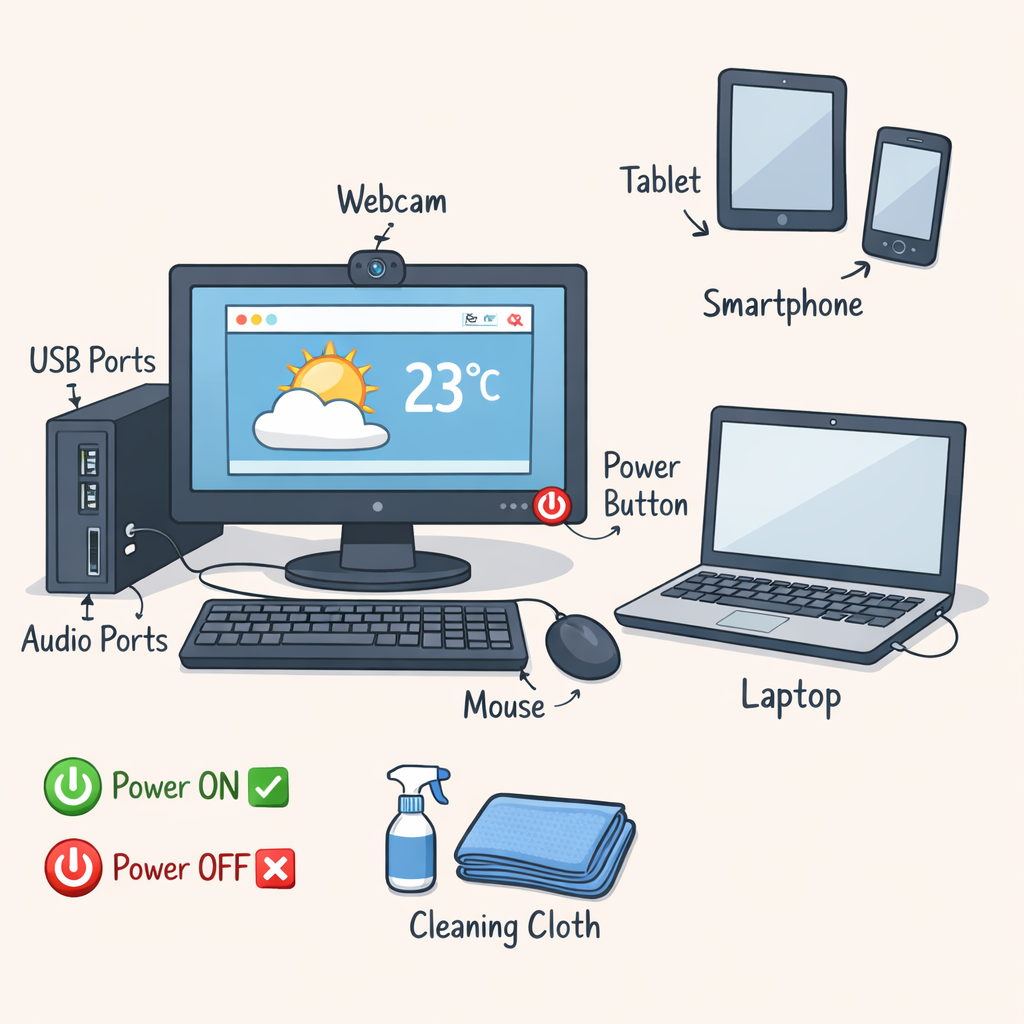 You have completed the Introduction to Your Computer/Device lesson. Here is a summary of what you have learned:
- Types of devices: desktop, laptop, tablet, and smartphone, with their strengths and uses.
- Key hardware parts: screen, keyboard, mouse/touchpad, ports, power button, webcam, and speakers.
- Safe powering on and off procedures for different operating systems and device types.
- Basic care tips: cleaning, avoiding liquids, proper storage, battery management, and updates.
- Hands-on practice: powering your device, opening a browser, checking the weather on Met.ie, and shutting down safely.
To practise further, repeat the weather check on Met.ie daily for a week, noting how the forecast changes. This reinforces powering on/off and basic browsing. Next lesson: Navigating the desktop.
That was a sample lesson from Basic Digital Skills for Life
Every lesson in the course is ready to teach like this one. See what else comes with it, and how to order it.
This lesson is copyright of Coding Ireland 2017 - 2026. Unauthorised use, copying or distribution is not allowed.