You're previewing the student experience. You don't need to complete this lesson — your progress and XP aren't saved.
Computer Skills
Beginner
60 mins
Teacher/Student led
+90 XP
Pupils work on their own device

What you need:
Chromebook/Laptop/PC or iPad/Tablet

Kickoff: Pick Something Real and Set Up Your Digital Portfolio

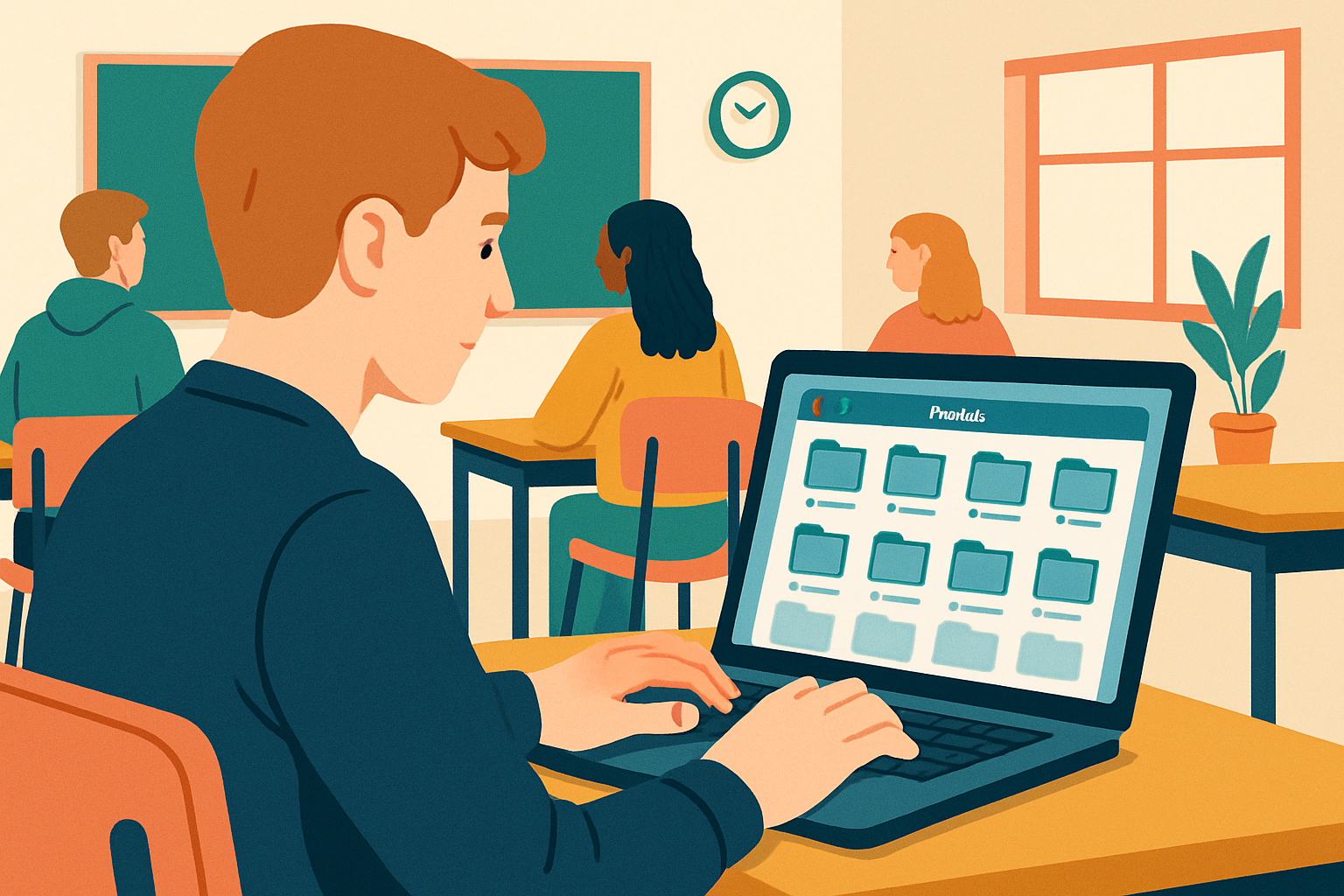
Choose a real project you care about, set up a Digital_Portfolio folder in your school cloud storage, and write a one-page brief that explains what you're planning, why it matters, and who it's for.

Teacher Class Feed

Load previous activity

    1 - Introduction ~5 mins

    Illustration for Introduction

    Today you will

    • pick one real project to work on for all 10 lessons
    • make a {{code:Digital_Portfolio}} folder in your school cloud storage
    • write a one-page brief about your project
    Warm-up

    Imagine you had 10 weeks of class time to plan one thing you really want to happen, like a TY trip, a club or a fundraiser. What is the first idea that comes to mind? Hold onto it.

    2 - Your 10-week Journey ~8 mins

    Each week you add one piece of work to your portfolio.

    1. Pick your project and write your brief.
    2. Research your project and check an AI claim.
    3. Write a one-page proposal.
    4. Make the proposal look polished.
    5. Build a budget or timeline sheet with formulas.
    6. Turn your numbers into a chart.
    7. Use AI to draft, check and explain your work.
    8. Make a 5-slide pitch deck.
    9. Swap decks with a classmate and give feedback.
    10. Give a live 2-minute pitch.

    You will use this list to pick your three goals later today.

    3 - Key Concepts ~6 mins

    Something Real is one project you really want to plan and pitch, and you keep it for all 10 lessons.

    Cloud storage keeps your files online, so you can open them on any device you sign in on.

    Your Digital Portfolio is one folder that holds all your work for the course.

    Navigate first means you open the folder first, then make the new file inside it.

    Example

    A Project Brief for a lunchtime film club says what the club is, why the student cares and who it is for.

    4 - Step-by-step Task: Set Up Your Digital Portfolio Folder ~9 mins

    You will make a {{code:Digital_Portfolio}} folder, then a blank document called {{code:01_project_brief}} inside it. Pick the tab for your school account and follow the steps in the box below.

    If you use Outlook or Teams, pick the OneDrive tab. If you use Gmail or Google Classroom, pick the Google Drive tab. Ask your teacher if you are not sure.

    5 - Common Issues ~2 mins

    • If your document ended up outside {{code:Digital_Portfolio}}, use {{menu:Right-click -> Move to}} in OneDrive, or {{menu:Right-click -> Organize -> Move}} in Google Drive. Then pick {{code:Digital_Portfolio}}.
    • If you signed in with a personal account, sign out and sign in with your school email.
    • If a button looks different, look for one with a plus sign or the word New.

    6 - Portfolio Build: Write Your Project Brief ~20 mins

    Independent Practice

    Your goal: Write a short brief that explains your project to someone who has never heard of it.
    Time: ~20 minutes
    Task:
    1. Open {{code:01_project_brief}} in your {{code:Digital_Portfolio}} folder.
    2. Type the four headings in the box below, each on its own line.
    3. Under each heading, write a few sentences about your own project.
    4. For your goals, pick three skills from the 10-week plan that you most want to learn.

    What I'm planning

    Why it matters to me

    Who it's for

    My 3 goals for the next 10 weeks

    If you are stuck, try a TY trip, a lunchtime club, a fundraiser or a creative project.

    Success criteria:
    • {{code:01_project_brief}} is saved in {{code:Digital_Portfolio}}.
    • It has all four headings.
    • A stranger could tell what I'm planning, why, and who it's for.
    • Each goal names a skill I want to learn.

    7 - Reflection ~5 mins

    Think about

    • Why did you pick this project over your other ideas?
    • Which week do you think will be hardest for you?

    Tell a partner your answers.

    8 - Lesson Summary ~5 mins

    Illustration for Lesson summary

    What you covered

    • I can pick a real project.
    • I can say what cloud storage is.
    • I can open a folder, then make a file inside it.
    • I can write a Project Brief.

    Finished early?

    Write three lines about a second project you could switch to. Save them as {{code:01b_backup_brief}} in {{code:Digital_Portfolio}}.

    End of lesson
    123learn · Sample lesson

    That was a sample lesson from Computer Skills

    Every lesson in the course is ready to teach like this one. See what else comes with it, and how to order it.

    Copyright Notice
    This lesson is copyright of Coding Ireland 2017 - 2026. Unauthorised use, copying or distribution is not allowed.
    🍪 Our website uses cookies to make your browsing experience better. By using our website you agree to our use of cookies. Learn more