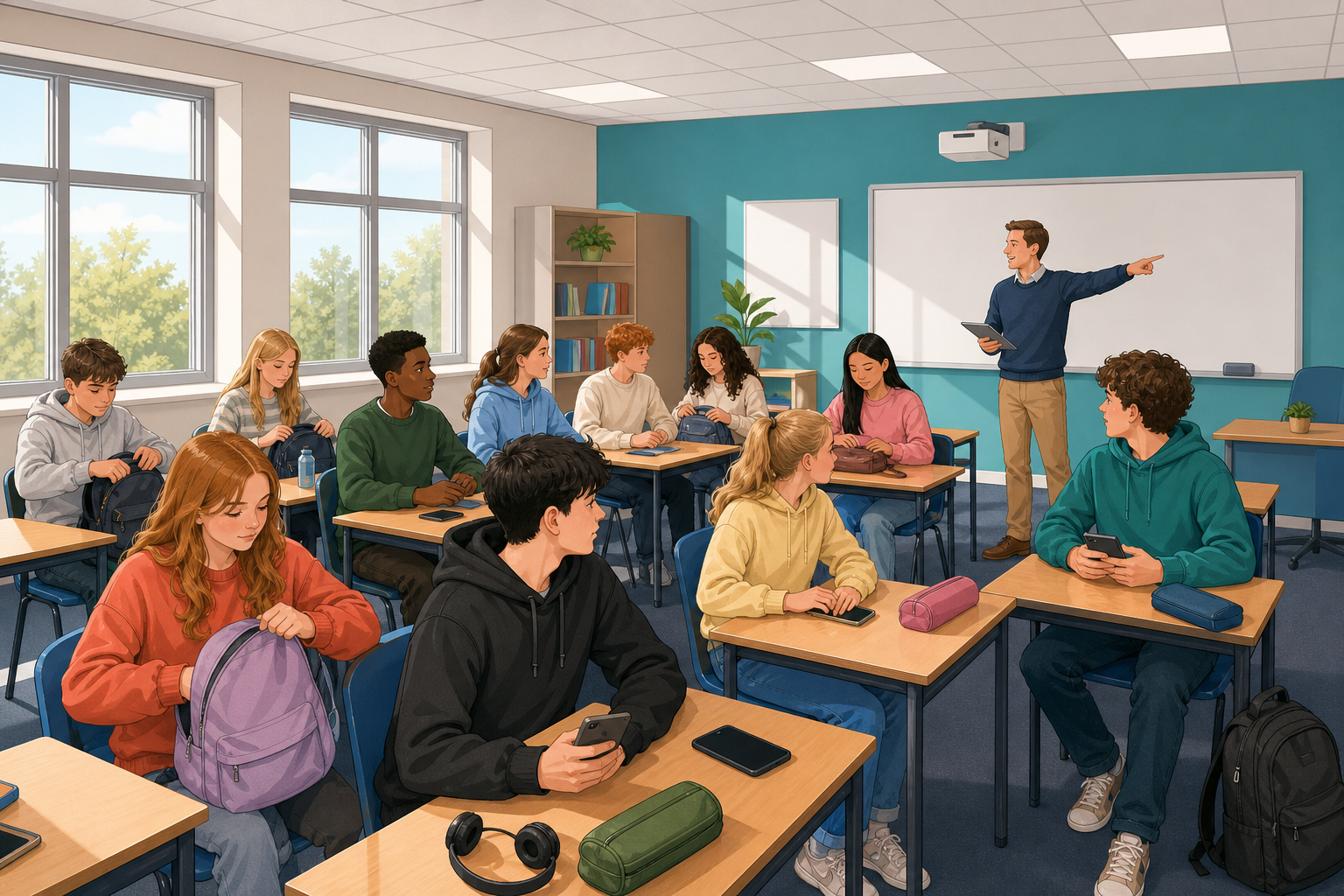
 Welcome to Digital Media Literacy. Over this course you will get better at four things you already do online:
- Understanding your own habits online
- Judging what to trust
- Following your interests
- Sharing your own work online
Near the end you will do a project of your own that uses all four.
Today you start with your digital footprint. That is a name for all the things you do on phones, computers and consoles in a day. You will make a card about it, using pictures and words.
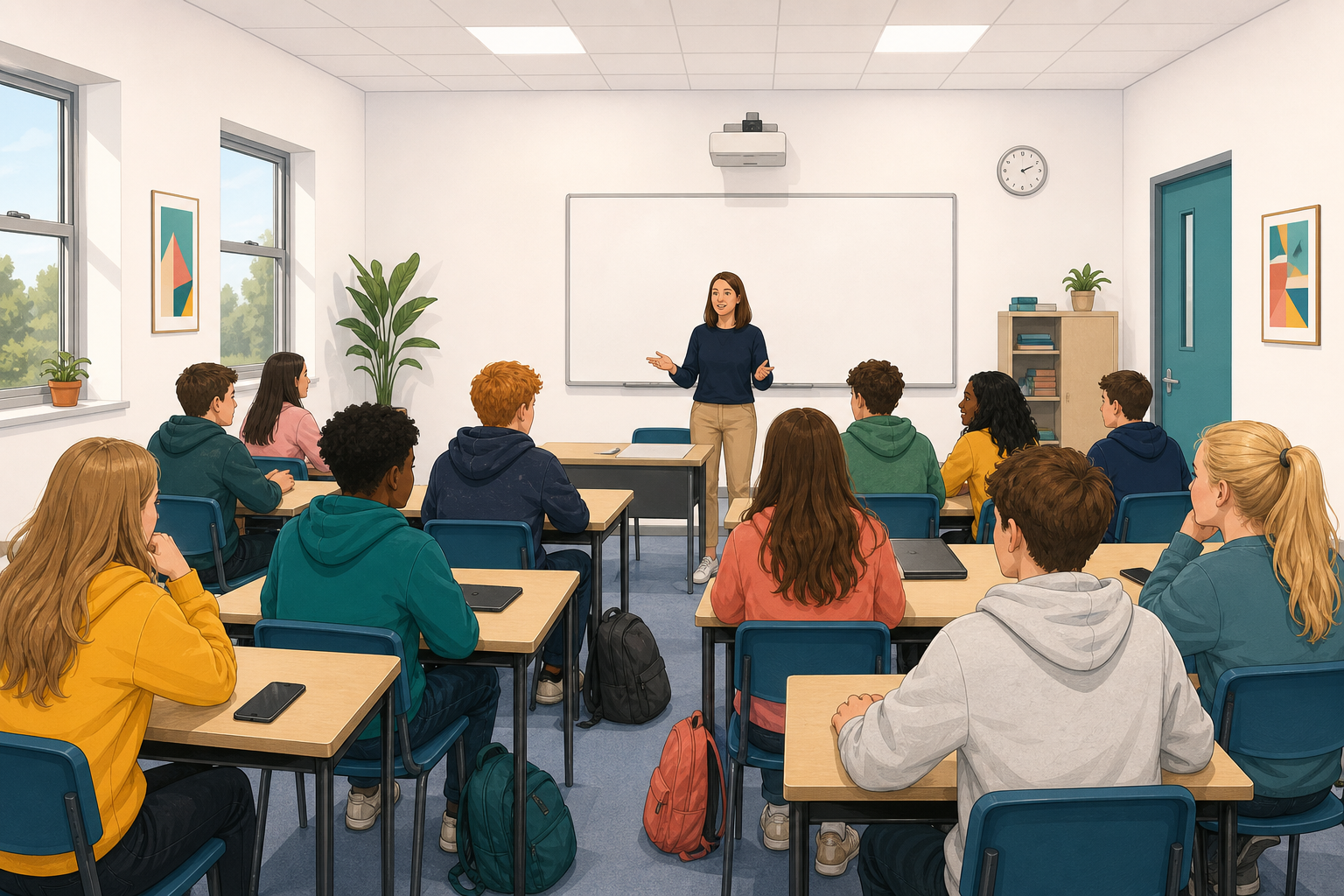 Picture a normal school day, from when you wake up to when you go to sleep. Which digital tools do you actually use?
For example: an alarm on a phone, a group chat on the bus, a quiz on the school laptop, a video while eating, a game before bed. Yours will be different.
Call out a few of yours. Next, you will put them on a card of your own. Nothing today is graded.
Now make your card in the activity below.
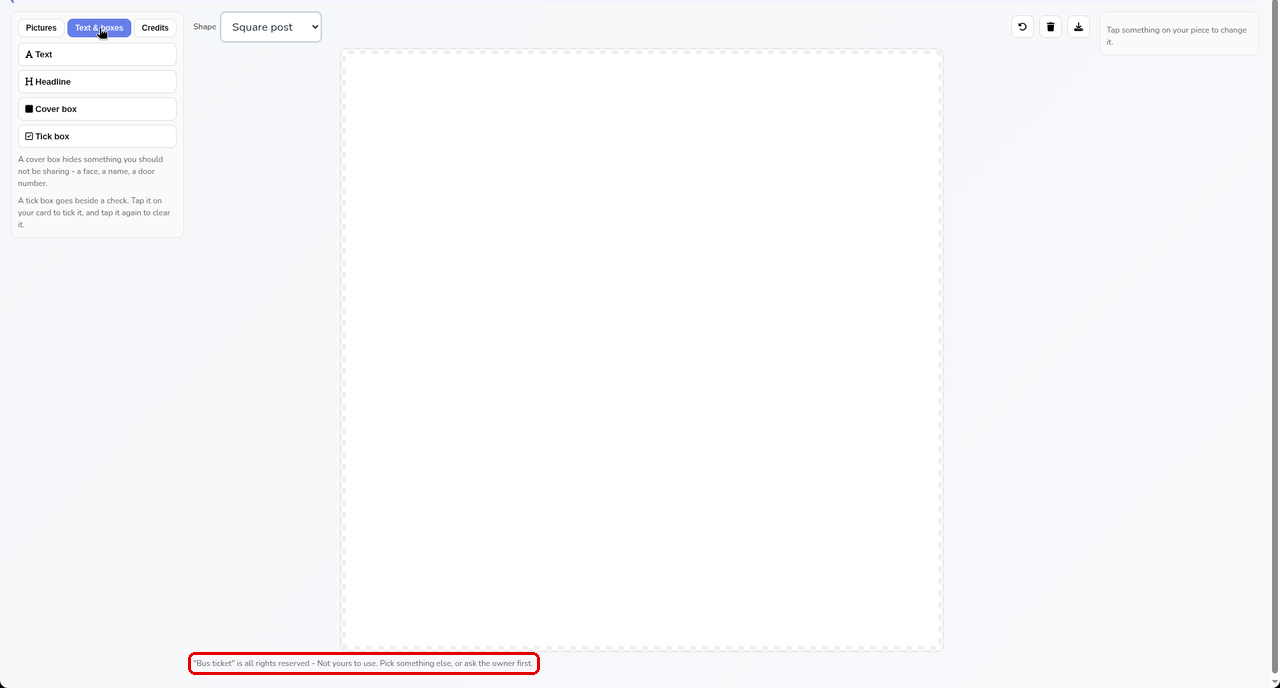
This is the card maker. You will use it again later in the course, so here is what everything does.
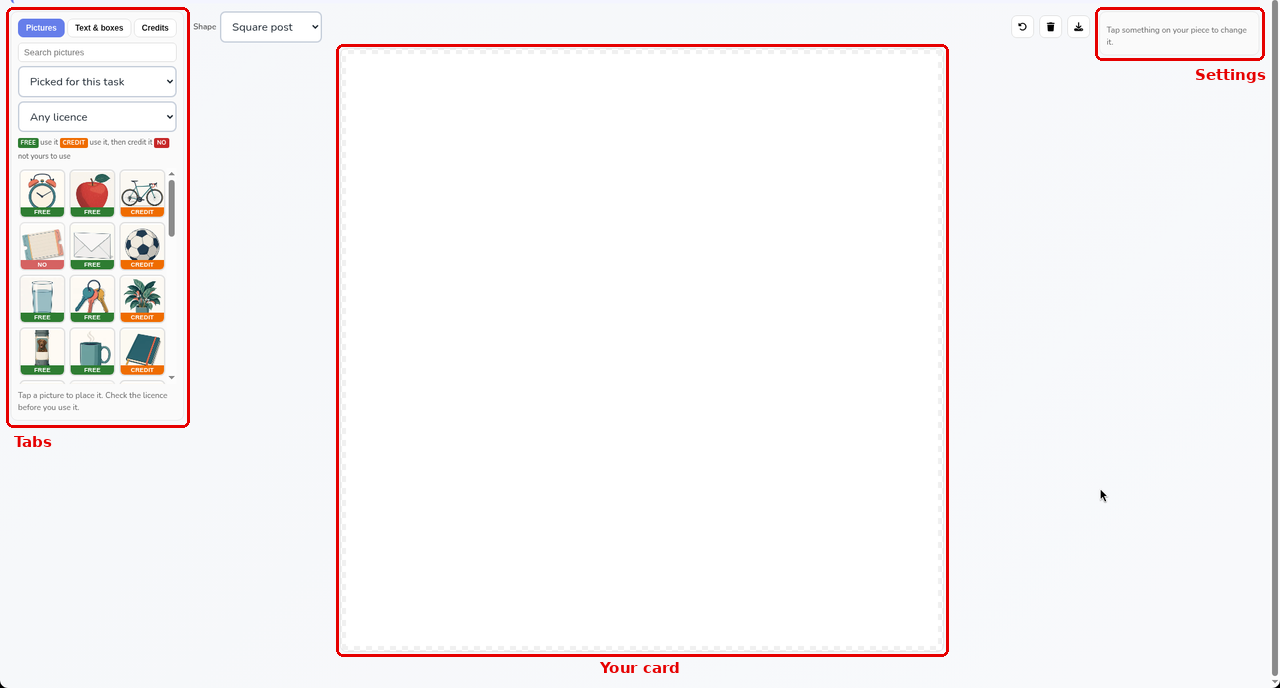
- Pictures tab (on the left): the library opens on the pictures picked for this task. Type in the search box to find something, or open the list that says Picked for this task and choose All themes to see every picture. Tap a picture to put it on your card.
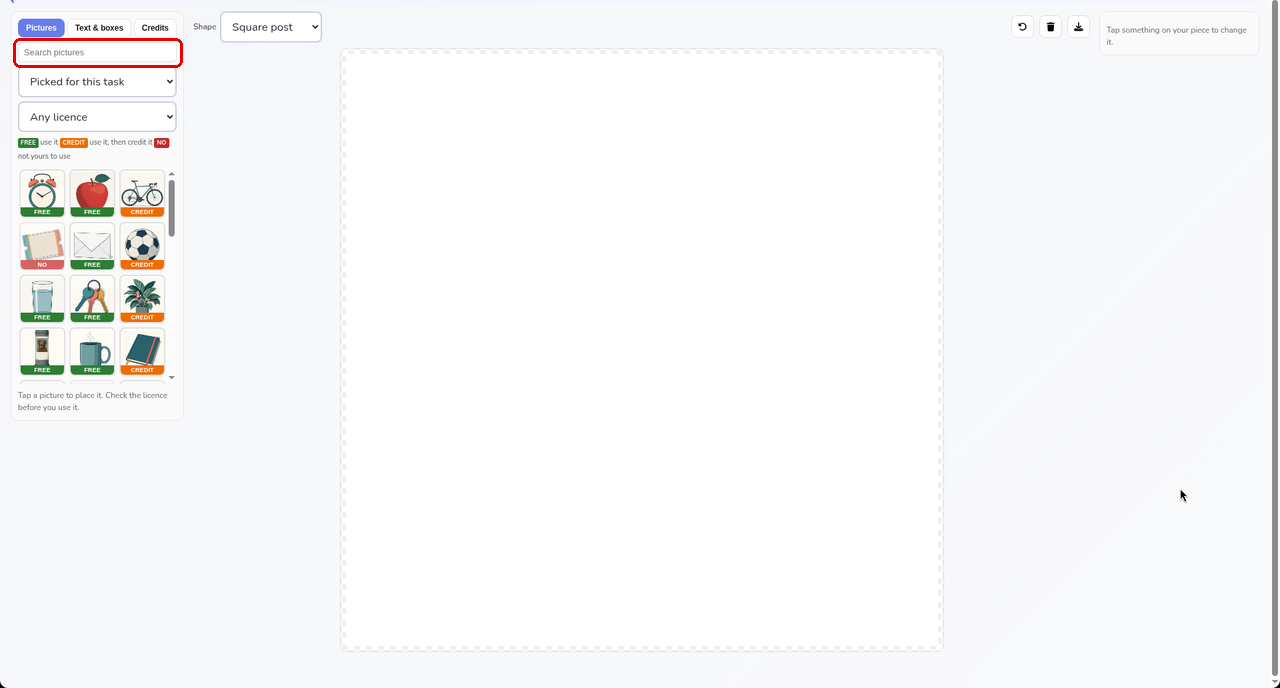
- Text & boxes tab: Headline adds a big title and Text adds a smaller line. Cover box adds a block you can drag over anything you would rather not show.
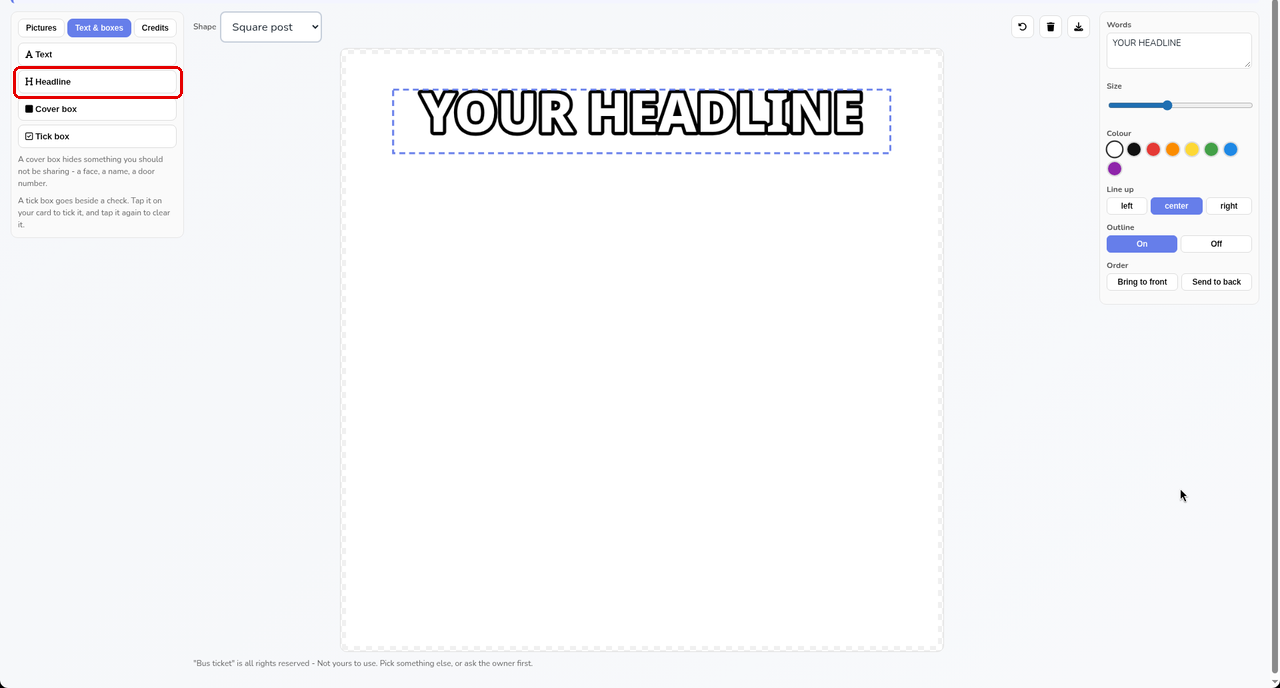
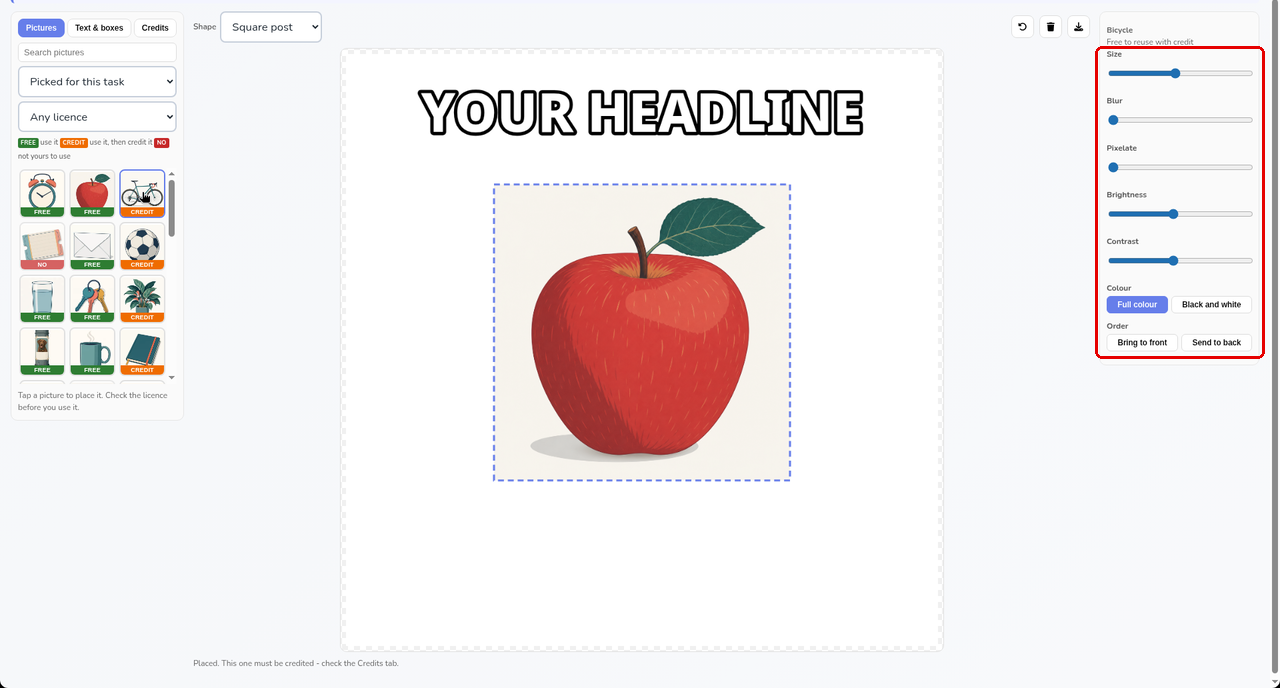
- Your card (in the middle): drag anything to move it. Tap something to choose it, and its settings open in the box at the top right. For a picture, Size makes it bigger or smaller, and Bring to front puts it on top of the others. For words, you can change the words, their size and their colour. Leave Shape on Square today.
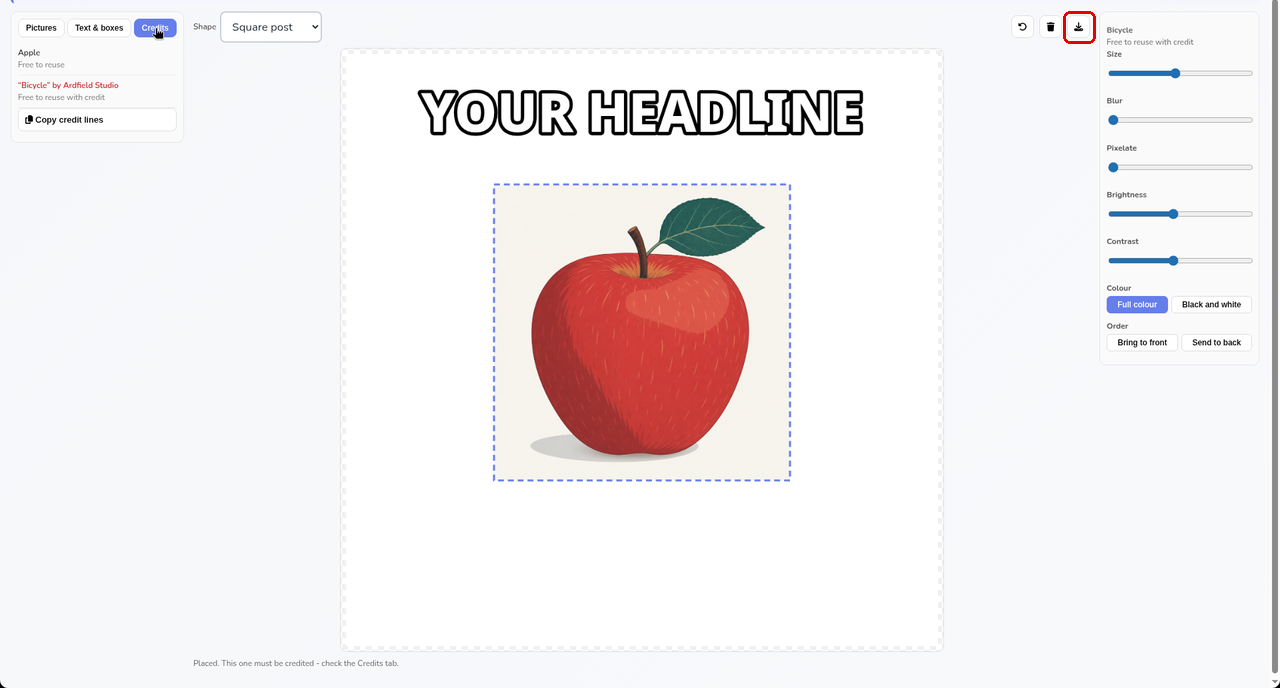
- The three small buttons above your card, on the right: the curved arrow undoes your last change, the bin deletes the thing you chose, and the down arrow downloads your card as a picture.
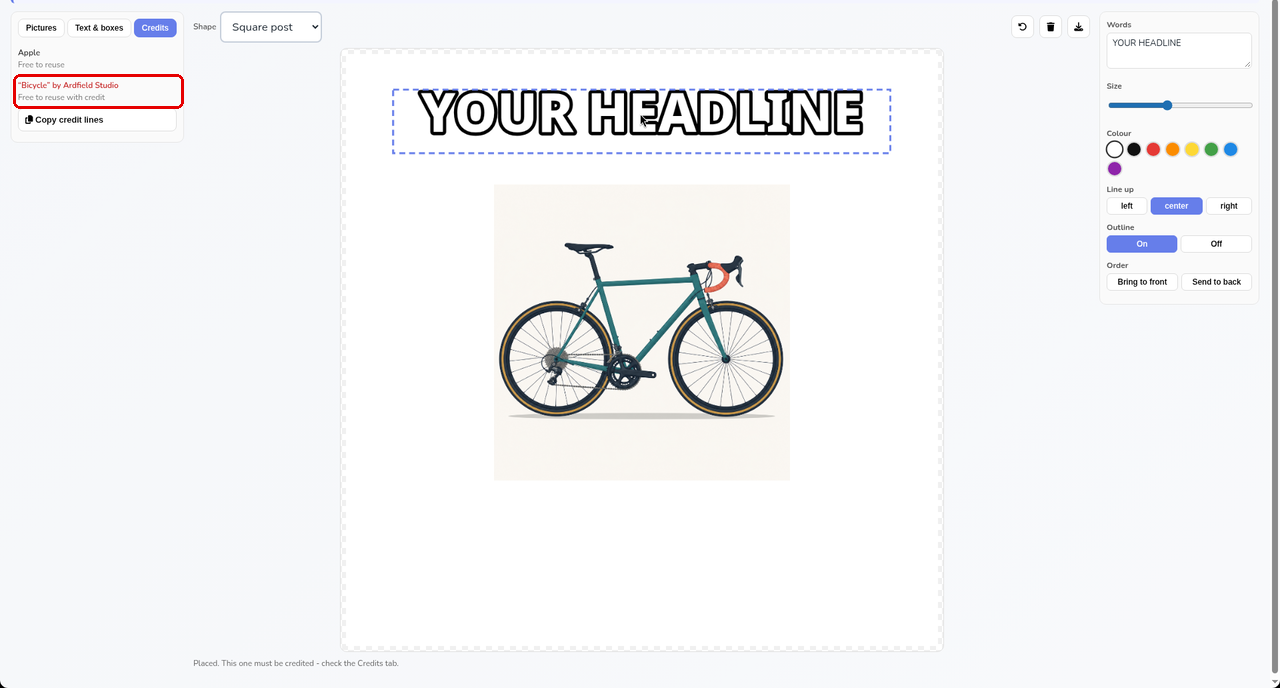
- Credits tab: every picture on your card is listed here, with the credit line for each one that needs it.
You can only use pictures from the card maker's own library. It has no way to add a photo from the internet, or a photo of you.
Each picture has a badge. FREE means you can use it. CREDIT means you can use it with a credit, which is a line saying who made it. NO means it is not yours to use, and the activity will not let you place it. That is meant to happen, so just pick another. At the end, open Credits and check the credit line for each CREDIT picture.
Your card saves as you go, and your teacher can already see it, so you do not need to download it or send it. Your teacher will put three or four on the board next, with the names hidden.
My digital day
Your teacher shows three or four cards on the board without saying whose they are, then builds a class list on the board under three headings: Messaging and social, Video, music and games and School and learning.
- Keep your own card open.
- Guess whose each card is, and say what gave it away. Guessing wrong is fine: the clues are what count, and they are often habits a lot of the class shares.
- Call out one tool, app or habit from your card for the class list, only something you are happy to share. Each heading has a few suggestions your teacher can add with one click, or the class can word its own.
- Help the class mark the ones most people have. Your teacher ticks the circle beside each one.
Your teacher builds the list on the board, so you do not need to type anything in it.
Our class digital patterns
Look at the cards and the class list.
- In one sentence, what does the board tell you about how this class uses digital technology on a normal day?
- Which habit on the board do fewer people have than you expected?
Today you looked at how you spend your day online, and saw what is common in this class and what is different. Everything else in the course starts from here. Later you will judge what you see online, make media of your own and publish it carefully. Today you only needed to describe your habits, not judge them.
Think about
- What did the class patterns show you that your own card alone did not?
- Which part of your online life would you find hardest to give up, and why?
If you are stuck, start with: "When I saw the class list, I noticed..."
Today you:
- Heard the four things this course will help you get better at online, and the project it leads to.
- Made a card about your own digital day, using only pictures you were allowed to use.
- Helped the class sort its habits under three headings: Messaging and social; Video, music and games; and School and learning.
- Saw which habits most of the class shares, and which are rarer than you expected.
Describe first, judge later. Knowing your own habits is where the rest of this course starts.
That was a sample lesson from Digital Media Literacy Short Course
Every lesson in the course is ready to teach like this one. See what else comes with it, and how to order it.
This lesson is copyright of Coding Ireland 2017 - 2026. Unauthorised use, copying or distribution is not allowed.